

A customer submitted a review, but didn't receive points.
If a customer says they submitted a review but didn’t receive points, it’s usually because the review hasn’t been approved and published yet, and/or the customer wasn’t a loyalty member at the time Roadmap tried to award points, or the customer attempted to submit a review using a one-time review form URL that was already used.
Quick checklist
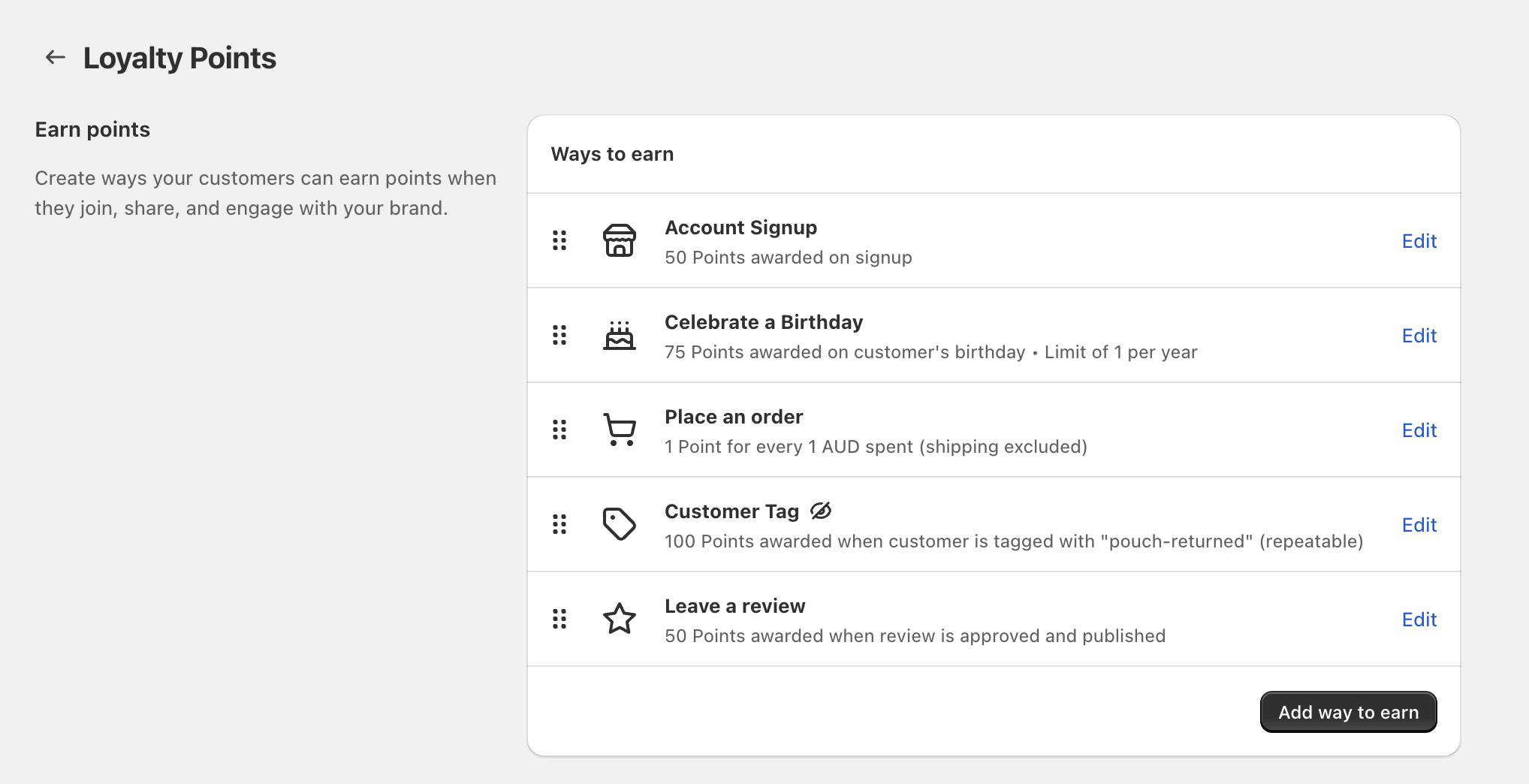
Go to Loyalty Program → Points and review Ways to earn. Make sure you have a Leave a review rule.
In Ways to earn, check the rule description for Leave a review. Points are awarded when the review is approved and published.
Go to Loyalty Program → Manage Customers and open the customer record to confirm whether points were awarded.
If the customer says they “submitted again” (or keeps trying), confirm they are not using a review form URL that has already been used for that product ID + order ID.
If you’re testing, use a brand-new test customer and a brand-new order/review URL. Re-using the same review form link can make it look like the form is “broken” when it’s actually enforcing the one-submission rule.
Step 1: Verify your “Ways to earn” setup
Open Loyalty Program → Points. On the Loyalty Points screen, your earning actions appear under Ways to earn.
To change a rule, click Edit next to it.
To create a new rule, click Add way to earn.
Common earning rules you might see include Account Signup, Celebrate a Birthday, Place an order, Customer Tag, and Leave a review.
Step 2: If the issue is a review, check these scenarios
In Roadmap, the Leave a review earning rule is awarded when the review is approved and published (this is shown in the rule description).
Confirm the customer actually submitted a review.
Confirm the review has been approved/published (unapproved reviews won’t earn points yet).
In Ways to earn, click Edit next to Leave a review to confirm the points amount.
If your team moderates reviews, there can be a delay between submission and publication—points won’t be awarded until the review is published.
Sometimes it looks like a customer “joined loyalty after buying.” This can happen when the customer places an order first, then creates an account later (for example, a legacy account created after purchase). If your loyalty program requires a customer account, points can only be awarded once the customer exists as a loyalty member profile.
Go to Loyalty Program → Manage Customers and open the customer. Confirm they appear as a loyalty customer and review their recent activity/points changes.
Make sure the email address used for the order matches the email on the loyalty customer record. If the order was placed as a guest using a different email, points may be awarded to a different customer record (or not at all).
In Klaviyo, open the customer profile and review the event timeline. Look for Roadmap review activity (for example the Roadmap: Review Submitted metric) and compare timestamps to the customer’s account/loyalty enrolment timing.
If your Klaviyo customer timeline shows the review event occurred before the customer had a loyalty account, that helps explain why points weren’t attached at the time of submission.
Roadmap review request links are designed for one review submission per form URL. The URL includes a product ID and an order ID. Once that product/order combination has already been used to successfully submit a review, attempting to submit again with the same URL won’t create a second review.
If a customer clicks the same review request email link multiple times (or forwards it), they may hit this one-submission limit.
If your flow re-sends the same email/link for the same order, it can also lead to repeat clicks of an already-used URL.
If the customer says they submitted a review but then tries to submit again using the same URL, it may look like “nothing happens” even though the original review submission worked.
We have development scheduled to add an on-screen error message for this scenario so it’s clearer to customers when a review link has already been used.
Step 3: Check the customer’s points in “Manage Customers”
If the earning rules look correct but the customer claims they didn’t earn points, confirm what Roadmap recorded for that customer:
Go to Loyalty Program → Manage Customers.
Search for the customer and open their record.
Confirm the customer’s current points balance and check whether the expected points were added after the review was approved and published.
If the points are present in Manage Customers but the customer can’t see them on your storefront, review your storefront setup in Edit Loyalty Widgets (from the top of the Loyalty Program page).
When to contact support
If none of the checks above explain the issue, collect these details before clicking Contact Support (on the Loyalty Program page):
A screenshot of Points → Ways to earn showing the Leave a review rule description
The customer email (or Shopify customer name)
The related order number and the product reviewed
Whether the review is approved/published
What you see in Loyalty Program → Manage Customers for that customer (points balance and recent activity)
If relevant: confirmation that the customer used the same review form URL more than once (or that the URL was re-sent)
Learn how review request links work and how to structure post-purchase review requests.
Use Roadmap’s Roadmap: Review Submitted metric and splits to manage review follow-ups.