

How to create your email design (Dynamic Table)
What you’ll build
This walkthrough shows how to create one “universal” post‑purchase review email in Klaviyo that works for customers who ordered one item or multiple items. The key is adding a dynamic table that repeats once per line item and generates the correct product image, name, and review link.
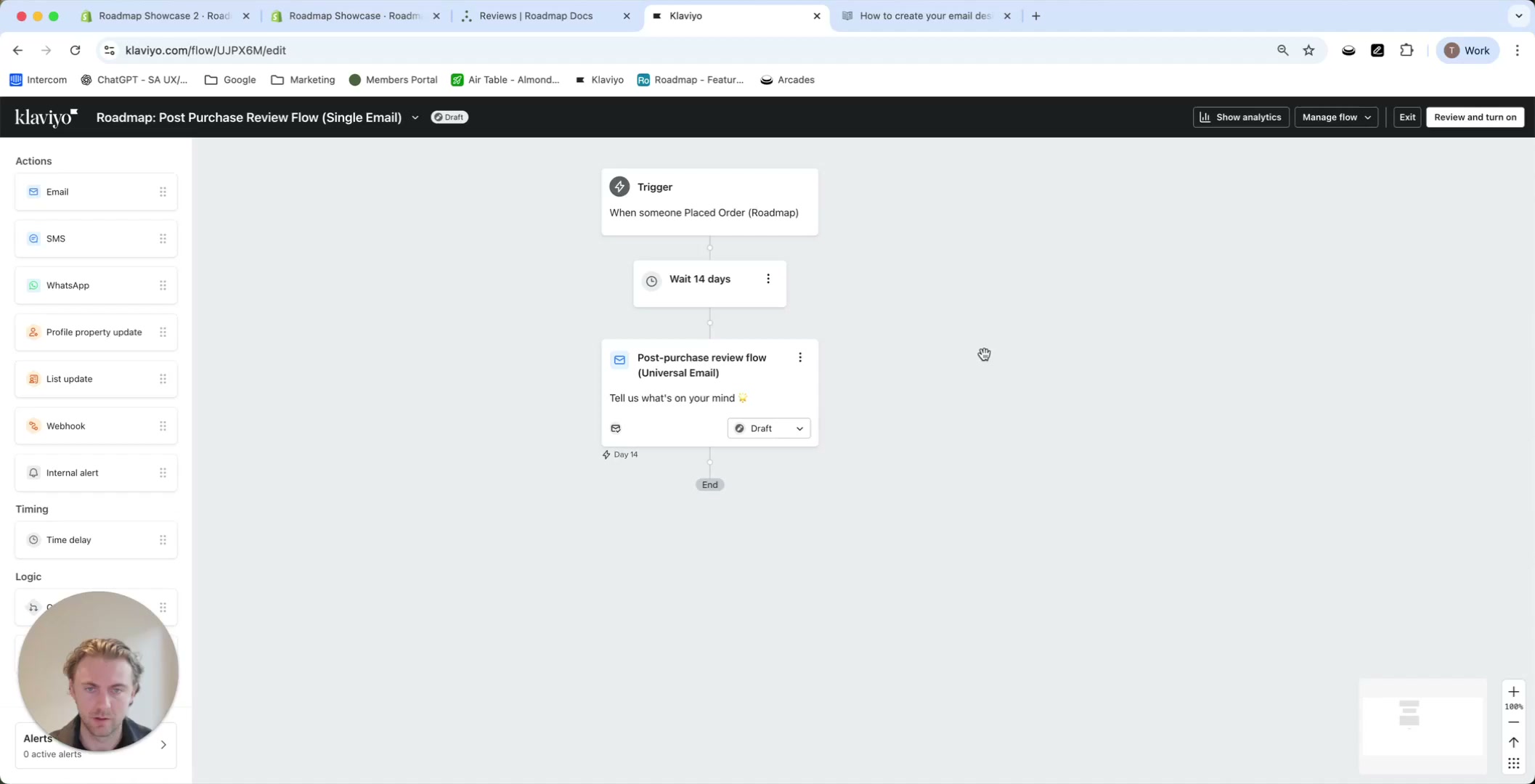
Open your post‑purchase review email
In Klaviyo’s flow builder, open your post‑purchase review flow (for example, Post Purchase Review Flow (Single Email)).
Select the email step (for example, Post‑purchase review flow (Universal Email)) to open it in the email editor.
Add a Table block (the repeating item section)
In the email editor, drag a Table block into your email where you want the list of items to appear.
Use the Table layout to choose where your content goes (common setup: image on the left, text on the right). You can swap columns later.
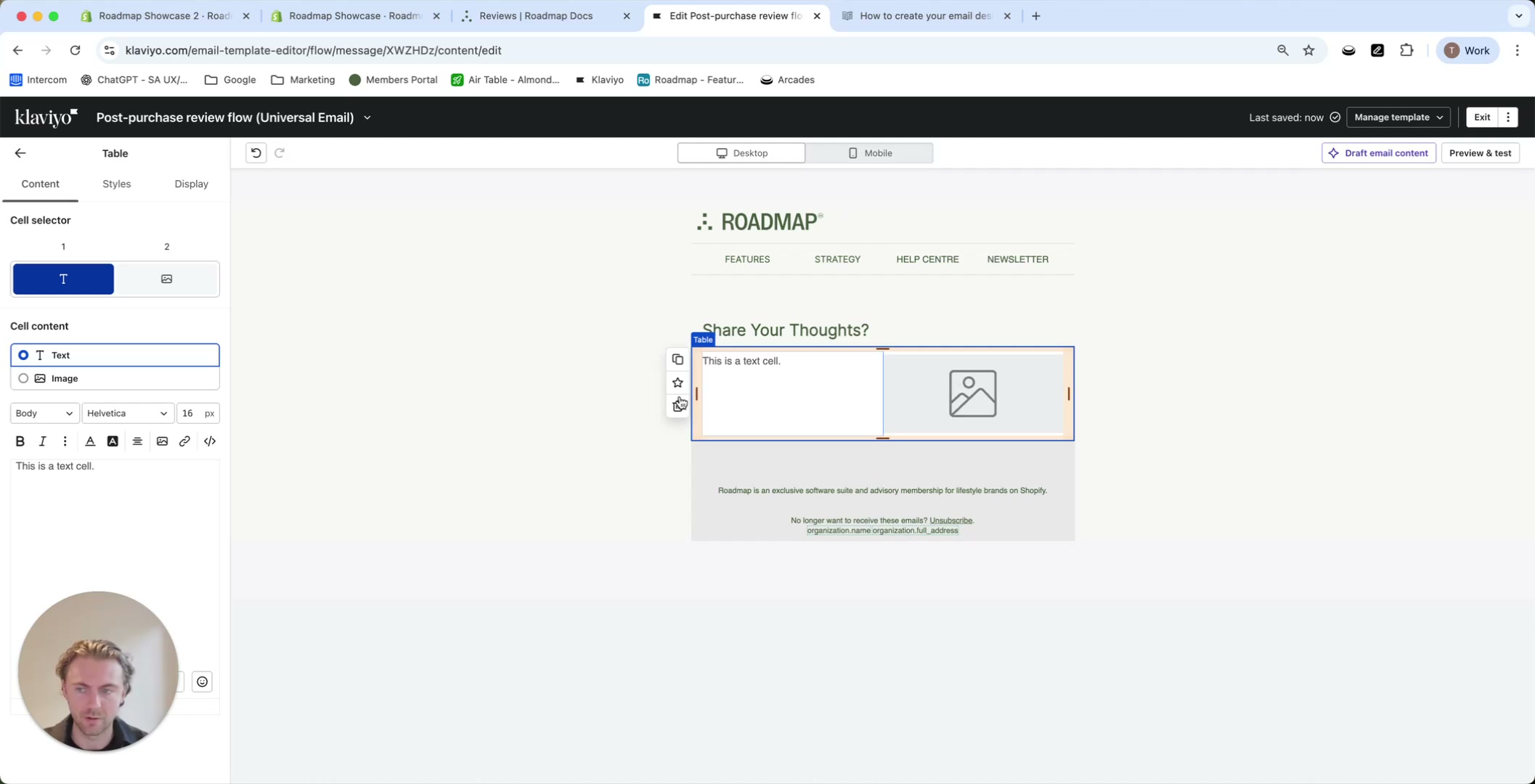
Turn the table into a dynamic (repeating) table
Select the Table block, then open the Styles tab.
In the Data section, change from Static to Dynamic.
In the Dynamic settings, set:
- Data row to
event.extra.lineItems.edges - Item alias to
item
This tells Klaviyo to repeat the table once for each line item in the order.
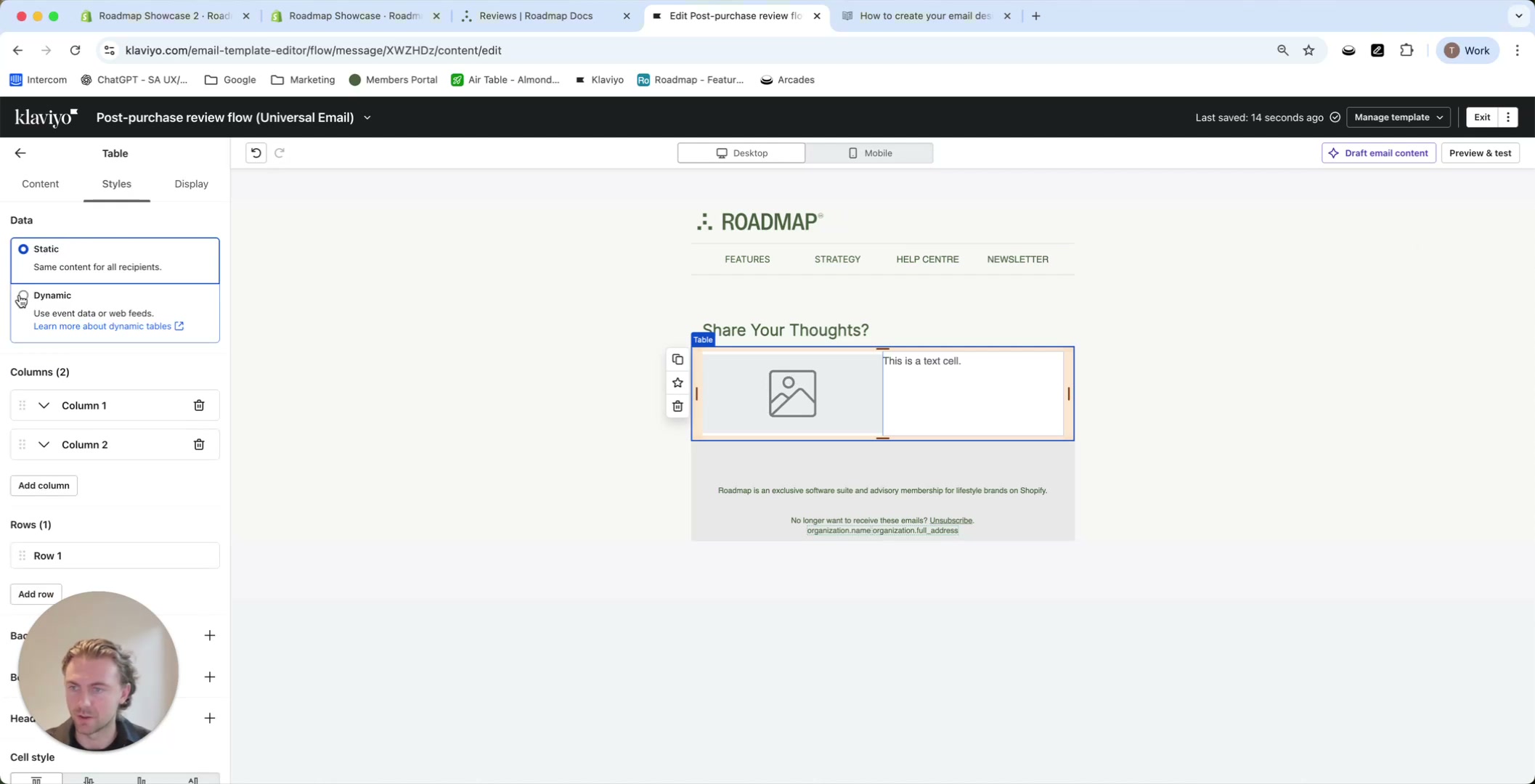
Make the image and text dynamic
Now that the table repeats per item, you’ll replace the placeholder content with Roadmap’s Liquid variables.
Select the image cell in your table. In the image settings, choose Dynamic Image, then paste:
{{ item.node.product.featuredImage | default:"" }}Save your changes. In preview, the product image should populate for each item.
Select the text cell and replace the placeholder copy with the item title:
{{ item.node.title | default:"" }}If you want the item name to link to the product page, use this URL format:
{{ organization.url }}/products/{{ item.node.product.handle | default:"" }}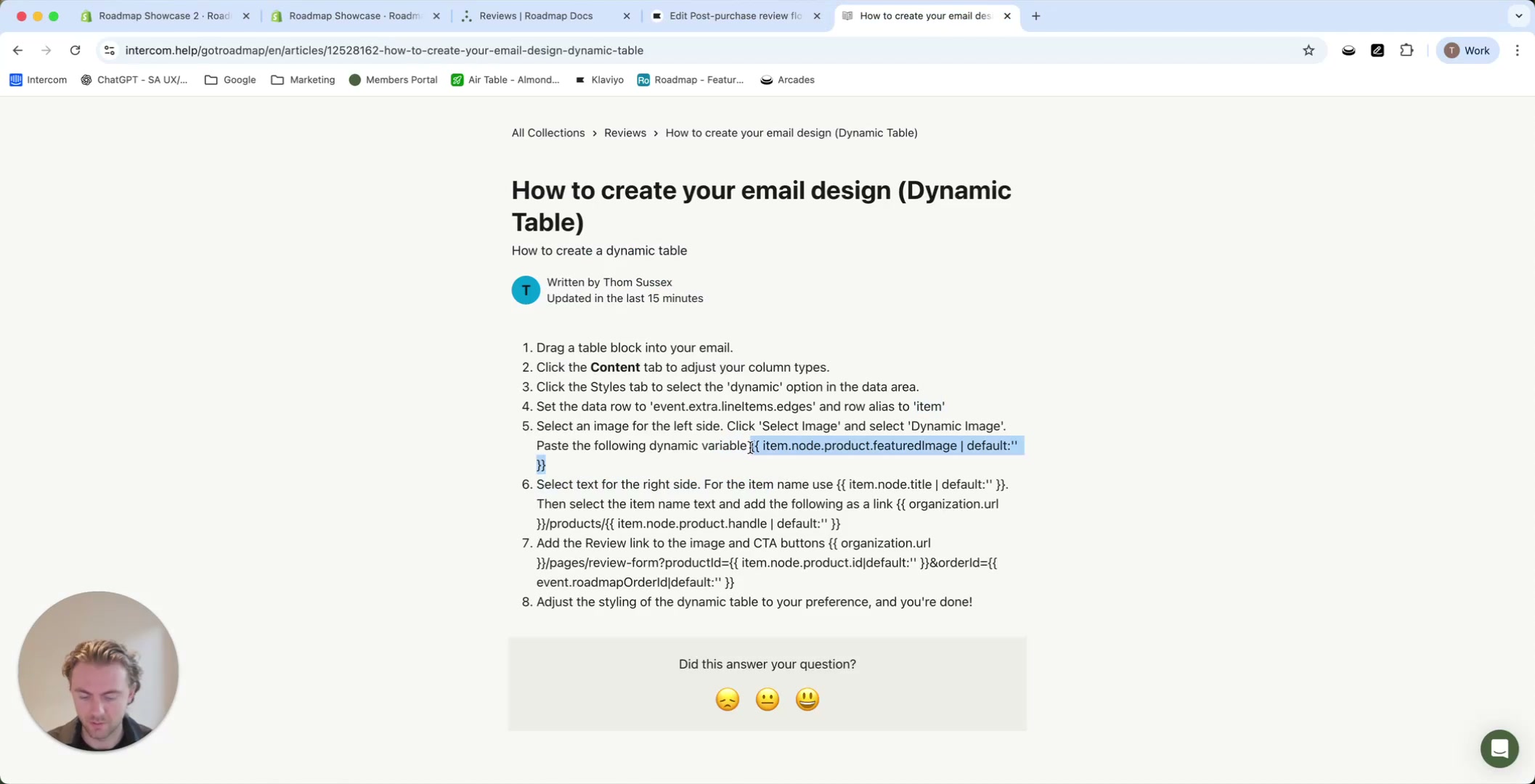
Add the per‑item “Leave a review” link
Your call-to-action (CTA) should send customers to the Roadmap review form for the specific product in that table row.
Add CTA copy in the text column (for example, Leave a review, Share your thoughts, or Love to hear from you).
Set the CTA link to the following URL (product is dynamic per row; order stays the same for the email):
{{ organization.url }}/pages/review-form?productId={{ item.node.product.id | default:"" }}&orderId={{ event.roadmapOrderId|default:"" }}Style the block, then add non‑dynamic sections
Once the dynamic table is working, you can style it like any other Table block—padding, image sizing, text alignment, and spacing.
After that, add any blocks that should appear the same for every recipient (for example, an Instagram callout, loyalty signup, or other brand touchpoints).
Preview and confirm it works for multi‑item orders
Click Preview & test to enter preview mode.
Confirm the table repeats once per line item and that images and titles populate correctly.
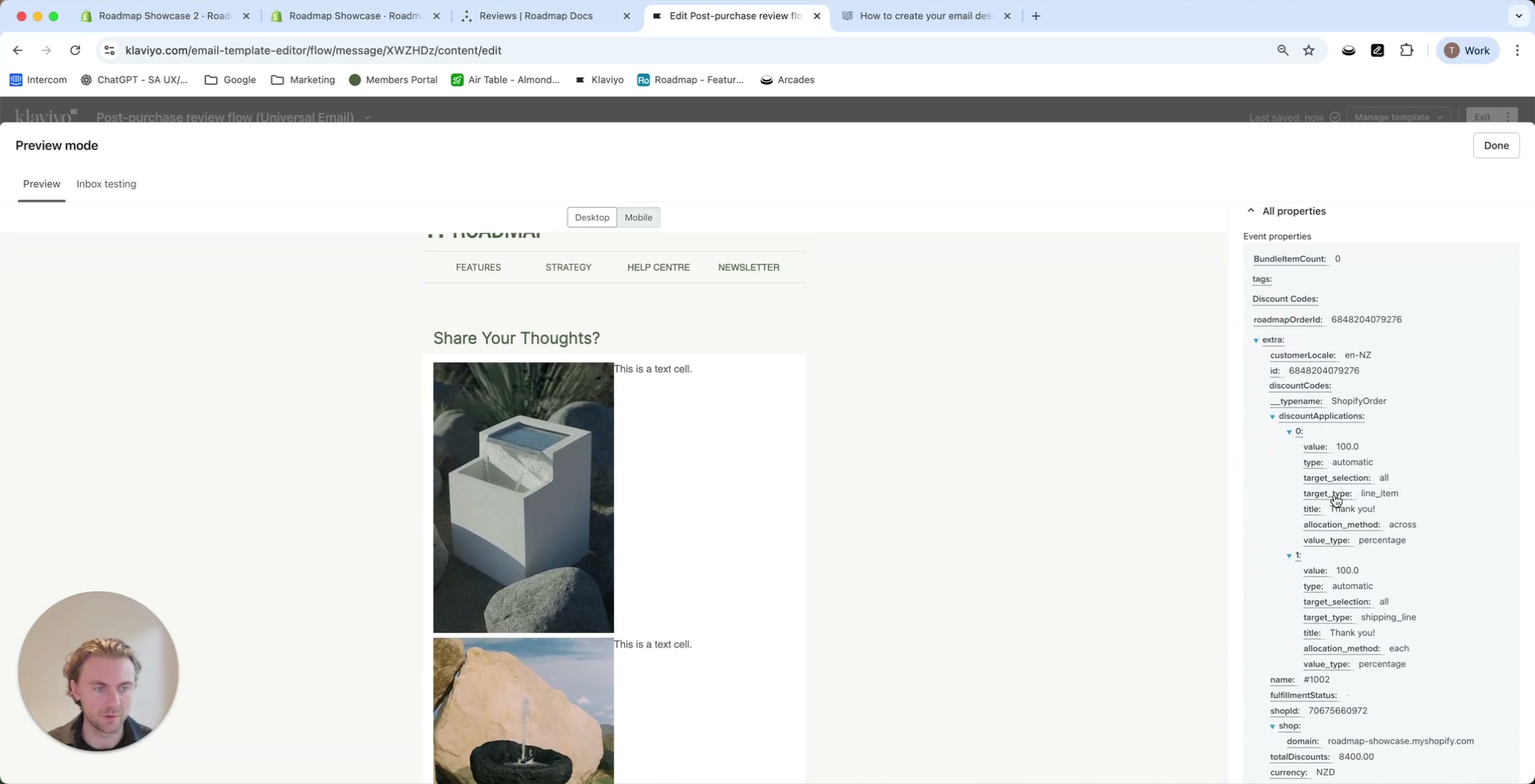
In preview, click each product’s Leave a review link. Each one should open the Roadmap review form for that specific product from the order.
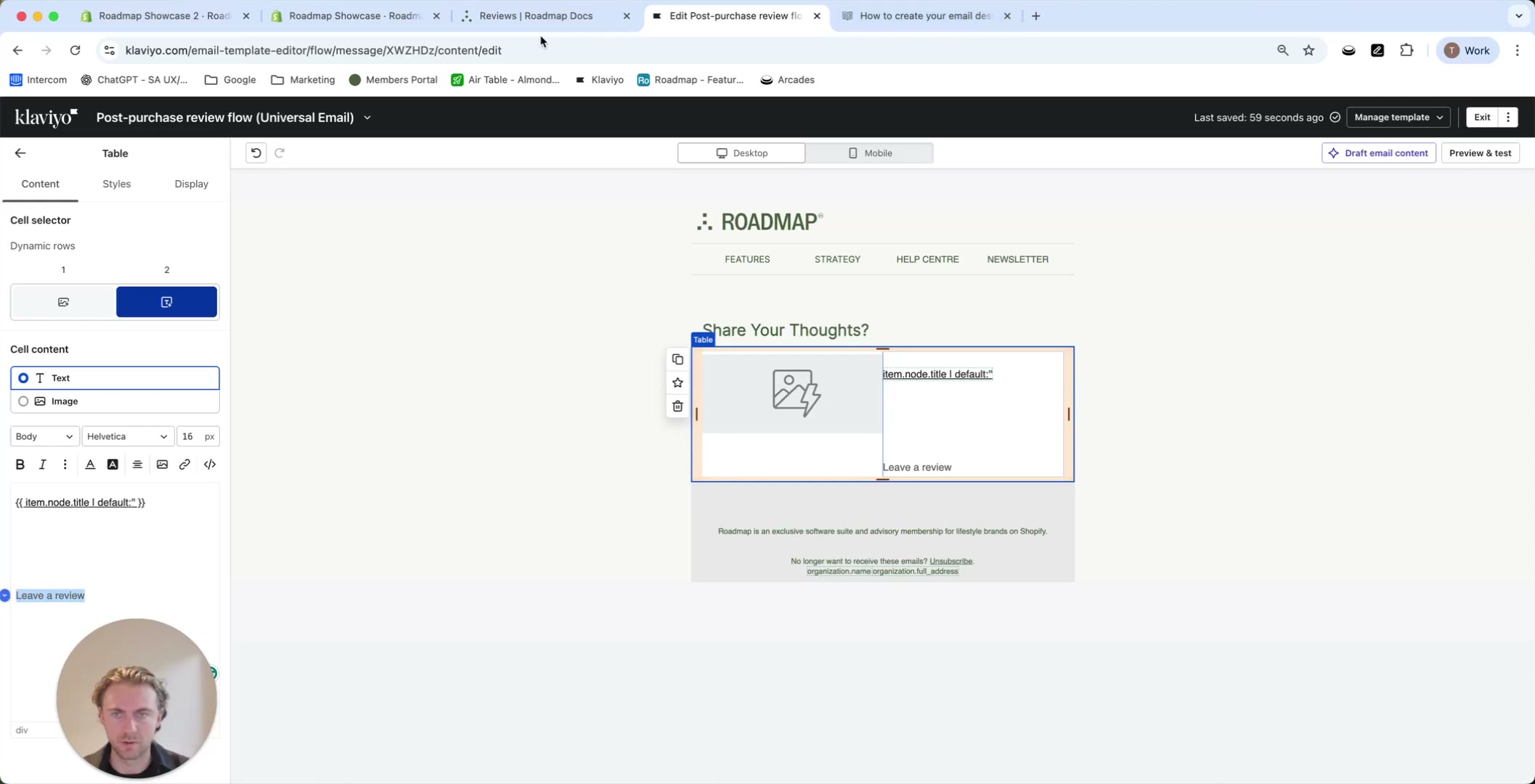
event.extra.lineItems.edges) and the alias (item). A mismatch will prevent the variables from resolving.Liquid snippets used in this walkthrough
- Data row:
event.extra.lineItems.edges - Alias:
item
{{ item.node.product.featuredImage | default:"" }}{{ item.node.title | default:"" }}{{ organization.url }}/products/{{ item.node.product.handle | default:"" }}{{ organization.url }}/pages/review-form?productId={{ item.node.product.id | default:"" }}&orderId={{ event.roadmapOrderId|default:"" }}