

How Do I Share Reviews Across Products, Stores and Bundles?
Roadmap Reviews can share and aggregate reviews across:
Products (group similar SKUs so they share the same review pool)
Stores (sync reviews between connected stores)
Bundles (optionally include component-product reviews on bundle products)
You’ll configure Shared Reviews in Settings, then manage everything from the Shared Reviews page (store connections, product mapping, and review groups).
Before you start
Make sure you can open Apps → Roadmap → Reviews in each store you want to connect.
If you plan to share reviews between stores, you’ll need to enable Shared Reviews in each store.
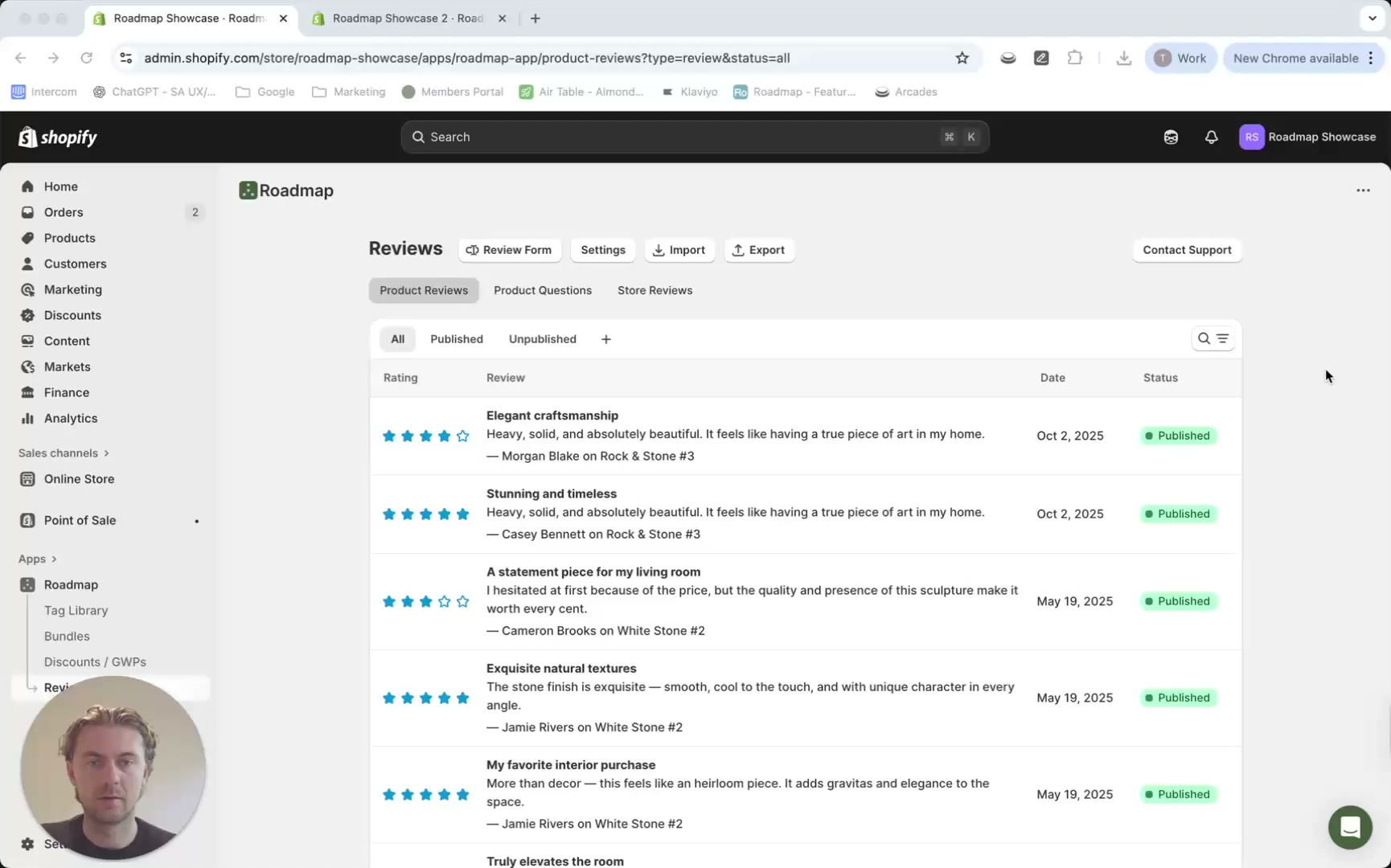
1) Enable Shared Reviews in Settings
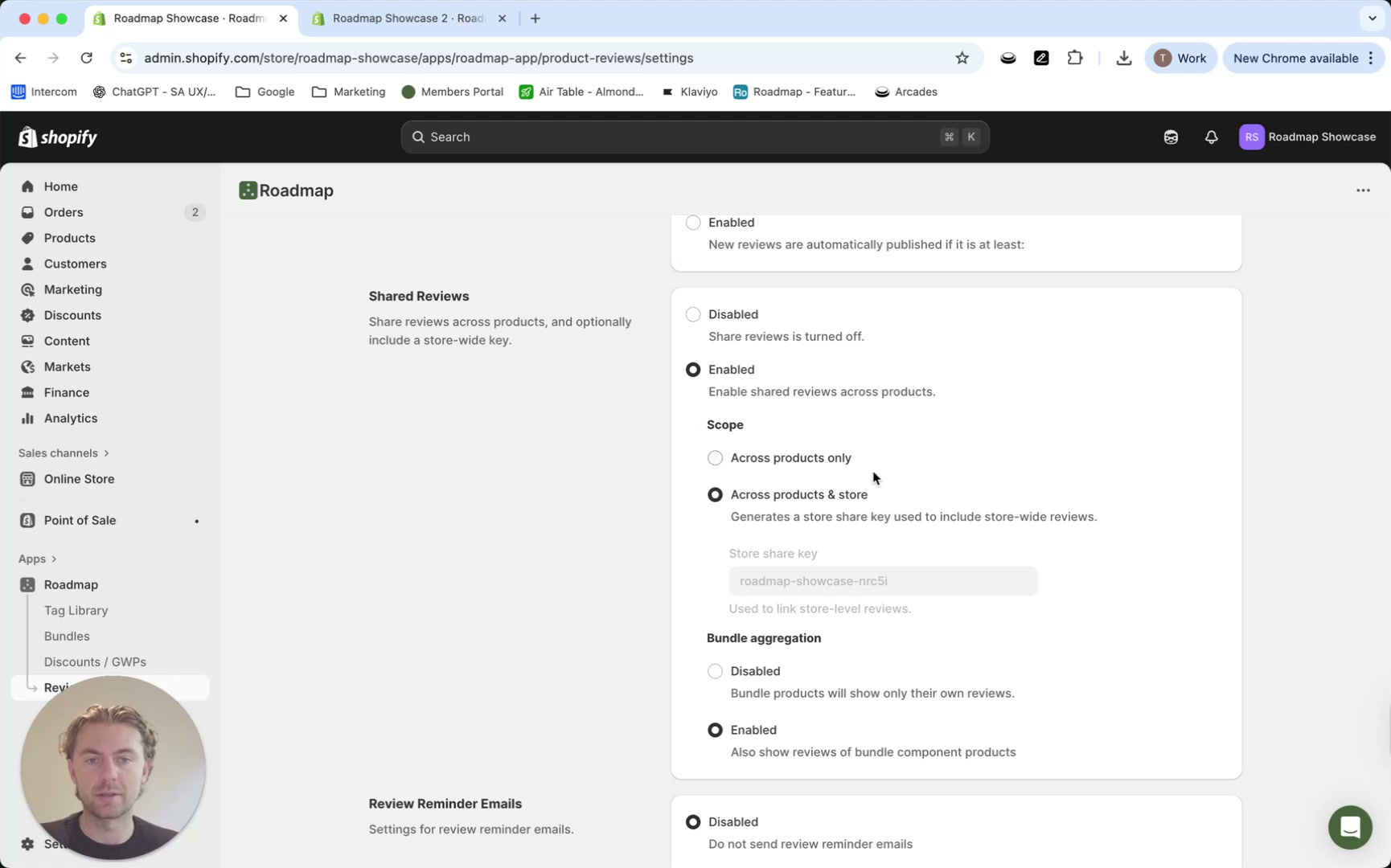
In Shopify admin, go to Apps → Roadmap → Reviews, then click Settings.
In the Shared Reviews section, set it to Enabled.
Then choose your Scope:
Across products only (share within product groups you create)
Across products & store (also generates a Store share key used to connect stores)
Under Bundle aggregation, set to Enabled if you want bundle products to also show reviews from their component products.
Click Save.
If you’re connecting two stores, repeat these steps in your secondary store as well. Store sharing won’t work unless Shared Reviews are enabled in each store.
2) Connect your stores (Store Sharing)
Once you’ve enabled Across products & store, your store generates a Store share key. You’ll use this key to link stores.
In Reviews → Settings, find the Store share key and copy it.
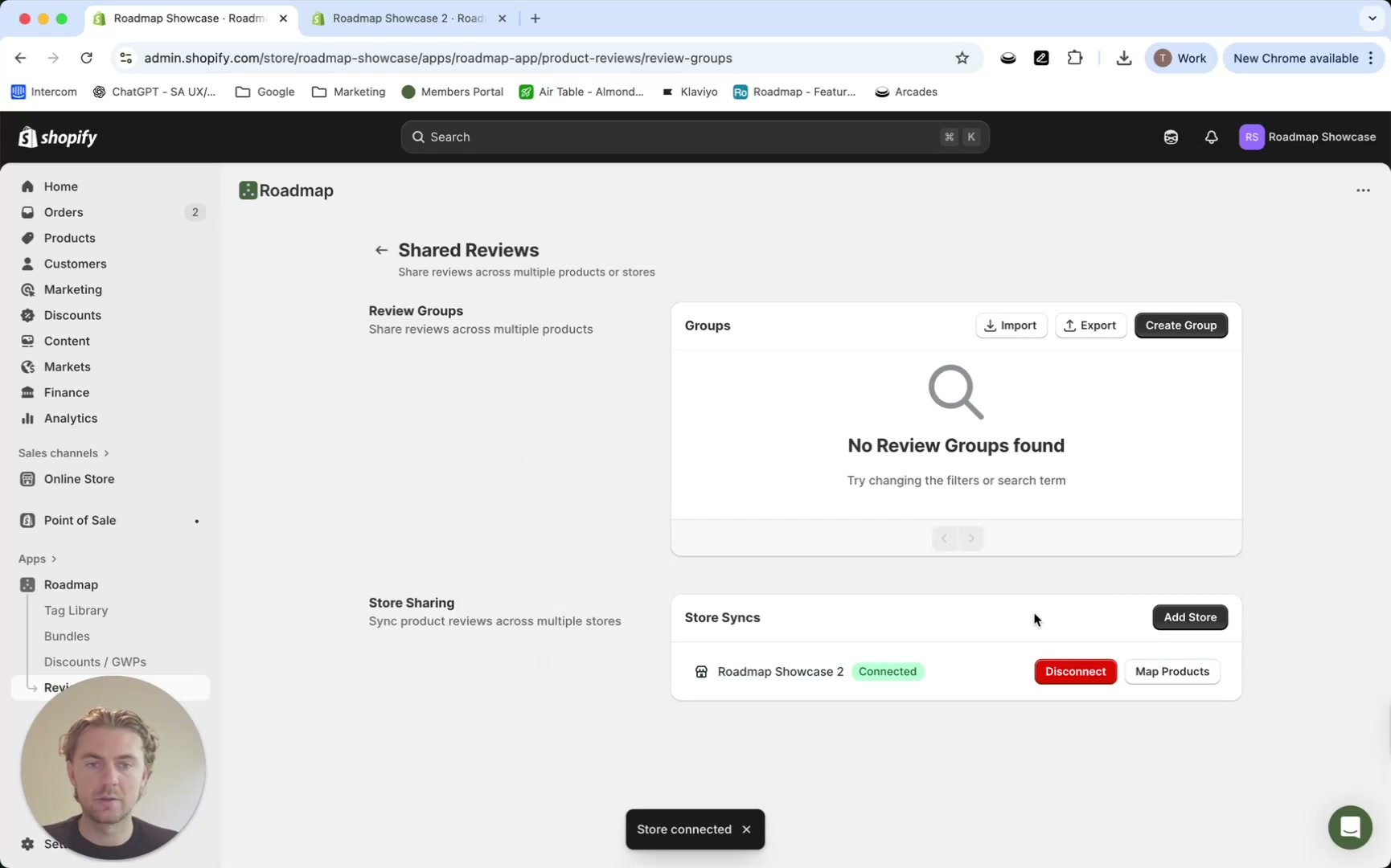
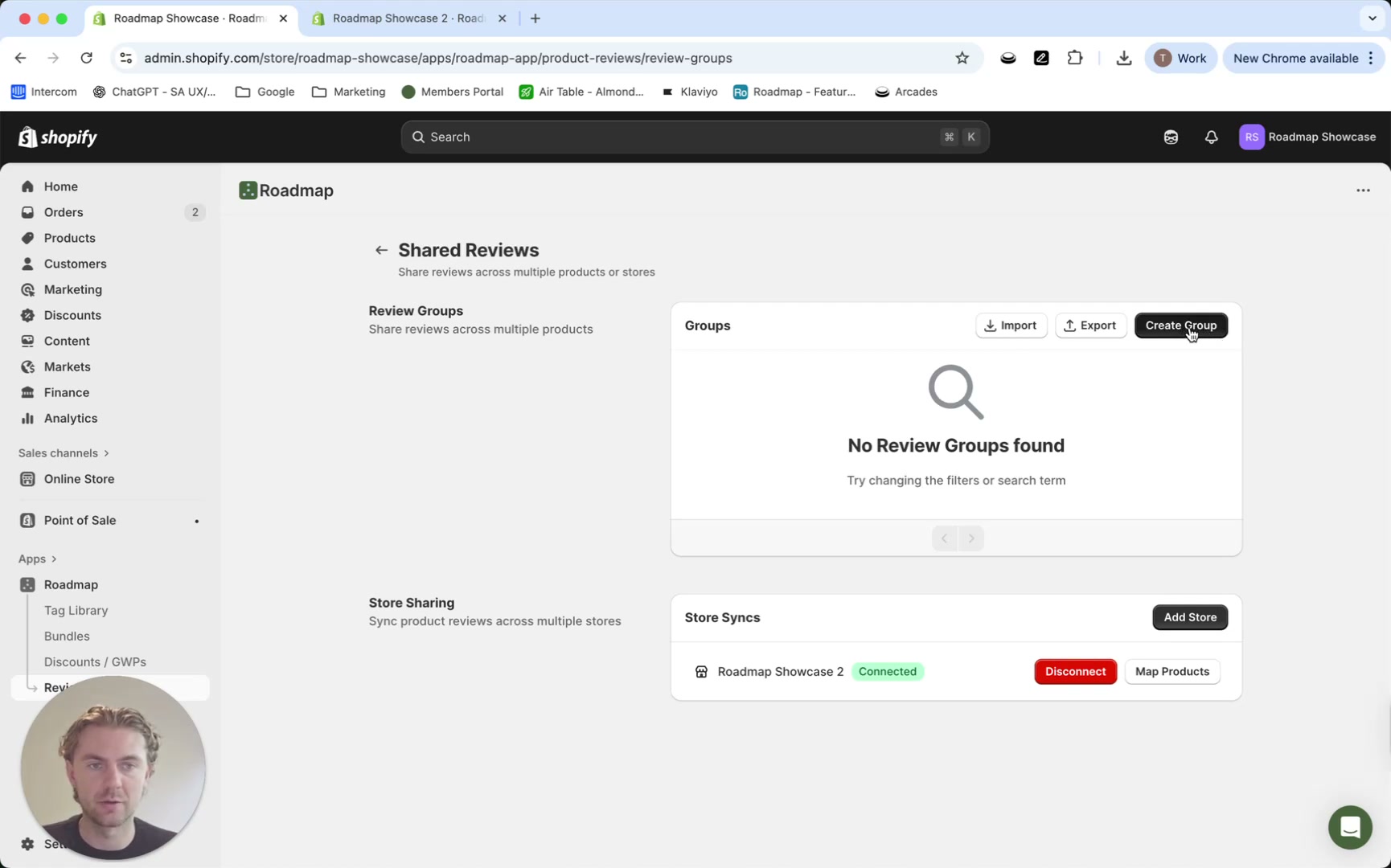
Go to Apps → Roadmap → Reviews and open the Shared Reviews page (it shows Review Groups and Store Sharing).
In the Store Syncs area, click Add Store, paste the key, and connect.
After connecting, you’ll see the store listed with a Connected status.
3) Map products between stores
After stores are connected, map which products should share reviews across those stores.
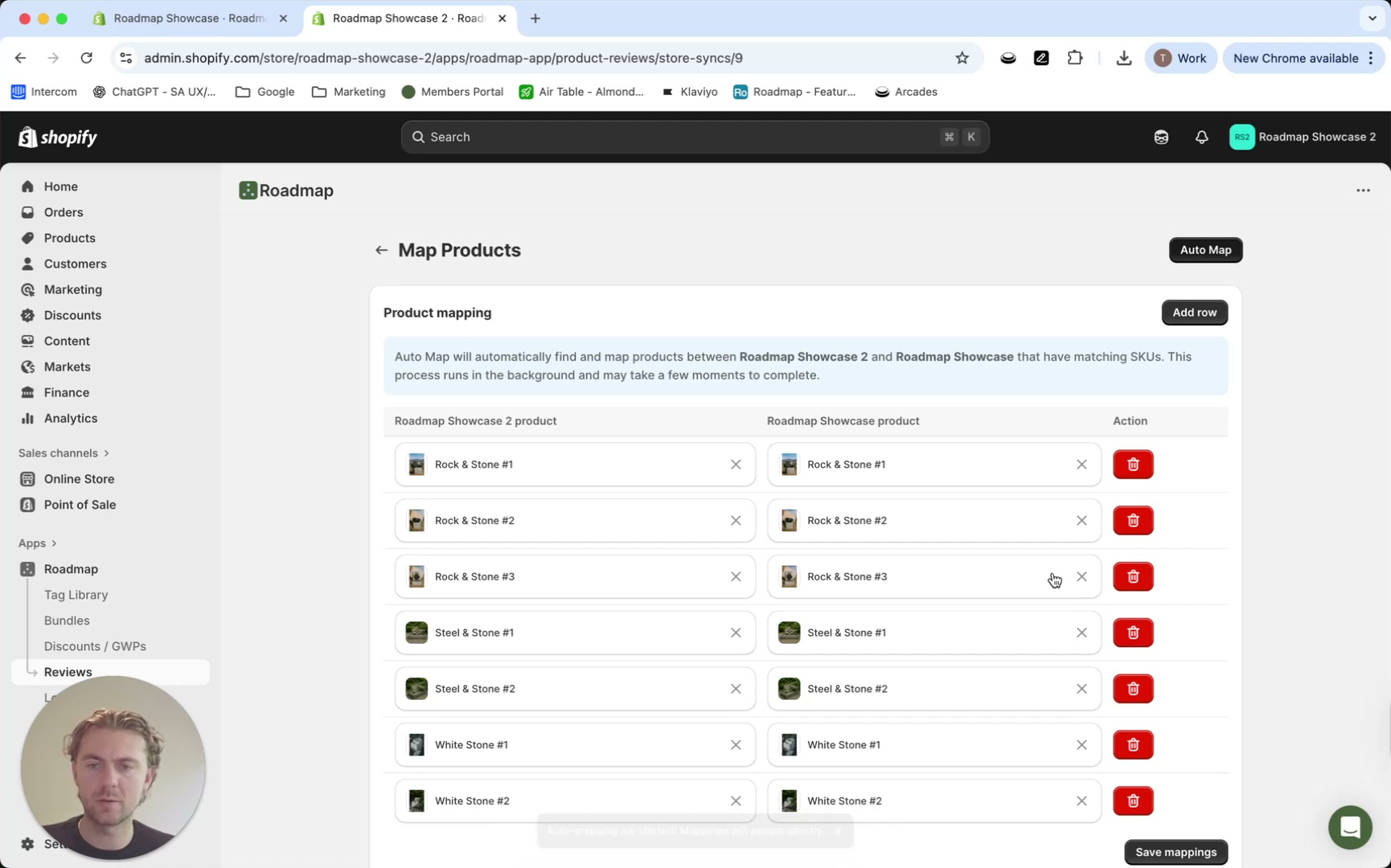
From Shared Reviews, in the connected store row, click Map Products.
On the Map Products page, click Auto Map. This automatically matches products between stores by SKU.
When it completes, review the mappings shown in the Product mapping list.
You can remove incorrect matches using the delete (trash) action in the Action column.
When you’re happy, click Save mappings.
Auto Map may take a while for large catalogs. If your store has many products, allow time for the process to run.
4) Create review groups to share reviews across similar SKUs
Review groups let you share a single review pool across multiple products (for example: different sizes, colors, flavors, or variations that are separate SKUs).
Go to Reviews → Shared Reviews and click Create Group in the Groups area.
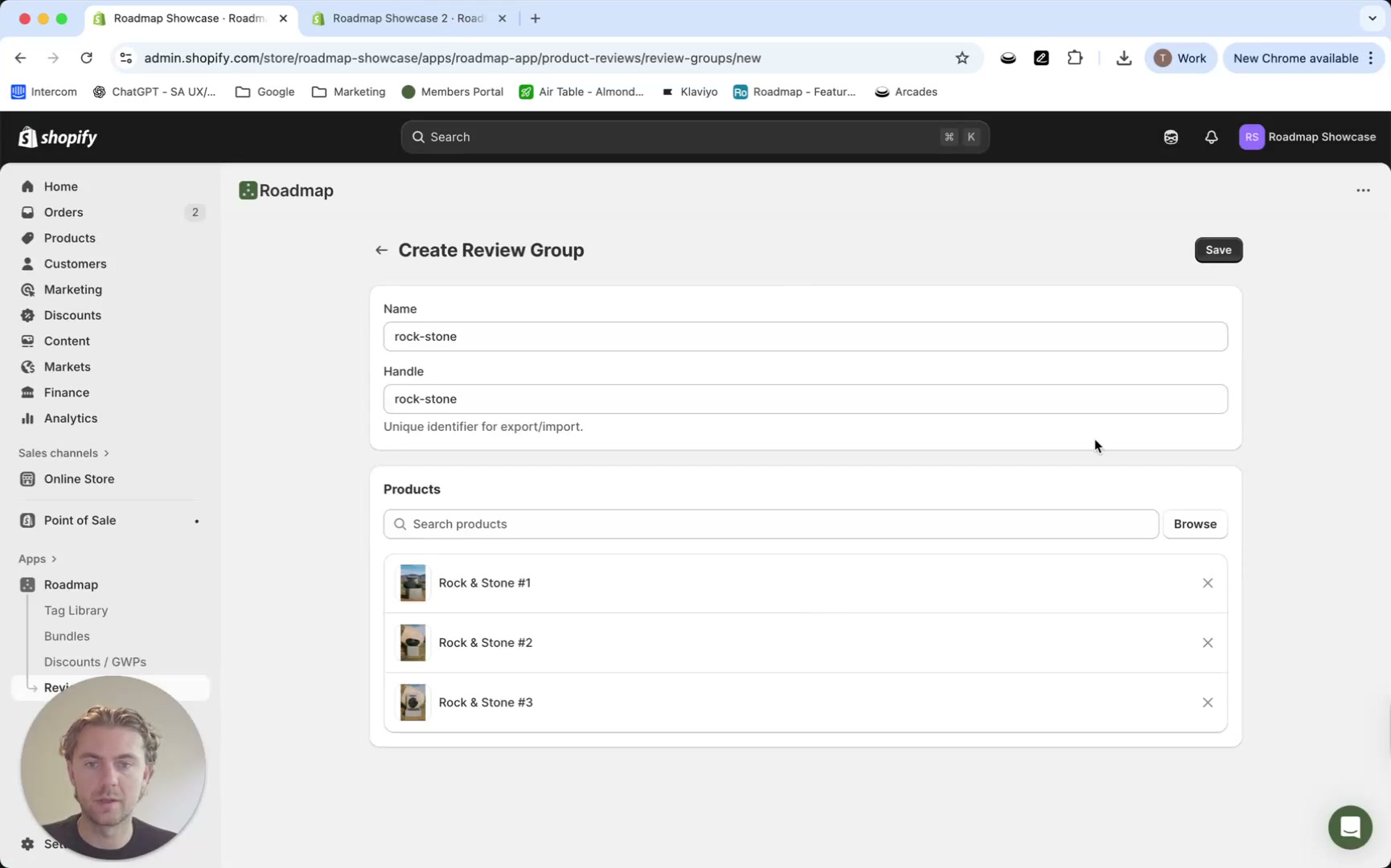
On Create Review Group, enter a Name.
The Handle is used as a unique identifier for export/import.
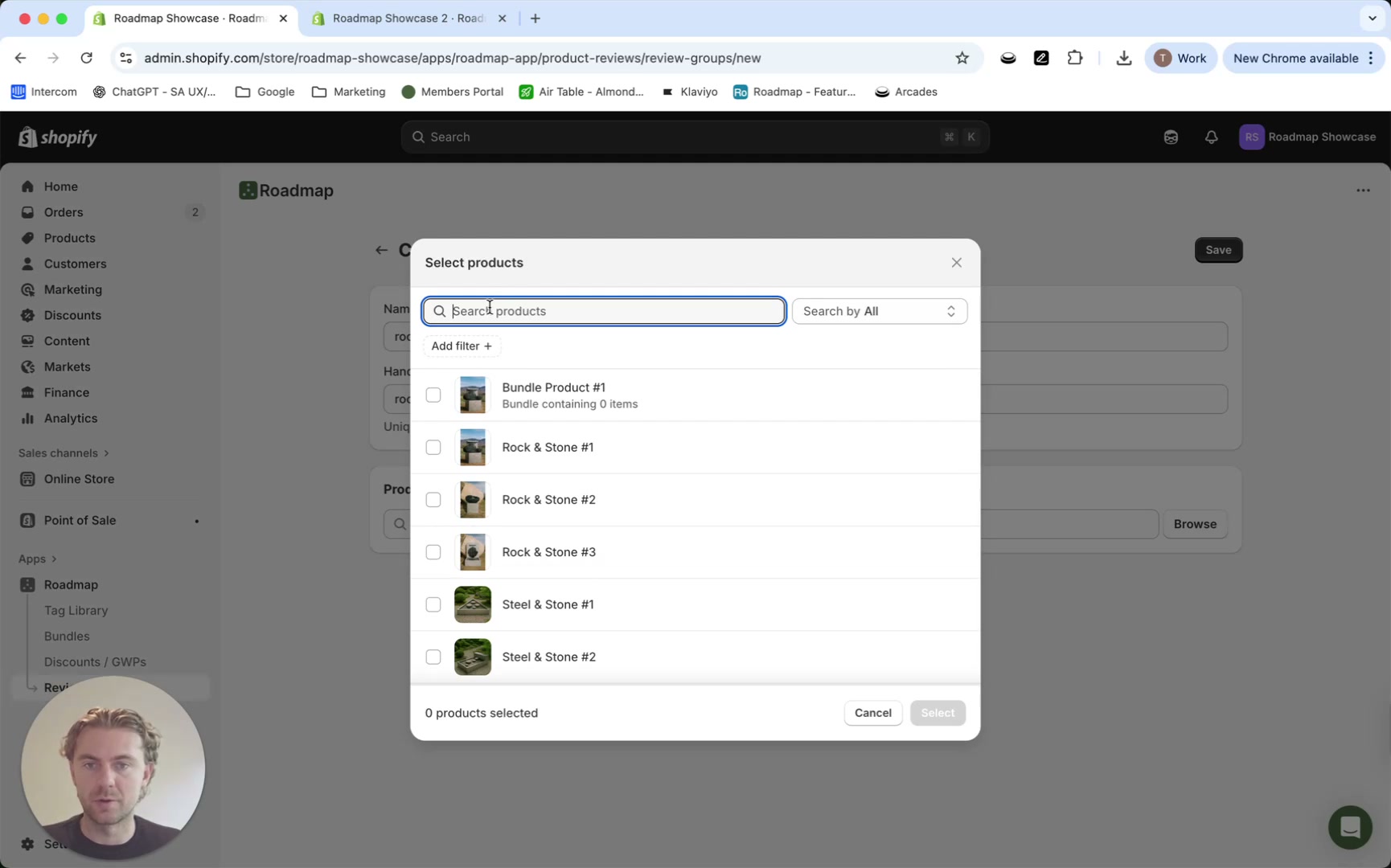
In the Products section, click Browse to open Select products.
Use Search products to find items, tick the checkboxes, then click Select.
Click Save. Your group will appear back on the Shared Reviews page and will begin aggregating review counts/ratings across the products in that group.
5) Confirm your Shared Reviews setup
Back on Shared Reviews, you should see:
Your group listed in Groups (with aggregation visible for the group)
Your connected store listed under Store Syncs with status Connected
Import/export groups to another store (store-by-store)
Review groups are managed per store. If you want the same groups in another connected store:
In the store where groups already exist, go to Shared Reviews and click Export.
In your other store, go to Shared Reviews and click Import.
Bundle review sharing requires no extra steps beyond enabling Bundle aggregation in Reviews → Settings.
Across products only: lets you create Review Groups so similar products share reviews within the same store.
Across products & store: adds store-to-store syncing using the Store share key, plus product mapping via Map Products.
Mapping tells Roadmap which product in Store A corresponds to which product in Store B so reviews can sync correctly. Auto Map matches by SKU, and you can remove incorrect matches before you Save mappings.