

Why aren’t customers earning points?
If customers aren’t earning points, the issue is usually that the action they took doesn’t match your Ways to earn rules (or the rule has a limit/requirement that wasn’t met). Use this checklist to quickly find what’s missing.
Quick checklist
Step 1: Verify your “Ways to earn” setup
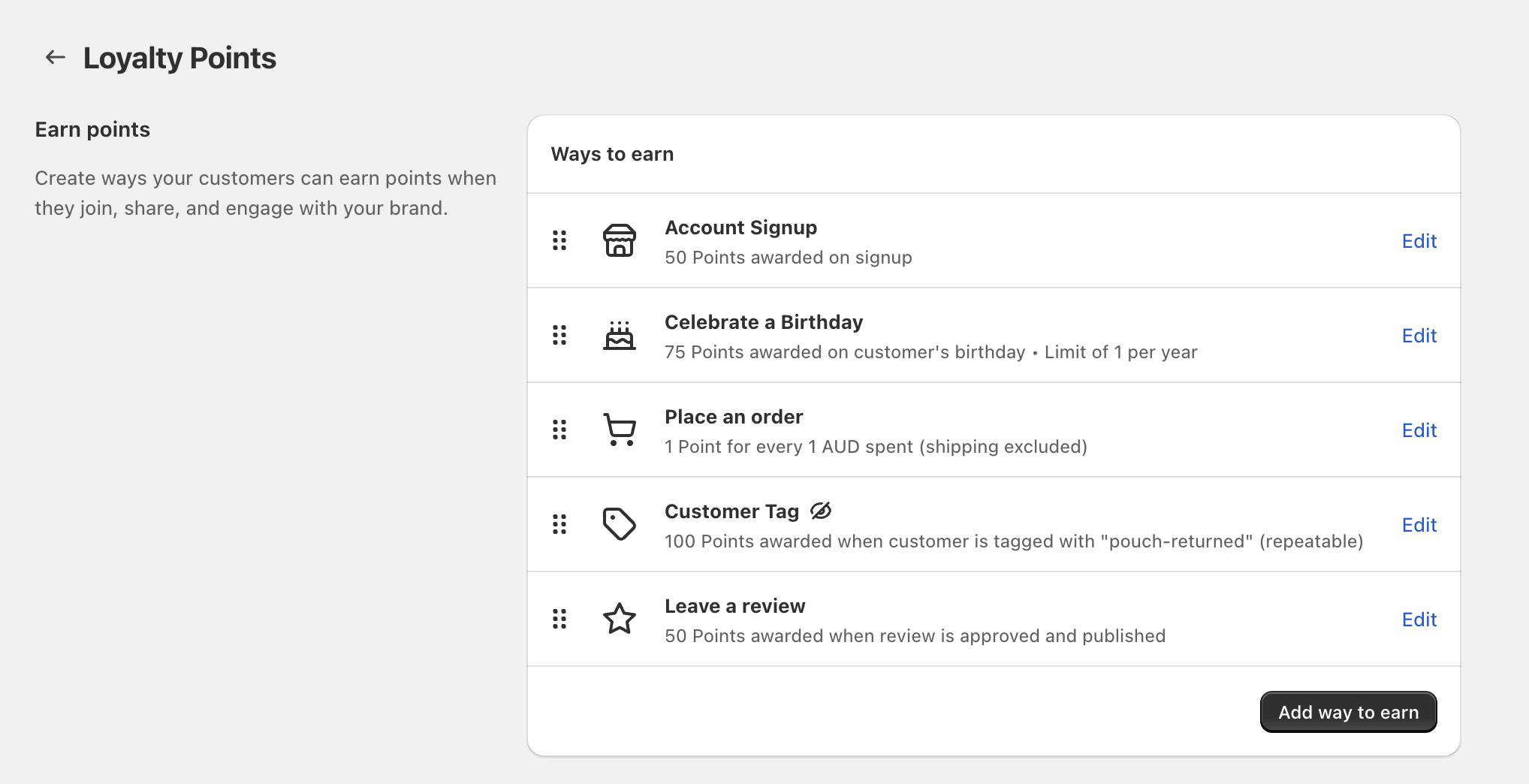
Open Loyalty Program → Points. On the Loyalty Points screen, your earning actions appear under Ways to earn.
- To change a rule, click Edit next to it.
- To create a new rule, click Add way to earn.
Step 2: Match the customer’s action to the right earning rule
Check the Place an order rule in Ways to earn.
- Confirm the customer actually placed an order (not just added items to cart).
- In Ways to earn, click Edit next to Place an order and verify the points rate shown under the rule (for example: “1 Point for every 1 AUD spent (shipping excluded)”).
Check that Account Signup exists in Ways to earn and that it’s configured to award points (the rule description shows the amount, for example “50 Points awarded on signup”).
- If the customer checked out as a guest, they may not have completed an account signup event.
- If you changed the signup rule after customers already signed up, earlier signups won’t retroactively earn points.
Birthday points depend on the customer having a birthday on file and the birthday date being reached.
- In Ways to earn, click Edit next to Celebrate a Birthday and check the rule’s limit (the list may show a limit like “Limit of 1 per year”).
- If the customer already earned birthday points within the limit window, they won’t receive them again until they’re eligible.
In Roadmap, the Leave a review earning rule is awarded when the review is approved and published (this is shown in the rule description).
- Confirm the customer actually submitted a review.
- Confirm the review has been approved/published (unapproved reviews won’t earn points yet).
- Check the rule amount by clicking Edit next to Leave a review.
The Customer Tag earning rule awards points when a specific tag is applied to the customer (the rule description shows the tag name and whether it’s repeatable).
- In Ways to earn, locate Customer Tag and confirm the tag name shown in the rule description matches what you’re applying (for example:
pouch-returned). - Click Edit to confirm whether the rule is repeatable or intended as a one-time award.
Step 3: Check the customer’s points in “Manage Customers”
If the earning rules look correct but the customer claims they didn’t earn points, confirm what Roadmap recorded for that customer:
When to contact support
If none of the checks above explain the issue, collect these details before clicking Contact Support (on the Loyalty Program page):
- Which earning action you expected (for example Place an order or Leave a review)
- A screenshot of the relevant rule from Points → Ways to earn (including the rule description)
- The customer email (or Shopify customer name) and the order number / review details / tag applied
- What you see in Manage Customers for that customer