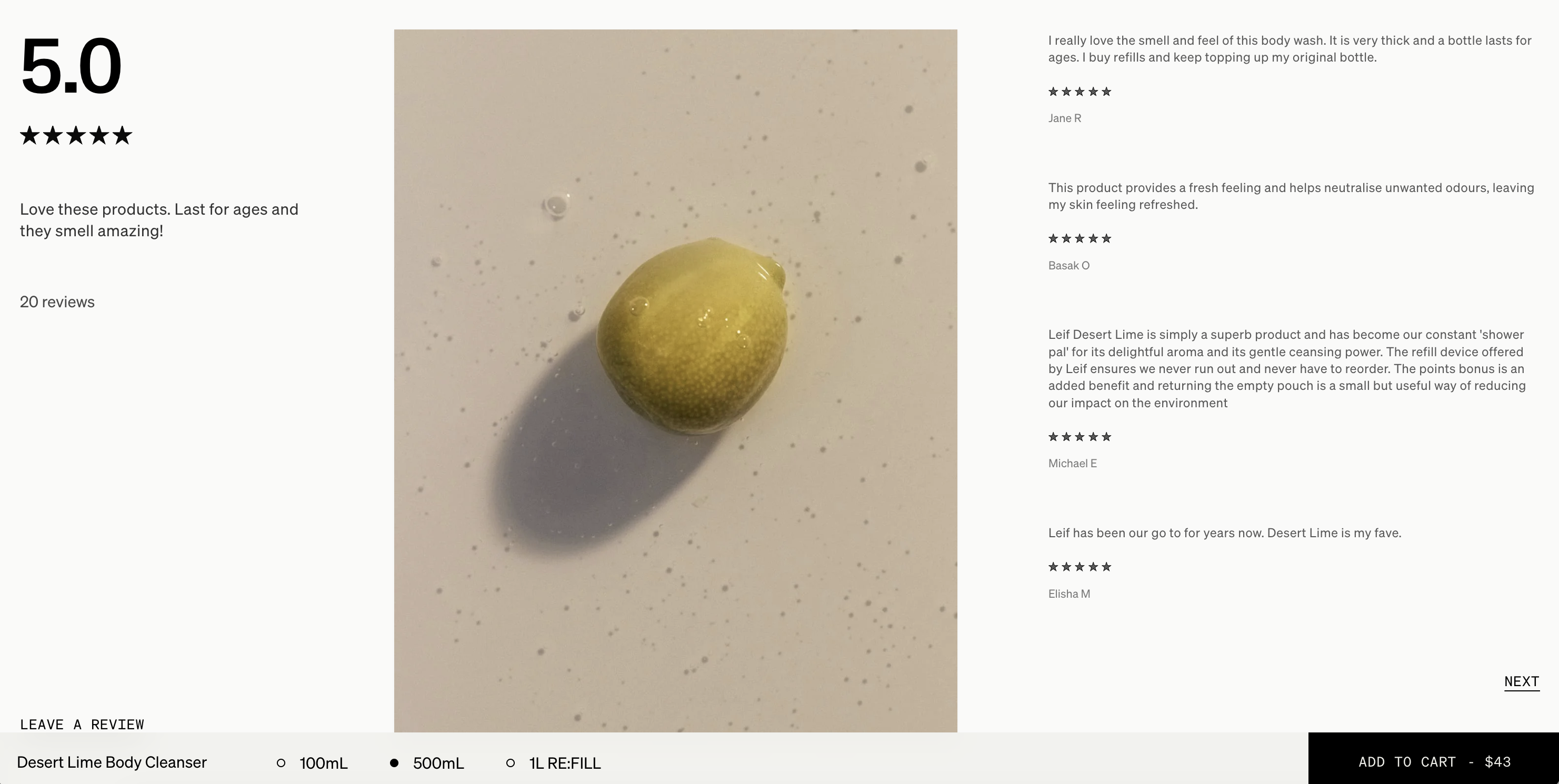
How do I customise the design of the review widget?
This page explains how to customise the design of your review widget using the in-app Review Form editor—including layout choices, section visibility, ordering, and the content shown to shoppers.
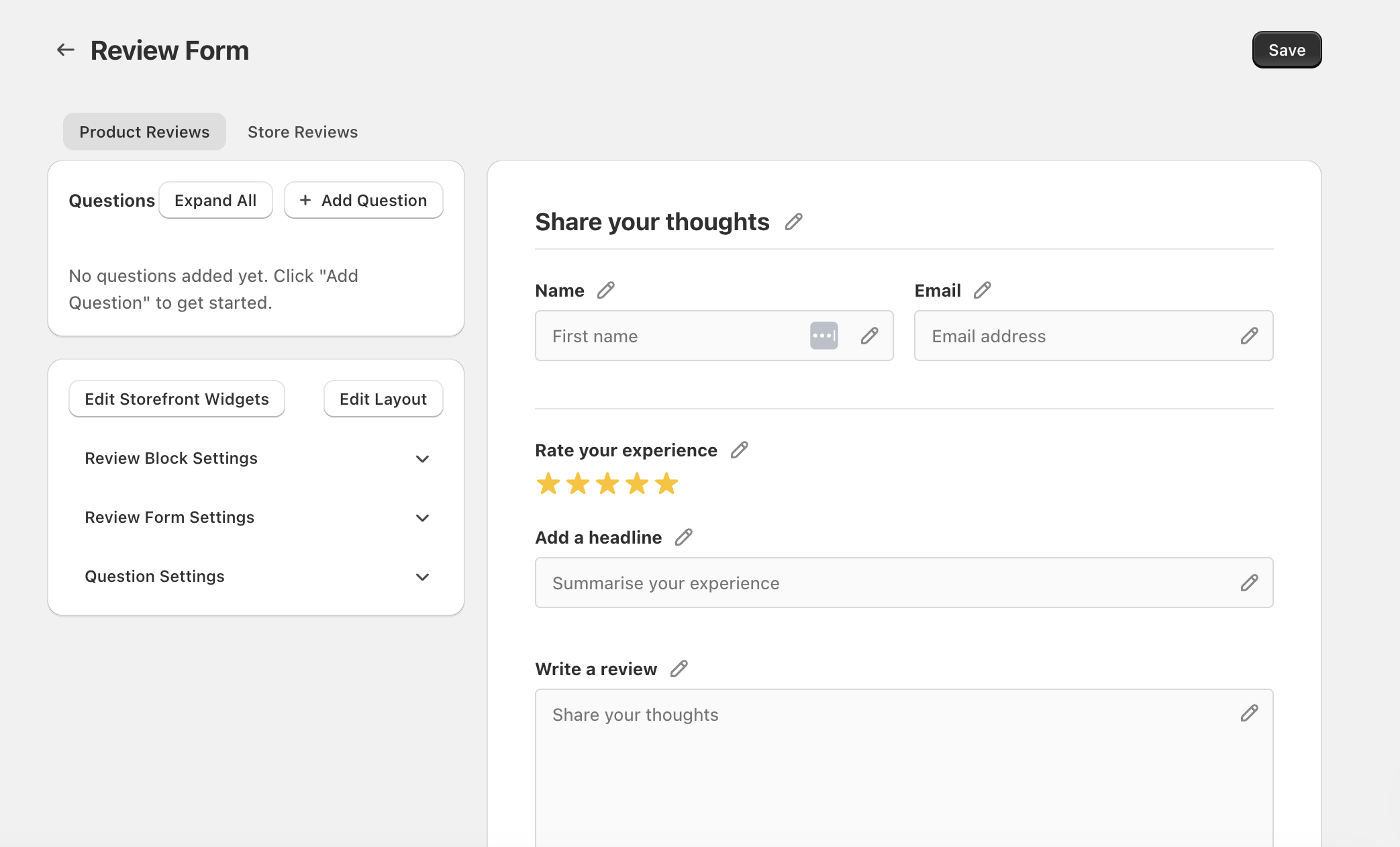
Open the review widget editor
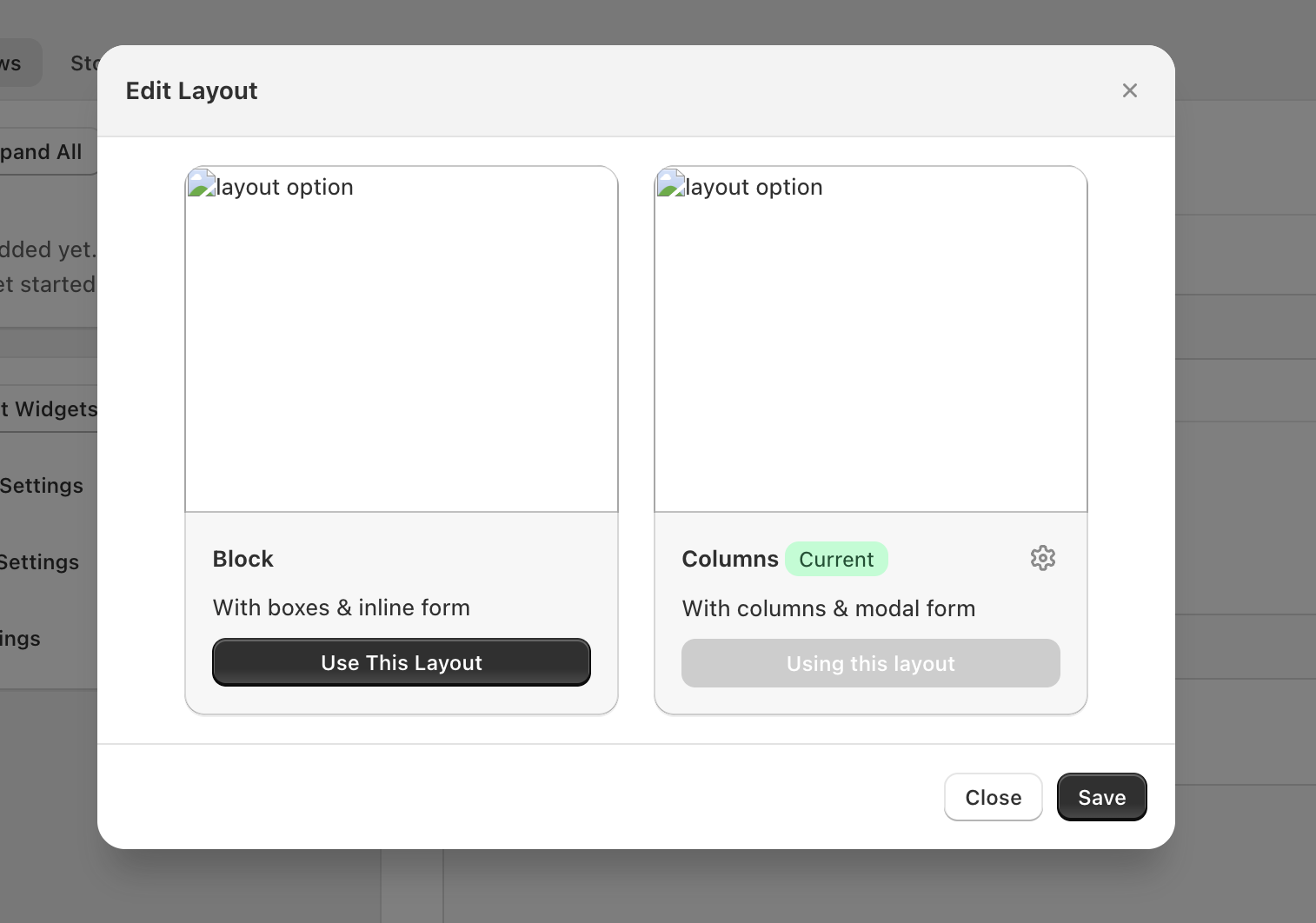
Choose a layout (Block vs Columns)
You can switch the overall widget layout using Edit Layout. This changes how the review summary, image (optional), and review list are arranged on the page.
Customise what appears (and in what order)
After you’ve chosen a layout, use Layout Settings to show/hide sections, reorder them, and configure what content appears inside each section.
Reorder sections
- In Layout Settings, drag sections using the drag handle (the dotted/grip icon) next to a section title (for example: Review Stats & Form, Image, Reviews List & Filters).
- Drag to rearrange where each section appears in the widget.
Show or hide a section
- Click the eye icon next to a section title to hide/show that entire section.
- Within sections, use the checkboxes to show/hide individual items (for example: Total Rating, Star Rating, Review Body, Review Rating, Verified Badge).
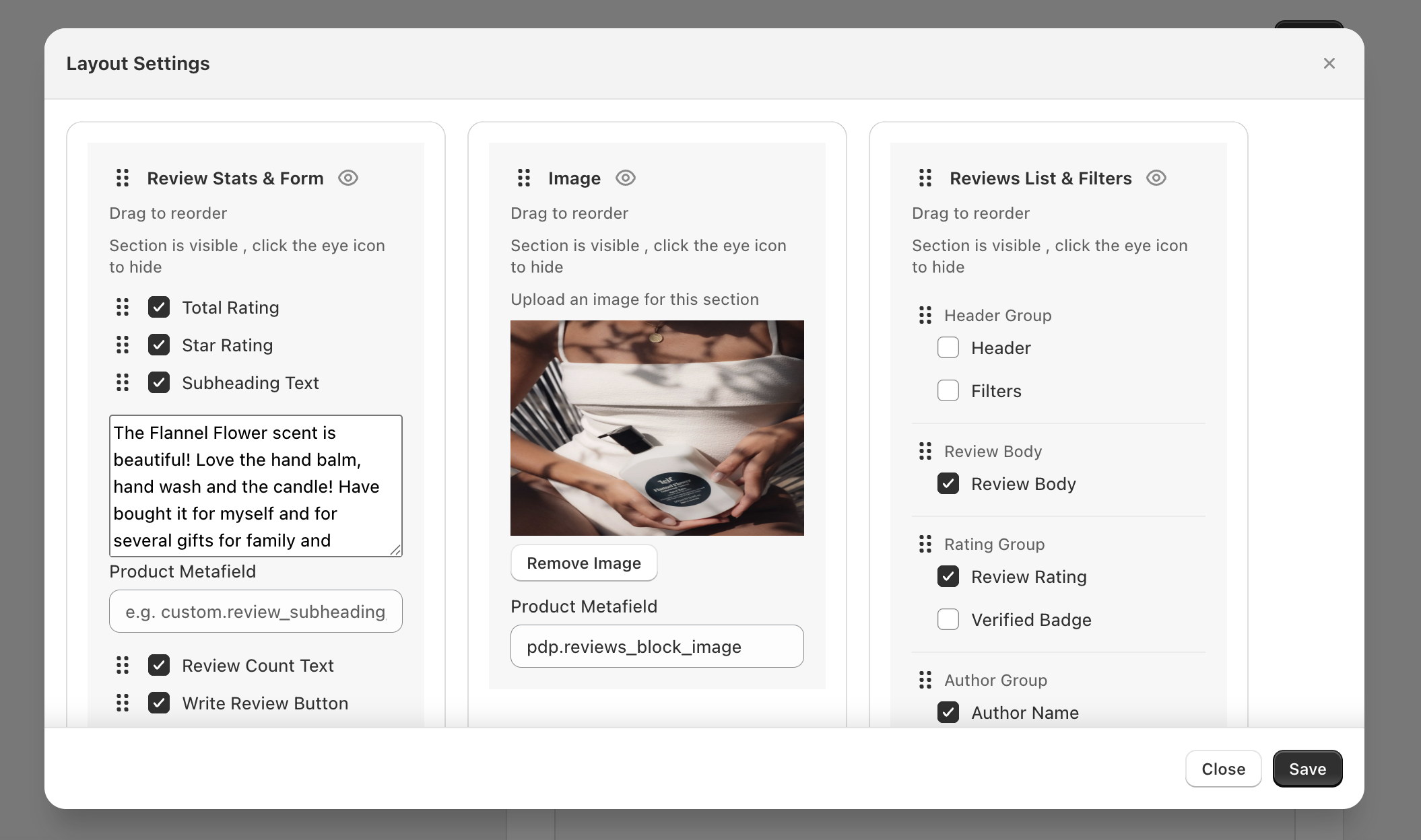
Add an image section (optional)
If your layout includes an Image section, you can either upload an image or connect the section to a product metafield:
- Click Upload an image for this section to choose a static image.
- Or use Product Metafield to pull an image dynamically per product (for example, the field shown as
pdp.reviews_block_imagein the editor).
Configure the review list and filters
In Reviews List & Filters, you can control which parts of the review list are visible, such as:
- Header Group: Header and Filters
- Review Body: Review Body
- Rating Group: Review Rating, Verified Badge
- Author Group: e.g., Author Name
Customise the form labels and questions
The left-hand settings panels in Review Form control the look and wording of what shoppers see.
Publish your design changes
- When you’re happy with the layout and settings, click Save (top-right) on the Review Form page.
- If you used a layout modal, ensure you also clicked Save inside that modal before closing it.
- Confirm you clicked Save on the Review Form page (top-right).
- If you changed layout, confirm you clicked Save in the Edit Layout / Layout Settings modal.
- Make sure you edited the correct tab: Product Reviews vs Store Reviews.
Product Metafield lets you pull per-product content into the widget (for example, an image). This is useful when you want the review widget to match each product’s branding or imagery.