

Can I customise the timing of review requests?
Where you can customise timing
You can control when customers get asked for reviews in two places, depending on how you’re sending review requests:
- Roadmap → Review Reminder Emails: set reminder delays (in days) after an order is fulfilled.
- Klaviyo review-request flow: set your send timing using Klaviyo’s Time delay steps (and optionally delay to a specific time of day / days of the week).
Option 1: Customise Roadmap review reminder timing
Roadmap’s Review Reminder Emails are follow-up emails that prompt customers to leave a product review. In Roadmap, reminder emails are tied to order fulfillment—your timing settings control how many days after an order is fulfilled each reminder is sent.
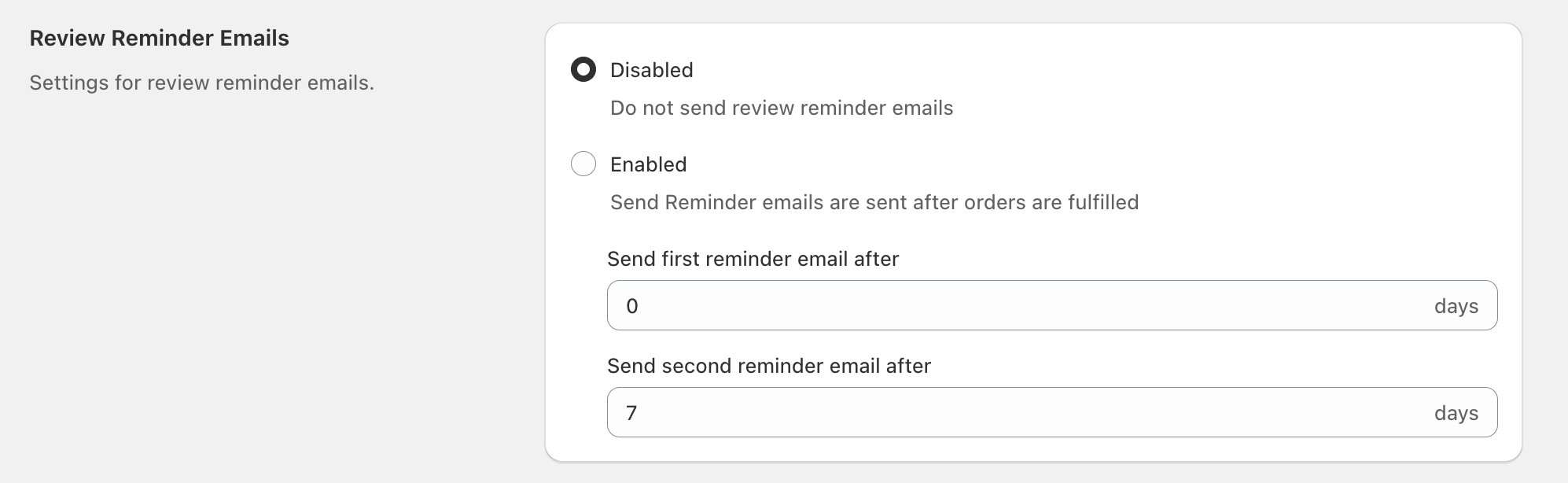
Enable (or disable) review reminders
Go to your Reviews settings and open Review Reminder Emails.
Select Disabled to stop sending review reminder emails, or select Enabled to start sending them.
In Send first reminder email after, enter the number of days to wait after an order is fulfilled before the first reminder is sent.
In Send second reminder email after, enter the number of days to wait after an order is fulfilled before the second reminder is sent.
How the timing fields work
- Send first reminder email after: delay (in days) from fulfillment to the first reminder.
- Send second reminder email after: delay (in days) from fulfillment to the second reminder.
Option 2: Customise Klaviyo flow timing (recommended for Klaviyo review requests)
When you send review requests using Klaviyo, you can customise timing by adding and adjusting Klaviyo Time delay steps in your flow.
Set the trigger (Roadmap metric)
For Roadmap review-request flows, use the Roadmap order metric:
- Metric:
Placed Order (Roadmap)
Why use Placed Order (Roadmap)? Roadmap’s metric includes the event properties used for verified review collection (via the order ID included in the review link).
Add and customise a Time delay
In Klaviyo, go to Flows in the left navigation and open Create Flow, then choose Build your own.
Click the Trigger card (Select a trigger). In the right panel (Select a trigger), open Your metrics and select Placed Order (Roadmap), then click Confirm and save in the Confirm your trigger selection dialog.
From the left sidebar, under Timing, drag Time delay under your trigger.
Click the delay step to open Time delay details. Under Settings, set Set time delay (for example, 14 Days), then click Save.
If you want more control, use Klaviyo’s options in Time delay details (when available), such as:
- Delay until a specific time of day
- Delay until specific days of the week
If you’re unsure what to start with, many stores begin with a Wait 14 days step, then adjust based on your typical delivery window and product usage cycle.
Add additional sends (reminders) in Klaviyo
To add follow-ups, repeat the same pattern after your first message:
- Add another Time delay step
- Add another Email step with a shorter reminder message
If you add reminders in Klaviyo, it’s best practice to include logic (for example, a Conditional split) so customers who already reviewed don’t keep receiving reminders.
Recommended timing (starting points)
Fast-delivery, low-consideration products
- Klaviyo first request: 7–10 days after purchase (or after your typical delivery window)
- Klaviyo reminder: 7–10 days later
Higher-consideration products
- Klaviyo first request: 14+ days
- Klaviyo reminder: 14–30 days later
If your fulfillment happens before delivery, avoid setting Roadmap reminders to 0 days. Customers may receive a review request before the product arrives.
Common questions
Yes. They’re separate systems. Roadmap’s Review Reminder Emails timing controls Roadmap’s reminder emails, while Klaviyo’s Time delay steps control your Klaviyo flow sends.
In Klaviyo, open your flow and edit the Time delay steps (for example, the step that shows Wait 14 days). Update Set time delay and click Save.
Use Placed Order (Roadmap) from Your metrics. This is the metric used in the Roadmap walkthroughs and supports verified review collection.