

How to setup a weekly summary of your stores reviews activity and results
What the weekly summary email includes
The Weekly Summary Email sends a weekly snapshot of your review activity, including last week’s review count and a quick link to view that time period.
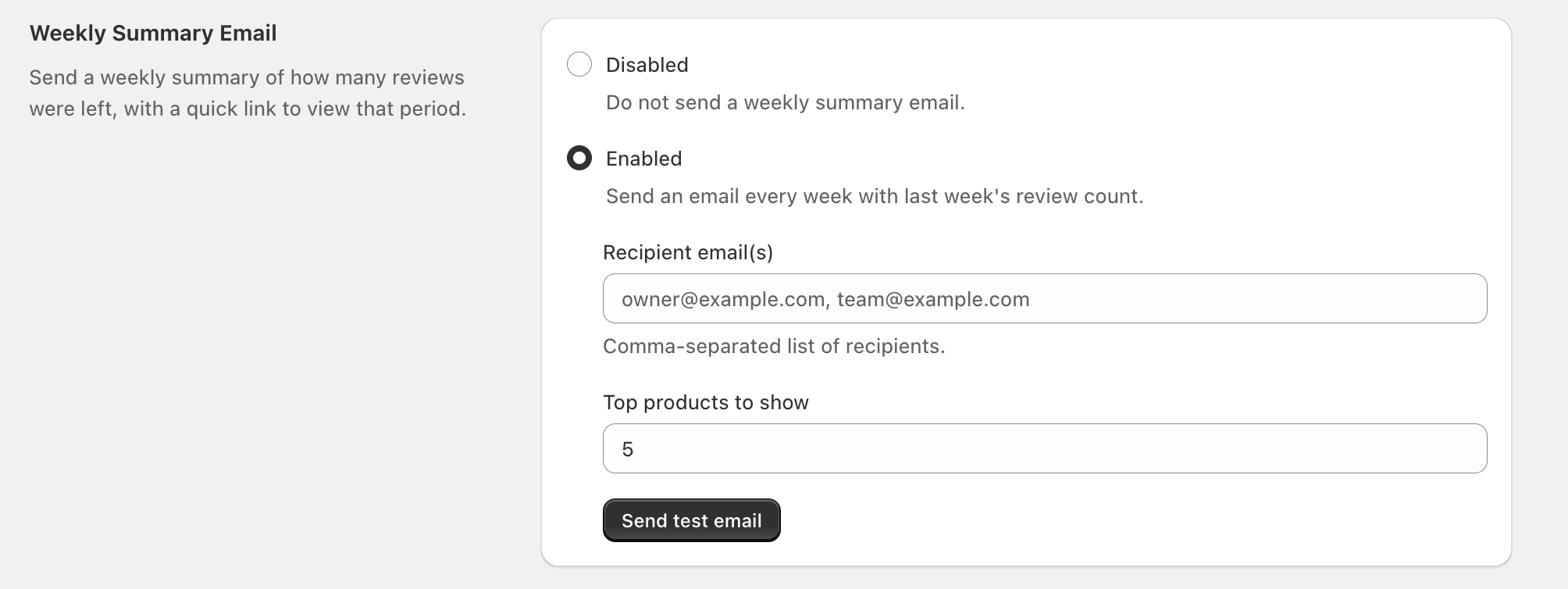
Set up the Weekly Summary Email
Find the section titled Weekly Summary Email.
Under Weekly Summary Email, select Enabled.
If you do not want to send the summary, select Disabled.
In Recipient email(s), enter one or more email addresses.
Use a comma-separated list (for example: [email protected], [email protected]).
In Top products to show, enter the number of top products you want included in the weekly email (for example: 5).
Click Send test email to preview delivery and confirm the recipient list is correct.
Troubleshooting
- Double-check the Recipient email(s) field for typos and ensure multiple addresses are separated by commas.
- Use Send test email to confirm delivery to at least one address.
- If your inbox filters newsletters or automated emails, check spam/junk and any team email quarantines.
Enter emails as a comma-separated list with no extra characters. Example:
[email protected], [email protected]This controls how many top products are included in the weekly summary email content. Increase the number to show more products; decrease it to keep the email shorter.