

How to Import Existing Product & Store Reviews to Roadmap
Before you start
Roadmap imports reviews from a CSV file. To make sure the CSV template matches your setup, start by confirming your review form is configured.
In your Roadmap admin, go to Reviews → Review Form and complete your form setup (fields, required inputs, etc.).
Roadmap generates its sample CSV based on your current review setup. If you change your form later, download a fresh sample CSV before importing again.
Step 1: Download the sample CSV template
In your Roadmap admin, go to Reviews → Import.
Select Download Sample CSV.
This file includes the exact columns and formatting Roadmap expects.
Step 2: Fill in your review data
Export reviews from your previous review app, then copy/paste (or map) values into the Roadmap template columns.
Formatting rules (important)
Do not rename columns in the sample CSV. Keep the header row exactly as downloaded.
Required fields
product_handle— The product’s URL handle. Required ifProduct_skuis not provided. Example:rhoda-boot-black-leatherProduct_sku— The product’s SKU code. Required ifproduct_handleis not provided. Example:TRFC116type— Determines whether this is a product or store review:review= product reviewstore-review= store reviewstate— Visibility status:published= visible on the storefrontapproved= visible in admin onlyrating— Star/number rating. Example:4email— Customer email. Example:[email protected]verified— Whether the review is from a verified purchase:True= shows verified badgeFalse= no badgecreated_at— When the review was submitted. Format:YYYY-MM-DD(time optional) Example:2025-10-16 13:38:14
Optional (recommended) fields
title— Review title. Example:Love these boots!author— Customer name. Example:Jane Doelocation— City/country. Example:New Yorkbody— Full review text. Example:Great quality, fast shipping!reply— Your response to the review. Example:Thanks for your feedback!source— Where the review came from. Example:Roadmaporder_number— Helps match reviews to customers. Example:123456789replied_at— Reply timestamp (same format ascreated_at). Example:2025-10-20 10:22:00
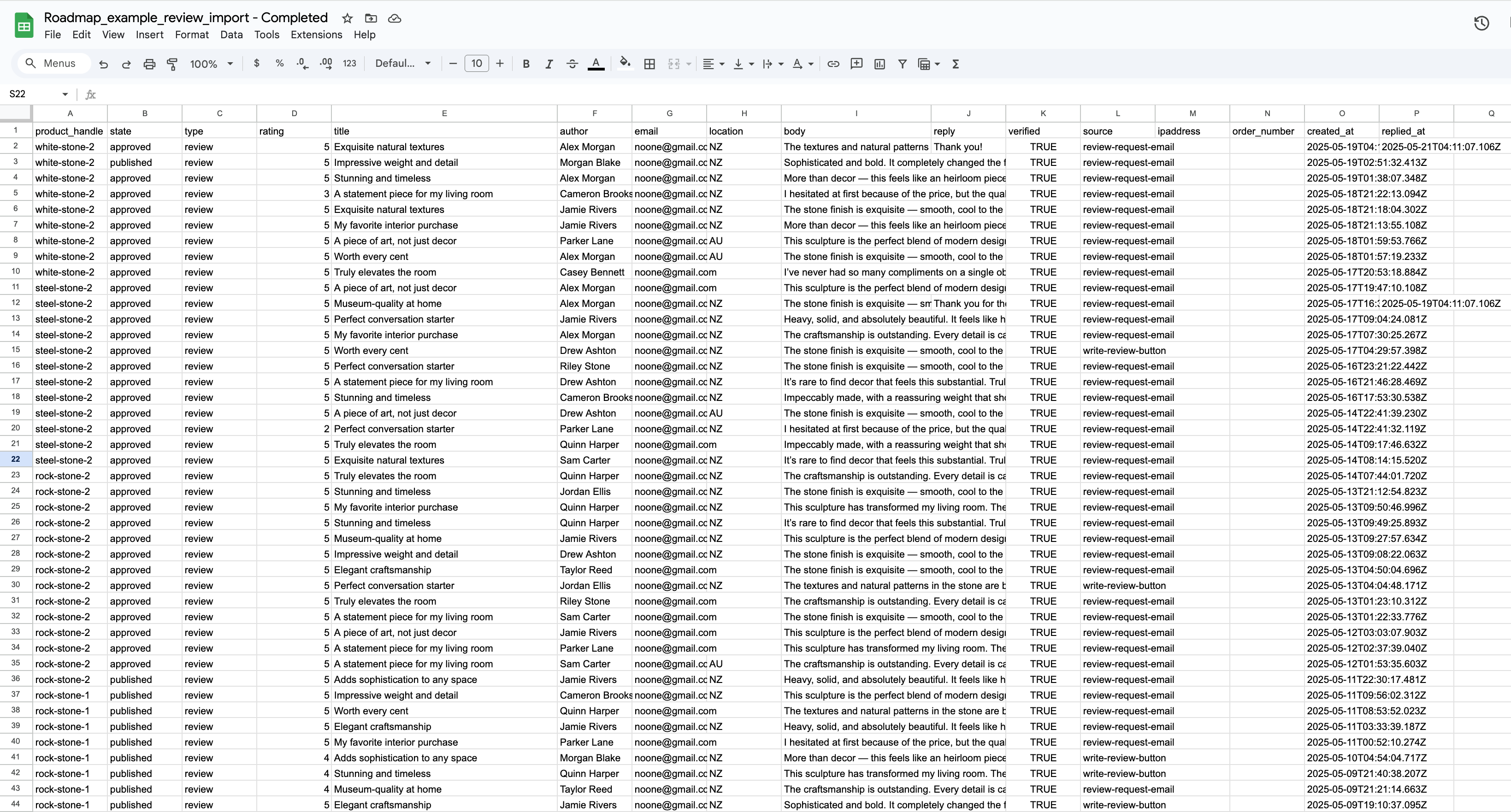
If you’re importing a mix of product reviews and store reviews, double-check the type column before uploading. Incorrect values can cause reviews to be categorized incorrectly.
Step 3: Import your reviews
Go to Reviews → Import.
Select Choose File and pick your completed CSV.
Click Import Reviews.
Importing can take up to 10 minutes depending on file size. You can import up to 3,000 reviews per import.
Step 4: Fix any import errors
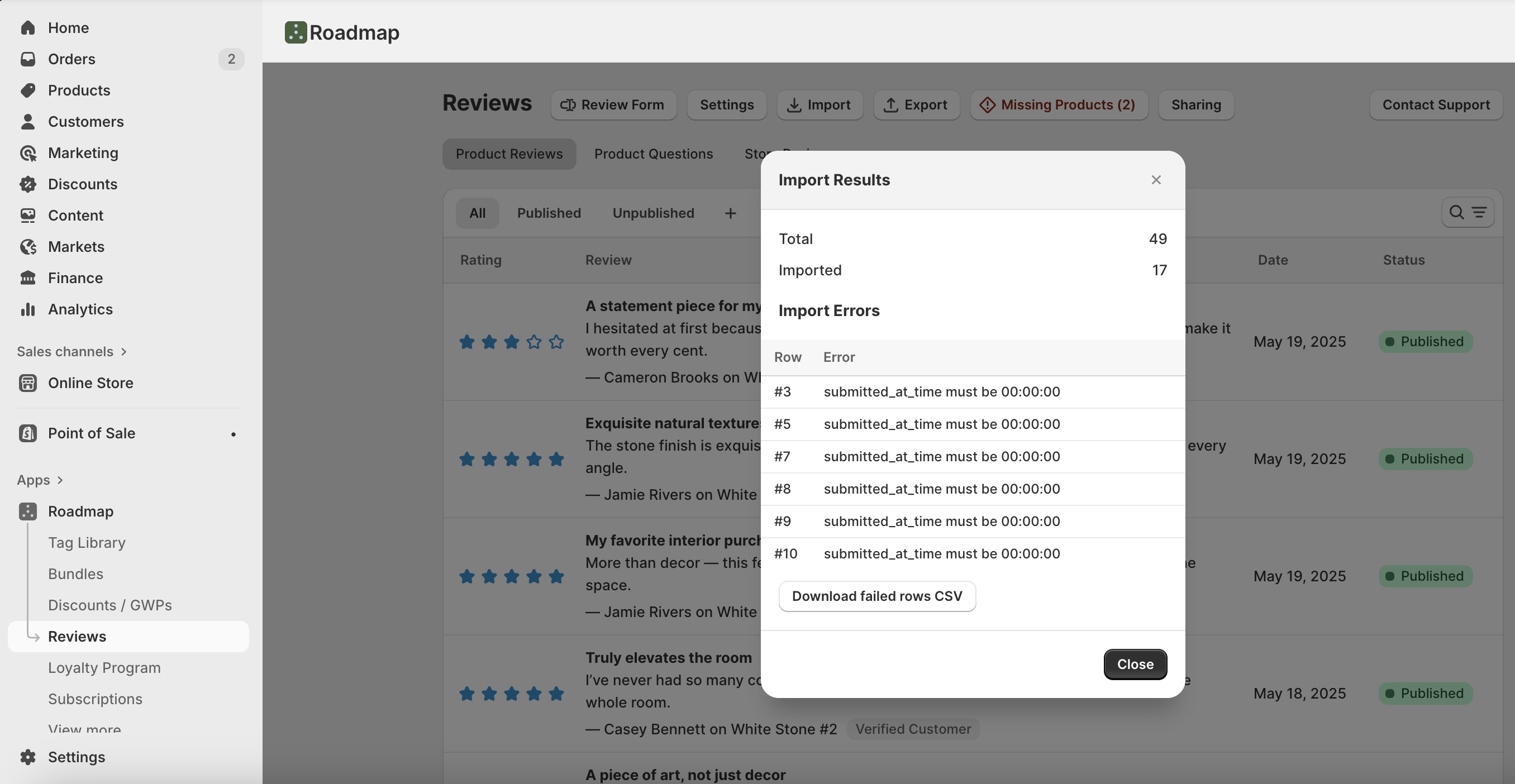
If Roadmap finds issues during import, they’ll show in a pop-up.
Download the error file from the pop-up.
Correct the rows with problems.
Re-import only the fixed rows (using the same Reviews → Import flow).
Step 5: Assign reviews under Missing Products
If some reviews reference products that no longer exist in your Shopify product library (or can’t be matched by product_handle/Product_sku), they’ll appear in Missing Products.
Go to Reviews → Missing Products.
Next to an unassigned group, click Manage.
Click Browse & Attach Products.
In the picker, click Browse, then select the correct product(s).
Click Apply Selection.
Click Update Products to save.
When you’re done, click Close.
Walkthrough: You can follow this interactive guide for the Missing Products assignment flow.
What happens after import?
Once your reviews are imported and any missing products are assigned, reviews will start showing across your Roadmap review widgets on your storefront.
Reviews appear on the correct product(s) (based on matching and assignments).
They count toward your star ratings and total review counts.
They’re available in Roadmap for moderation (approve, reply, and manage visibility).
Troubleshooting (common issues)
Check the
statecolumn. Onlypublishedreviews display on the storefront.If reviews are in Missing Products, assign them to products so widgets can display them correctly.
Download the error file from the import pop-up and fix only the rows listed.
Confirm dates use
YYYY-MM-DD(time optional), and that required fields are filled.Make sure you didn’t rename the CSV headers from the Roadmap template.
Use whichever is more reliable for your catalog. Roadmap requires at least one of them for product reviews. If you provide both, keep them consistent with your Shopify data.
Need help?
If you get stuck at any point (template mapping, errors, or Missing Products), contact your support team and share:
your CSV file (or a small sample),
the error file (if you downloaded one), and
an example product that should have reviews but doesn’t.