

How does Roadmap help increase sales & conversion?
How Roadmap drives more sales
Roadmap increases sales and conversion by improving the moments that most affect purchase decisions:
- Offer motivation (promotions that nudge shoppers to buy now and/or spend more)
- On-page confidence (reviews and social proof that reduce hesitation)
- Cart + checkout momentum (progress bars and upsells that keep shoppers moving forward)
- Repeat purchase loops (loyalty points, tiers, and referrals that bring customers back)
In Roadmap, these workflows live in specific areas of the app navigation, including Discounts / Gift with Purchase, Cart & Checkout, Reviews, and Loyalty Program.
The fastest conversion wins (most stores)
Create a higher perceived value offer that auto-adds a free gift when conditions are met.
Show shoppers how close they are to a reward to increase cart completion and AOV.
Offer relevant add-ons during checkout without forcing shoppers to browse more.
Add product page social proof to reduce uncertainty and increase PDP conversion.
1) Use GWP & Discounts to create “buy now” motivation
When shoppers are on the fence, the right offer can be the deciding factor. Roadmap’s Discounts / Gift with Purchase area lets you build promotions that automatically apply when shoppers qualify.
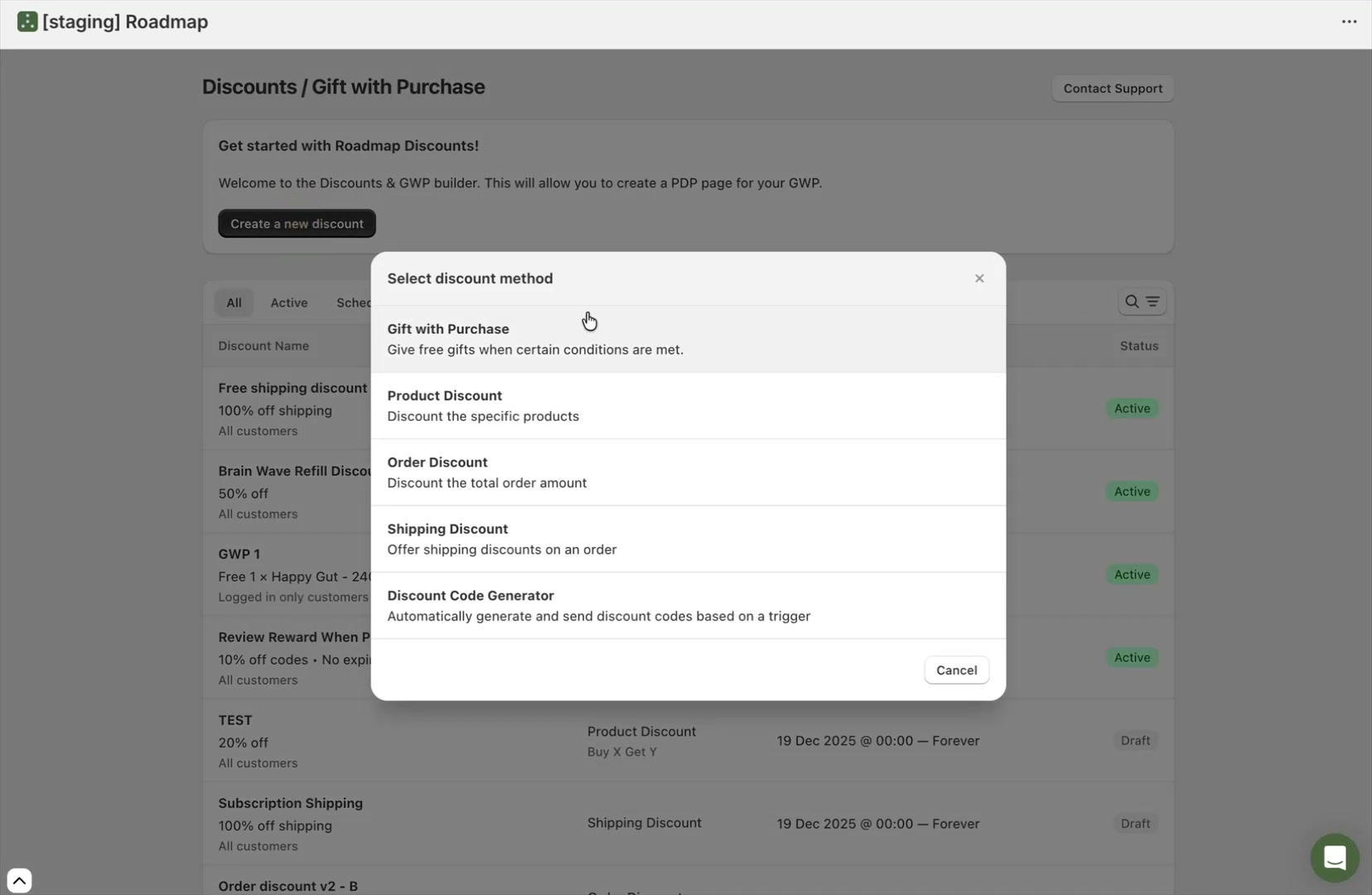
What you can create in the “Select discount method” modal
When you select Create a new discount, Roadmap opens the Select discount method modal where you can choose:
- Gift with Purchase — add a free gift when conditions are met
- Product Discount — discount specific products
- Order Discount — discount the total order amount
- Shipping Discount — offer shipping discounts
- Discount Code Generator — automatically generate and send codes based on a trigger
Why Gift with Purchase (GWP) often converts better than a discount
- Higher perceived value — a “free gift” can feel more compelling than a small percentage off.
- Clear threshold to hit — GWPs commonly use Minimum Spend or Buy X Get Y rules to encourage bigger carts.
- Less margin erosion — you choose the gift item and can control how broadly it applies.
Conversion levers inside “New Gift with Purchase”
On the New Gift with Purchase screen, these settings directly affect conversion and AOV:
- Conditions (for example Minimum Spend, Buy X Get Y, Buy A+B+C Get Y) determine how much shoppers need to do to qualify.
- Customer Eligibility (for example All customers or Logged in only customers) lets you run sitewide offers or target segments.
- Free Gifts controls the gift selection and the customer-facing Note shown on the cart item.
- Active Dates helps you run urgency-driven promos with a fixed end date.
If your goal is more conversions, start with a simpler condition like Minimum Spend and a single, high-appeal gift. If your goal is higher AOV, set the threshold slightly above your current average order value.
Double-check Maximum number of uses per order in Free Gifts. If it’s set too high (or left as No limit), customers may receive multiple gifts on one order when they qualify.
2) Use Cart & Checkout features to prevent drop-off and lift AOV
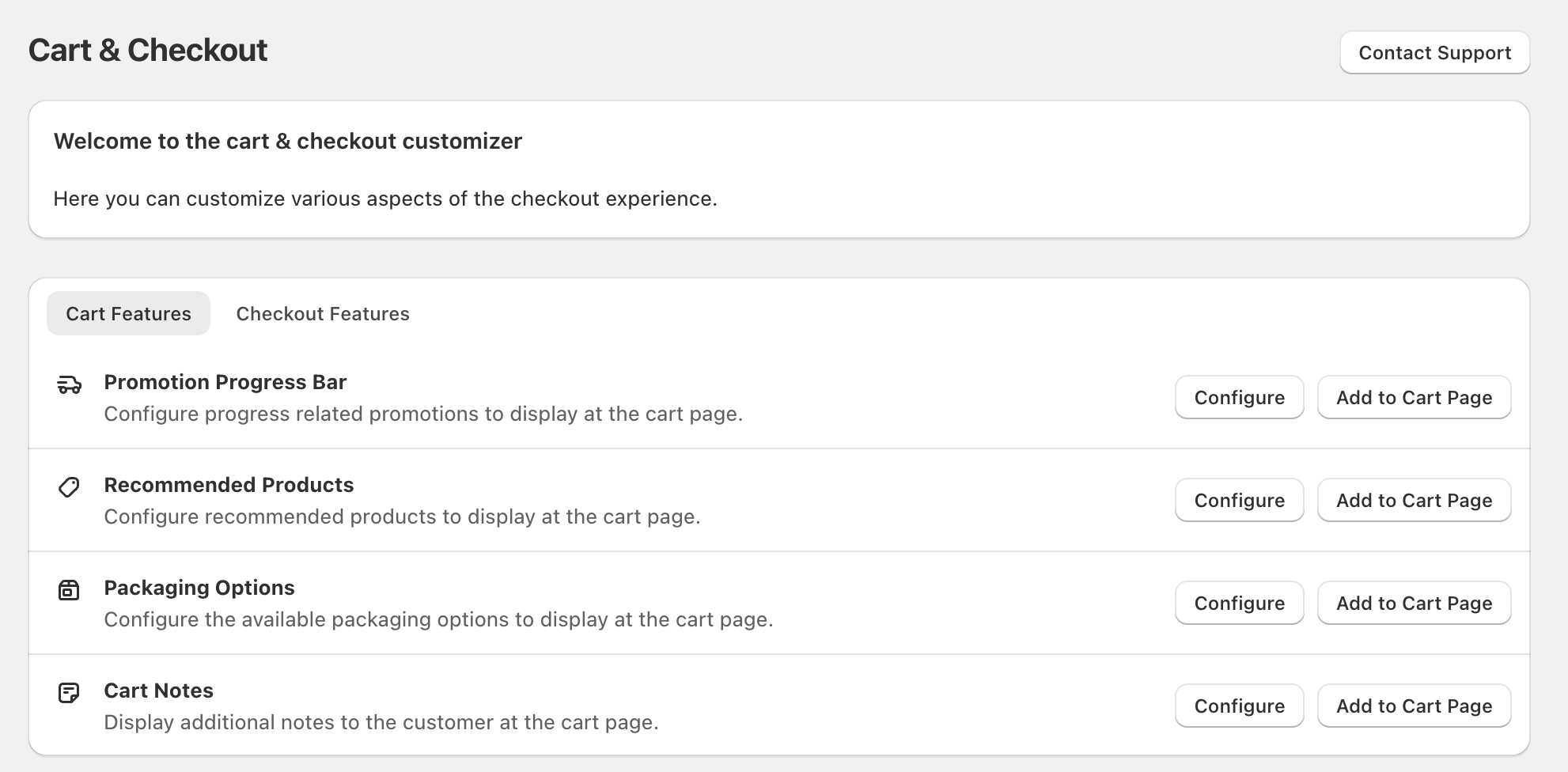
Even when shoppers intend to buy, cart and checkout friction can reduce conversion. Roadmap’s Cart & Checkout screen lets you configure features and then place them on your store using the built-in action buttons.
Where this lives
Open Cart & Checkout and use the tabs:
- Cart Features — features that display on the cart page
- Checkout Features — features that display on the checkout page
How features increase conversion (by name)
- Promotion Progress Bar — nudges shoppers to complete checkout (and often to add more) by showing progress toward a promotion.
- Recommended Products — adds relevant items at the cart stage, increasing AOV without sending shoppers back to browse.
- Product Upsells (Checkout Features) — prompts a last-minute add-on during checkout, increasing revenue per order with minimal extra steps.
- Packaging Options — improves giftability/experience, which can reduce hesitation for gifting purchases.
- Cart Notes — reduces customer support friction by capturing delivery notes or special instructions up front.
Use the built-in “Configure” and “Add to … Page” actions
In Roadmap, go to Cart & Checkout.
Select Cart Features or Checkout Features.
On the feature row (for example Promotion Progress Bar or Product Upsells), select Configure to set options.
On the same row, select Add to Cart Page or Add to Checkout Page to display it to customers.
If you need help confirming whether a feature will appear on your cart/checkout setup, use the Contact Support button in the top-right of the Cart & Checkout screen.
3) Use Reviews to build trust on product pages (PDP conversion)
Reviews improve conversion by reducing perceived risk—especially for first-time buyers. Roadmap lets you publish reviews on product detail pages using the Roadmap Reviews 2.0 app block in Shopify.
Add “Roadmap Reviews 2.0” in Shopify
In Shopify, go to Online Store → Themes and click Customize.
Use the top dropdown to open the Products template you want to update.
Select Add section (or Add block), then choose Apps → Roadmap Reviews 2.0.
Click Save in the theme editor.
Make the widget match your store (so it doesn’t look “bolted on”)
In the Shopify theme editor, click the Roadmap Reviews 2.0 block and adjust:
- Layout
- Colours & Fonts
Reviews are most likely to lift conversion when they’re visible near the buying decision. Place Roadmap Reviews 2.0 below your product description or near the bottom of the PDP—and add it to every product template you use.
4) Use Loyalty to increase repeat purchases (and improve first purchase conversion)
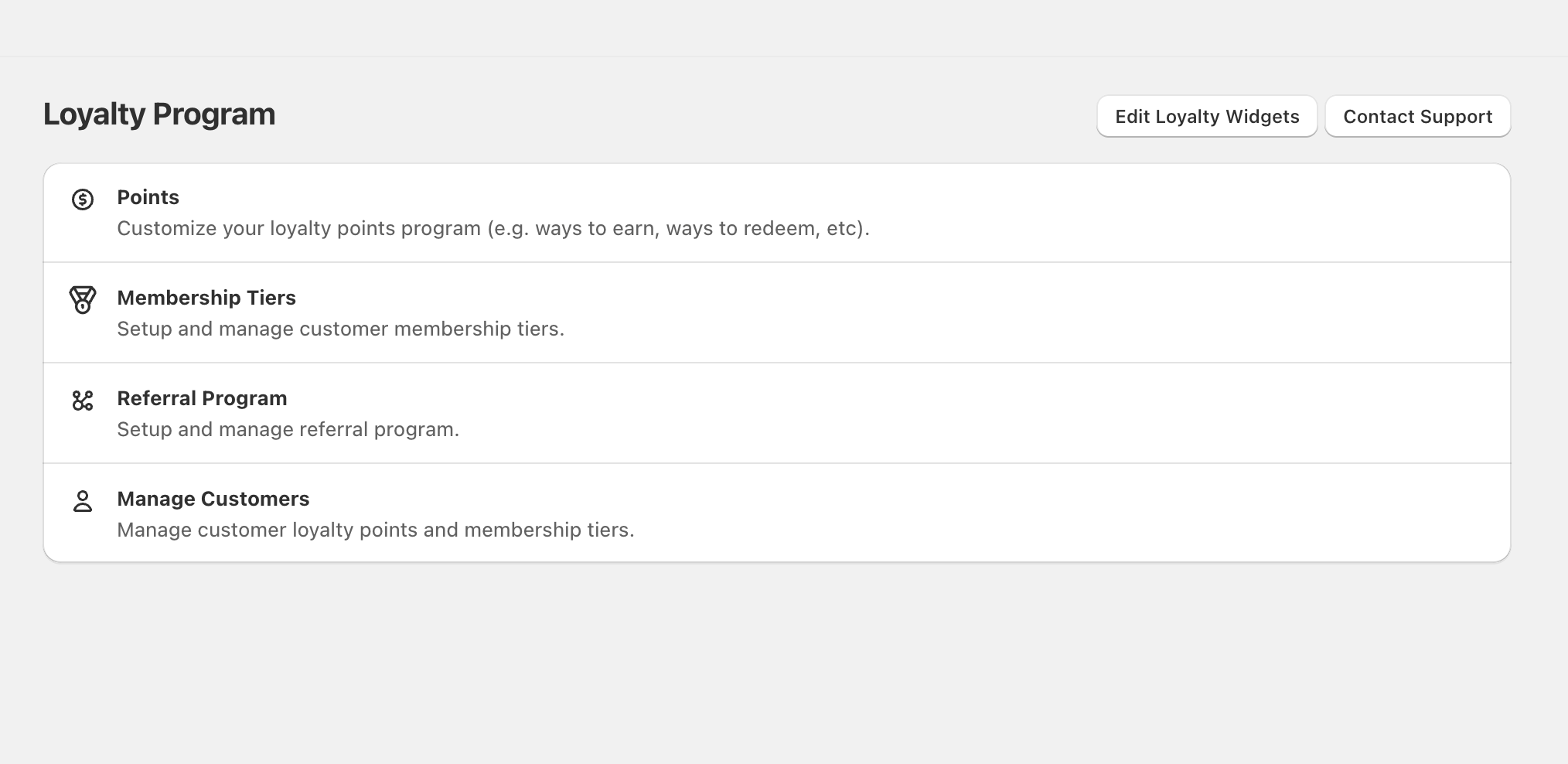
Loyalty increases sales in two ways: it creates a reason to come back, and it can make the first purchase feel more rewarding (“I’ll earn points”). In Roadmap, loyalty lives in the Loyalty Program area.
The Loyalty Program sections that impact revenue
- Points — motivates repeat purchases with a clear earn-and-redeem loop.
- Membership Tiers — retains high-value customers by escalating benefits.
- Referral Program — turns happy customers into a low-cost acquisition channel.
- Manage Customers — supports retention by helping you quickly resolve point/tier questions.
Make it customer-facing with “Edit Loyalty Widgets”
On the Loyalty Program page, select Edit Loyalty Widgets to publish the loyalty experience customers interact with (earning, redeeming, tier status, and referrals).
Before you announce loyalty publicly, review Edit Loyalty Widgets to ensure your earning and redemption rules are accurate and easy to understand—confusing loyalty messaging can hurt conversion.
Putting it together: a practical rollout that increases conversion
Create a promotion in Discounts / Gift with Purchase using Create a new discount → Gift with Purchase, and set a clear Minimum Spend threshold.
In Cart & Checkout → Cart Features, select Configure on Promotion Progress Bar, then Add to Cart Page.
Switch to Checkout Features, Configure Product Upsells, then Add to Checkout Page.
In Shopify, add Roadmap Reviews 2.0 to your product templates: Online Store → Themes → Customize → Apps.
In Loyalty Program, set up Points and publish customer-facing messaging through Edit Loyalty Widgets.
FAQ
Most stores see the quickest lift by starting with Discounts / Gift with Purchase (especially Gift with Purchase) and then adding Promotion Progress Bar from Cart & Checkout.
Yes. In Cart & Checkout, the Cart Features tab is for cart-page widgets (published with Add to Cart Page) and the Checkout Features tab is for checkout widgets (published with Add to Checkout Page).
If you don’t see a module like Reviews or Loyalty Program, it may not be enabled or available in your workspace. Use Contact Support inside Roadmap to confirm access.