

How do loyalty tiers work (Bronze, Silver, Gold)?
What loyalty tiers are
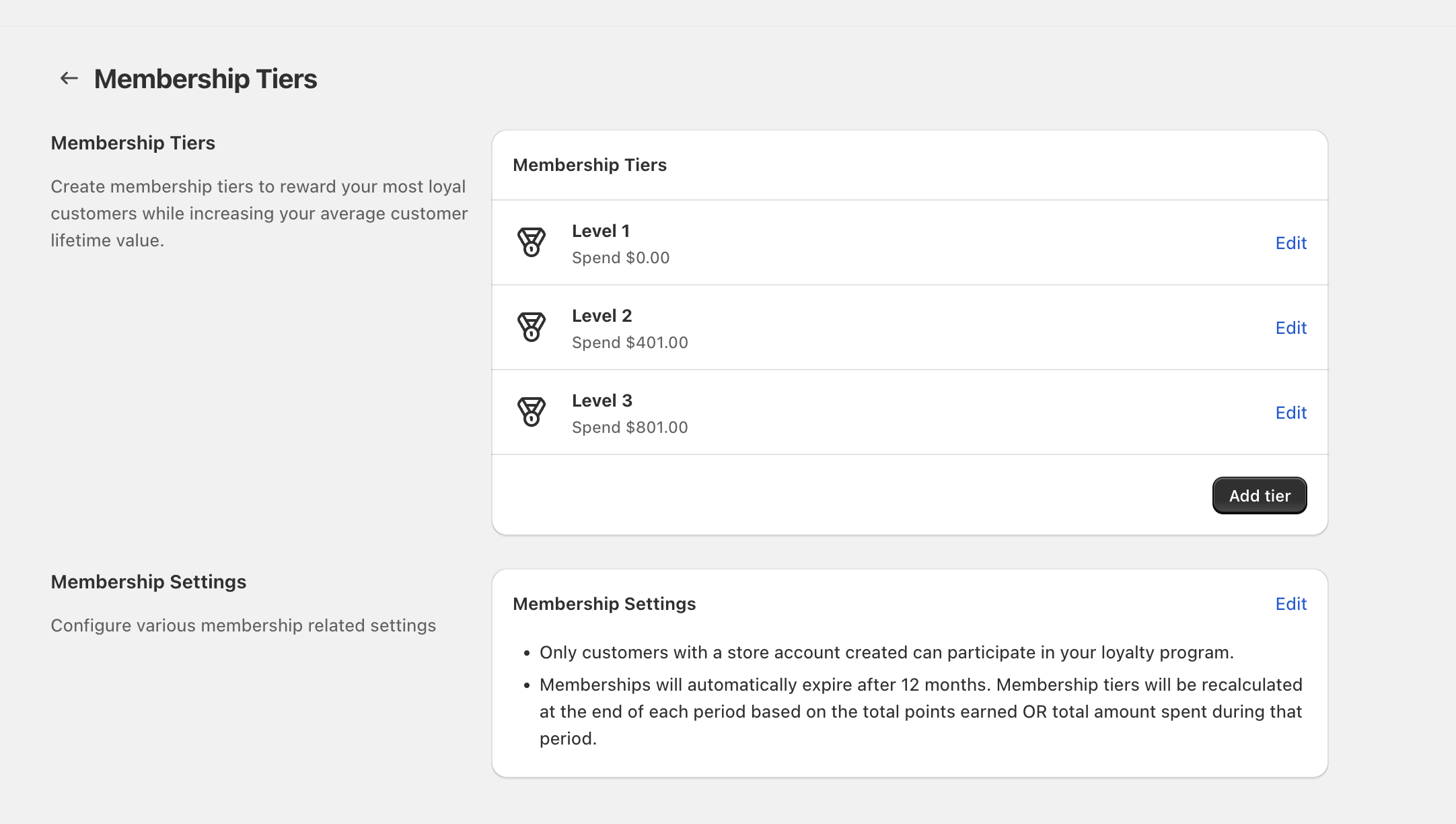
Loyalty tiers let you group customers into levels (for example, Bronze, Silver, Gold) based on a milestone you choose—like Points earned, Amount spent, or a Specific item purchased. Each tier can also apply a Customer Tag Name so you can recognize tier members elsewhere (for example, in customer lists or marketing tools that use tags).
How customers qualify for a tier
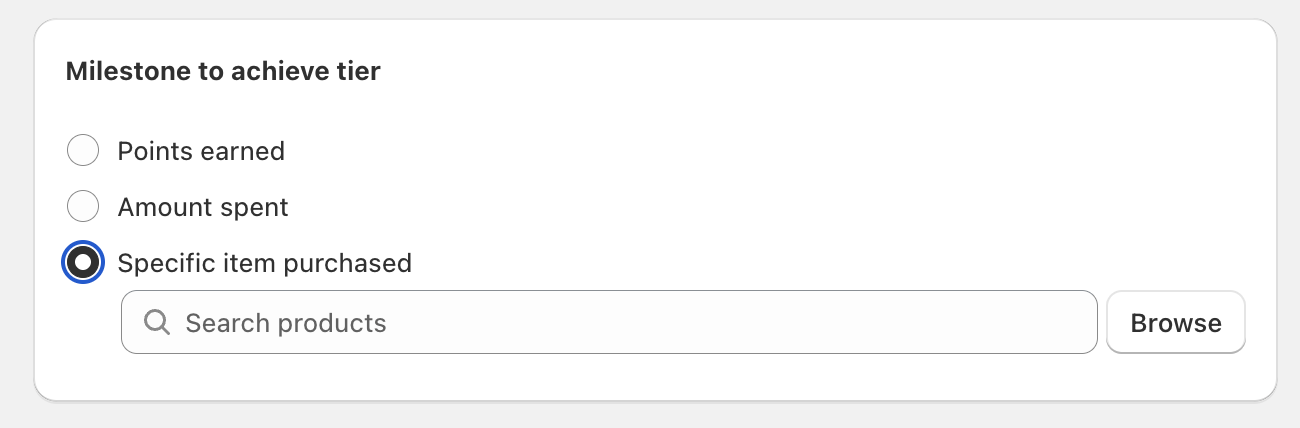
Each tier has a Milestone to achieve tier. When a customer reaches that milestone within the current membership period, they qualify for the tier.
- Points earned: Customers qualify when they reach the points threshold you set.
- Amount spent: Customers qualify when they reach the spend threshold you set (shown in your store currency, for example
AUD). - Specific item purchased: Customers qualify when they purchase a specific product you select (via Search products or Browse).
Level 1, Level 2, Level 3, you can rename them to Bronze, Silver, and Gold using the Tier name field.What determines the order of tiers
Tier order is controlled by Tier level on the Edit Membership Tier screen. Lower tiers are displayed first.
How tiers are recalculated and when they expire
On the Membership Tiers page, the Membership Settings panel explains the lifecycle rules:
- Only customers with a store account created can participate in your loyalty program.
- Memberships automatically expire after 12 months.
- Membership tiers are recalculated at the end of each period based on the customer’s total points earned OR total amount spent during that period (depending on how your tiers are configured).
Edit tiers (rename to Bronze/Silver/Gold, change milestones)
Level 1).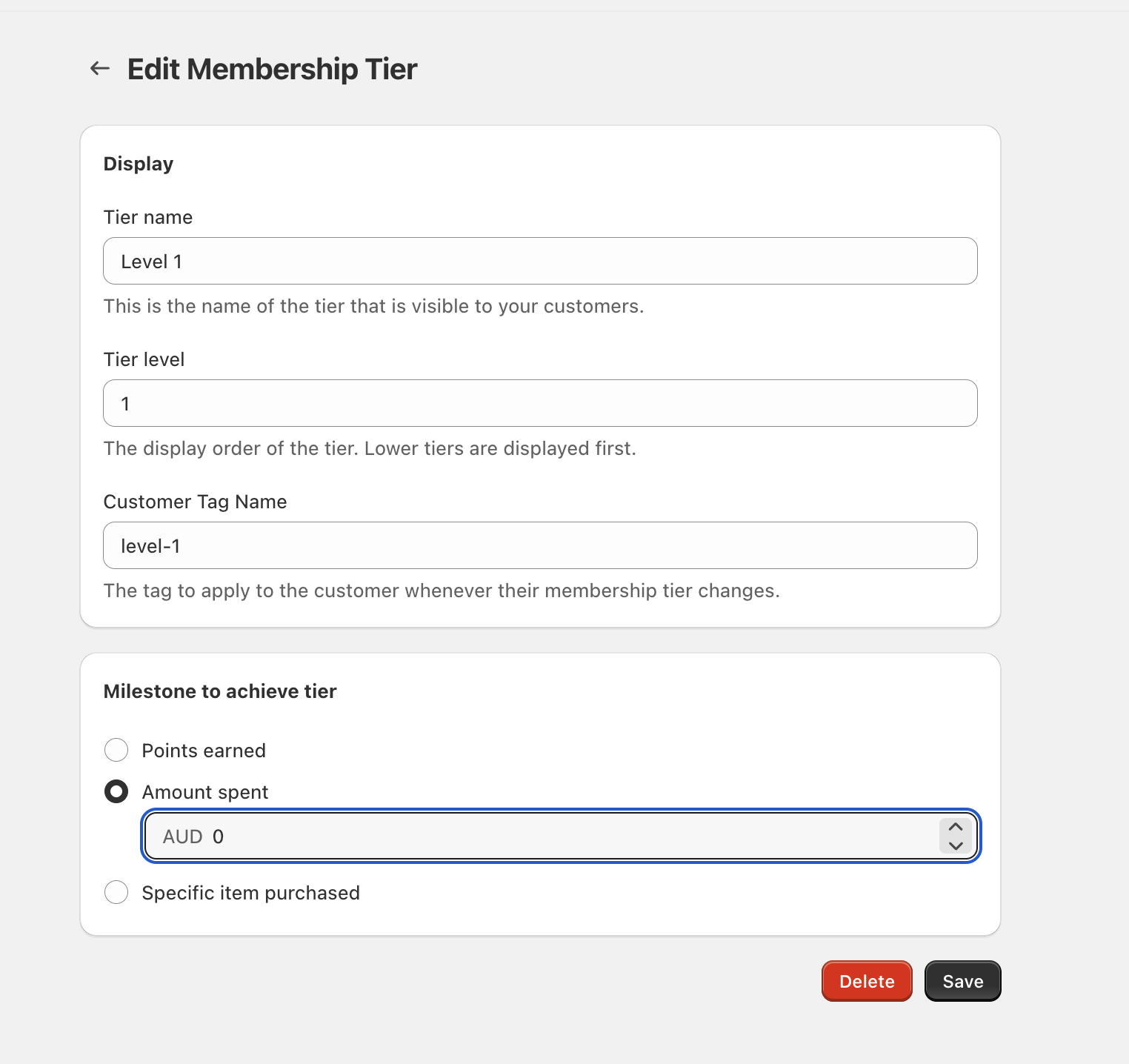
Add or delete tiers
- To add a new tier, select Add tier on the Membership Tiers page.
- To delete a tier, open it with Edit and select Delete on the Edit Membership Tier screen.
FAQ
Each tier has its own Milestone to achieve tier selector, so you can set how that tier is earned (for example, Amount spent for Gold, Points earned for Silver).
Tier name is what customers see (for example, Bronze). Customer Tag Name is the tag applied when their membership tier changes, which is useful for targeting or filtering customers by tier.
Tiers can change when memberships are recalculated at the end of each period, based on the customer’s total points earned or total amount spent during that period, and when memberships expire after 12 months.