How to redeem loyalty rewards on upcoming subscription orders
Overview
This guide shows how to enable loyalty points redemption on Roadmap subscriptions, and how redemptions work in both the Shopify admin and the customer storefront.
Once enabled, loyalty points can be applied to upcoming subscription orders by you (in the admin) and by the customer (in the storefront), depending on the order cycle rules described below.
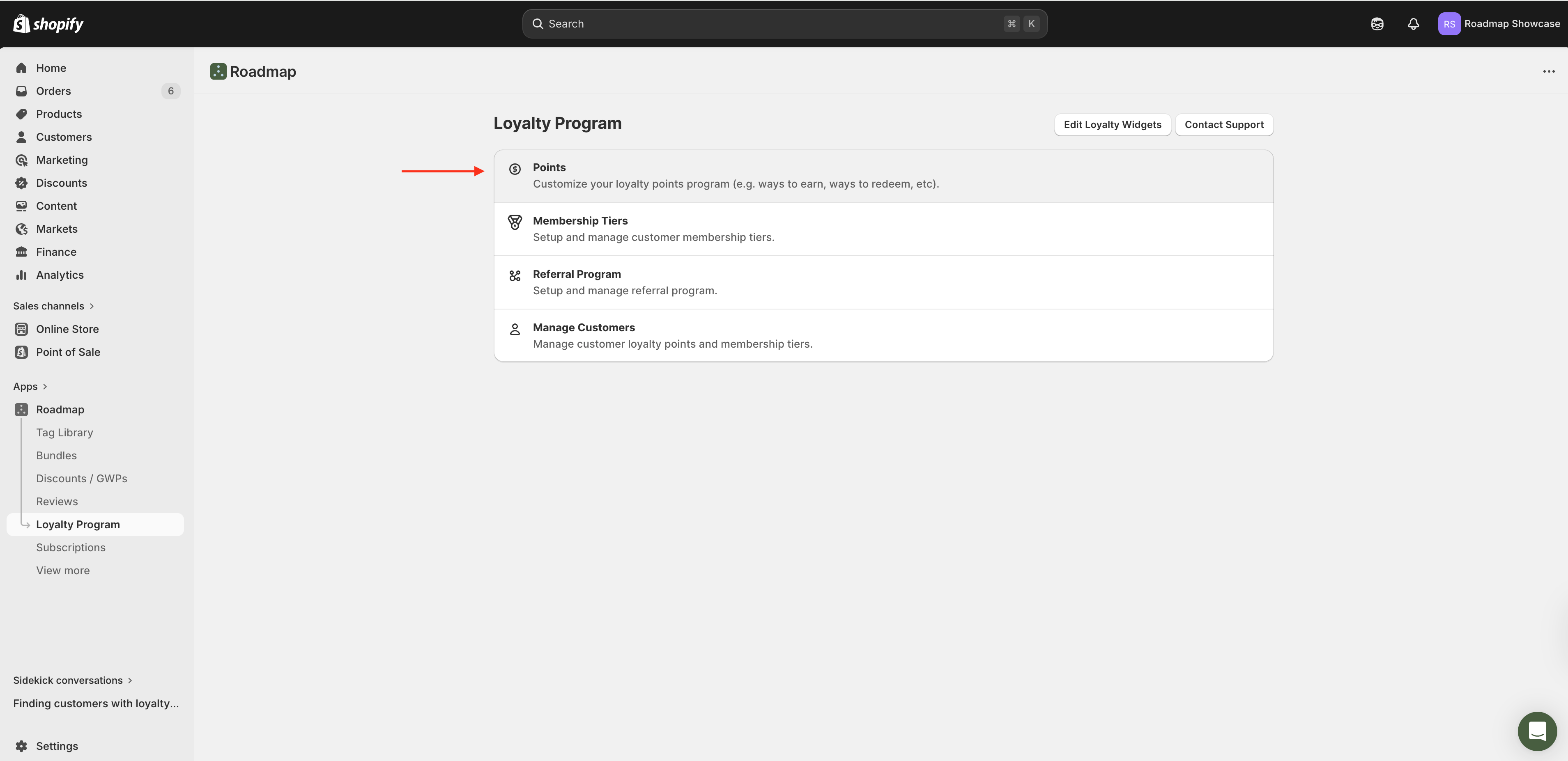
1) Open the Loyalty Program area
In your Shopify admin, open the Roadmap app, then go to Loyalty Program.
2) Enable subscription redemption in Loyalty Program settings
Go to your loyalty program settings (under your points settings) and find the section labeled Subscriptions Integration.
In Subscriptions Integration, locate Redemption Settings.
Turn on Allow loyalty points redemption on subscriptions.
Click Save. After saving, loyalty points redemption becomes available for subscription orders (storefront and admin).
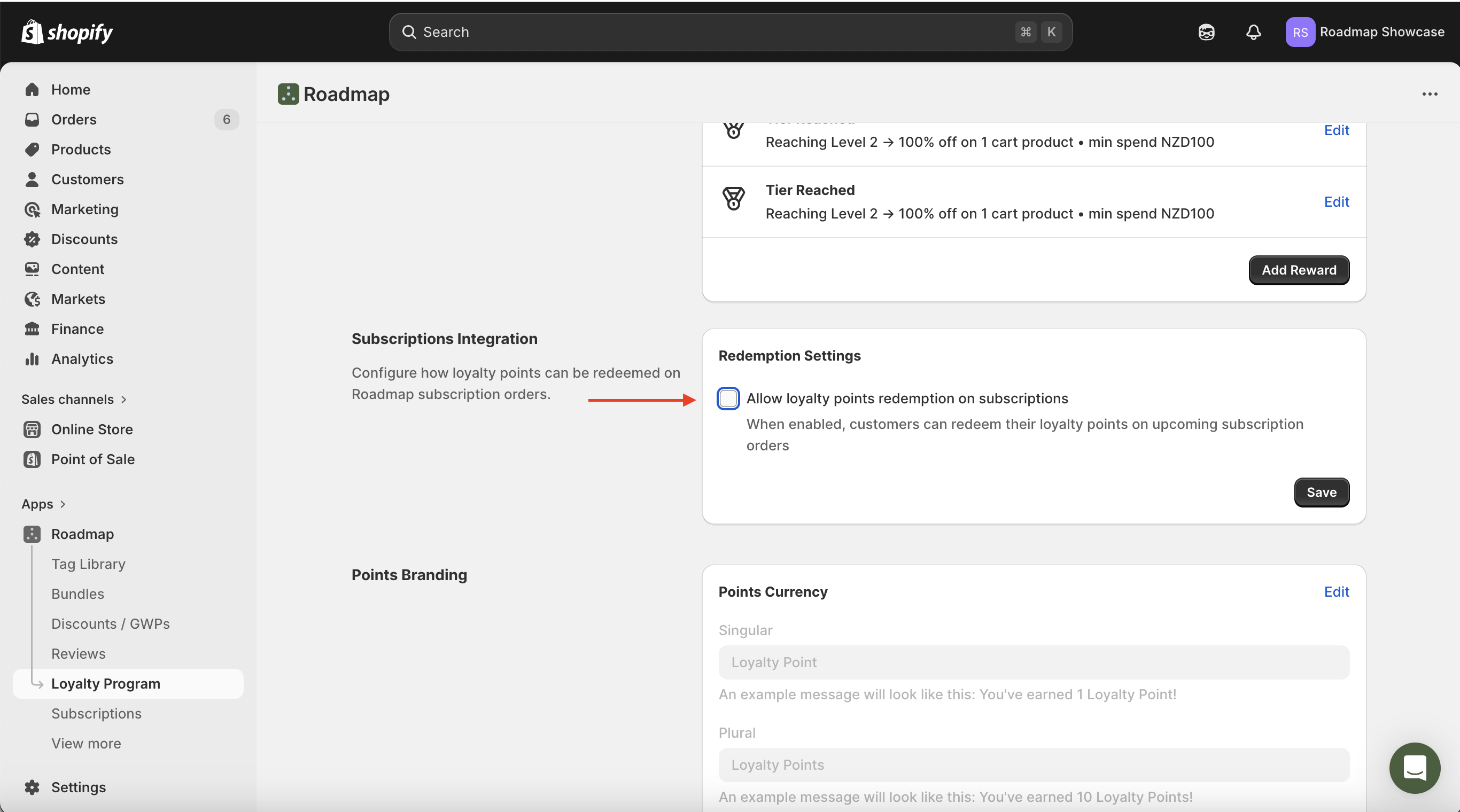
If you don’t see redemption options later in Subscriptions, come back here and confirm Allow loyalty points redemption on subscriptions is enabled and saved.
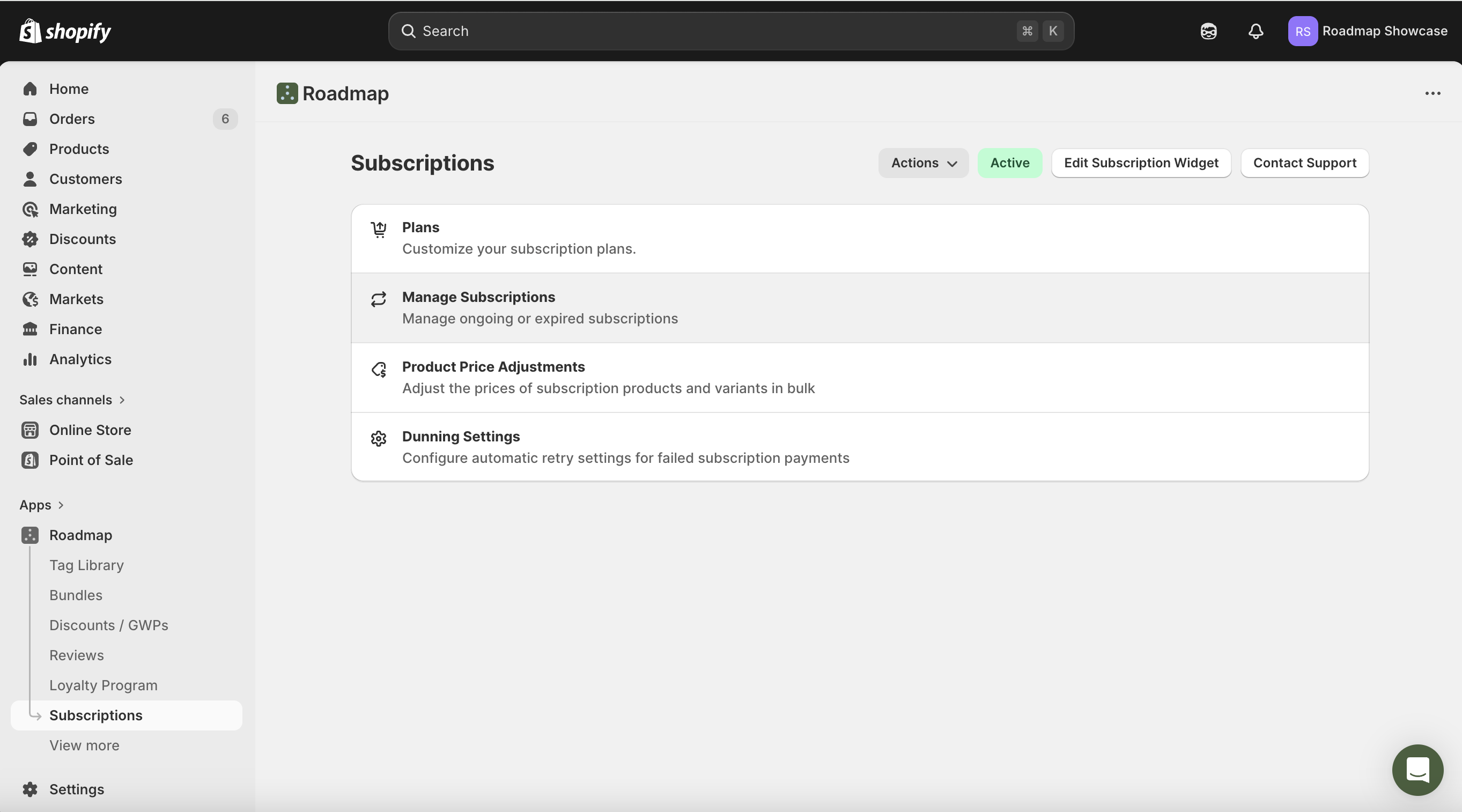
3) Go to Subscriptions in Roadmap
Next, open Roadmap > Subscriptions to manage subscription contracts and apply redemptions to upcoming orders.
4) Redeem loyalty points on an upcoming subscription order (Admin)
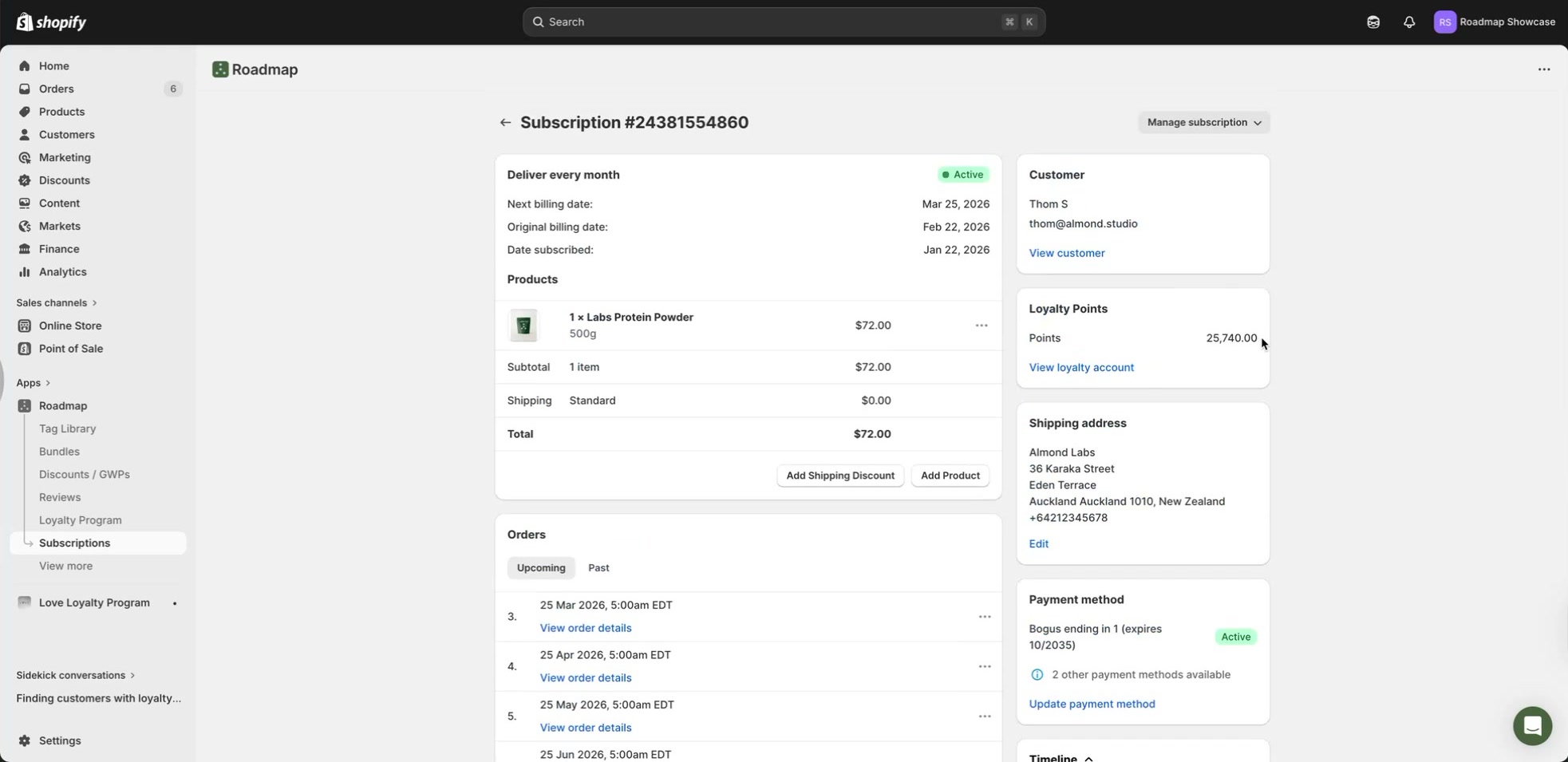
Open a subscription contract. On the contract details page, find the Orders section (with Upcoming and Past), then open the action menu (the … menu) for the upcoming order you want to discount.
In the Orders list under Upcoming, click the … menu for the target cycle.
Select Redeem Loyalty Points.
In Redeem Loyalty Points on Upcoming Order, choose an amount (for example, “$20.00 off entire order (200 points)”).
Confirm the redemption to apply it to that upcoming order.

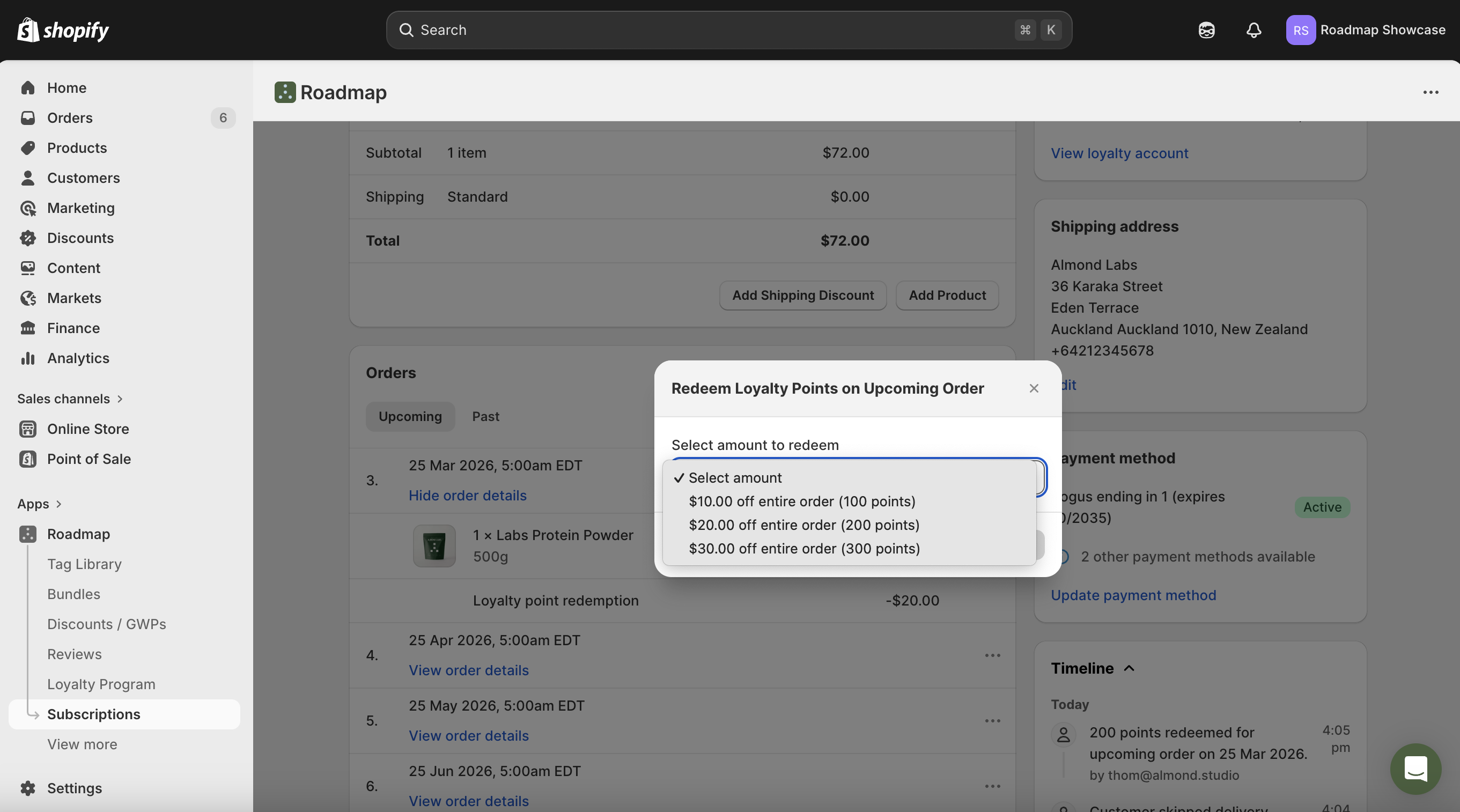
If the customer and order are eligible, you’ll see available reward options in the amount dropdown. If they’re not eligible, reward options may be unavailable.
5) What customers can do in the storefront
Customers can also apply loyalty points from the subscription area in your storefront. In the walkthrough, this appears under My Subscriptions, where customers can open Manage Subscription and view upcoming shipment details.
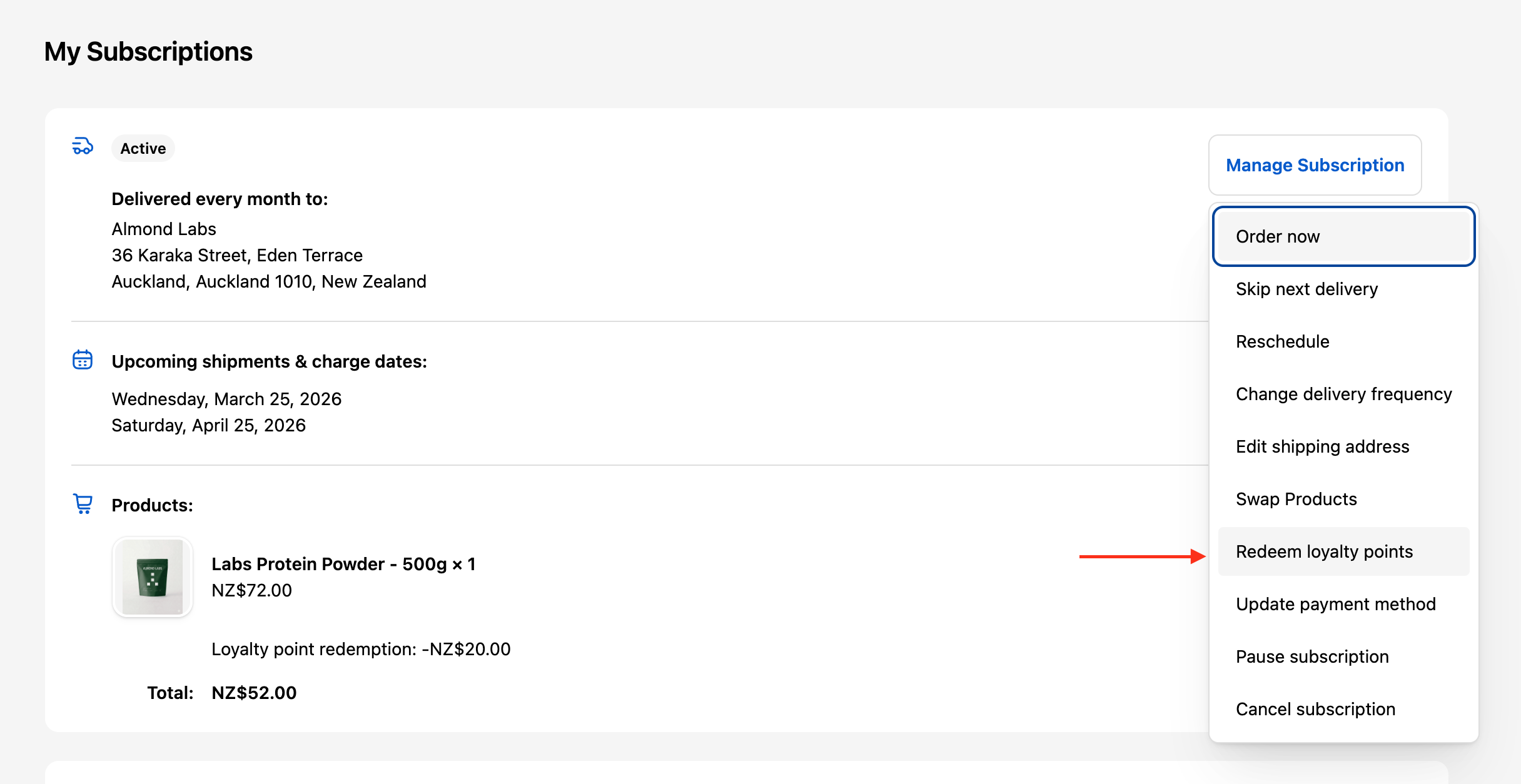
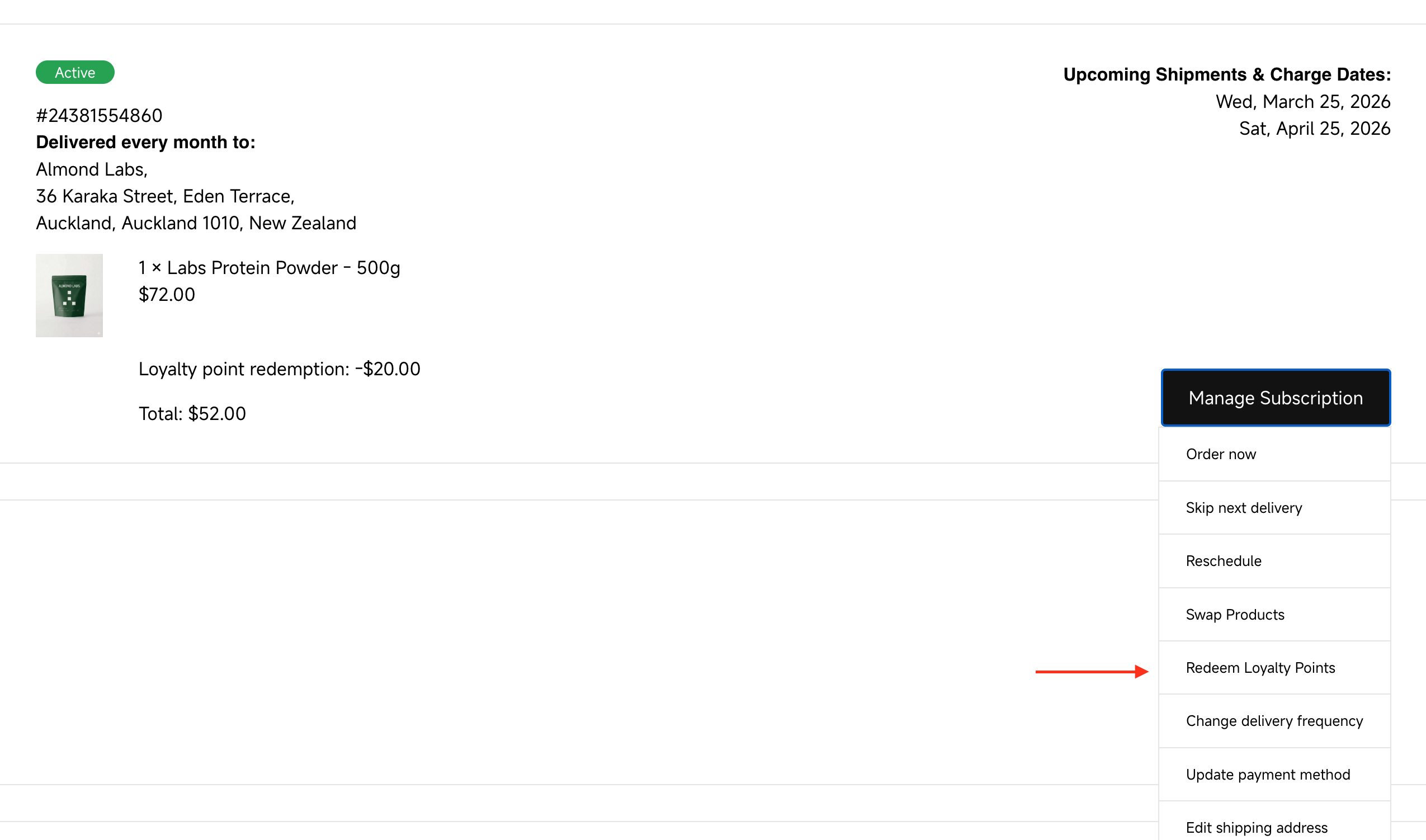
Important storefront rule: customers can only apply loyalty points to the current upcoming order in the storefront. In the admin, you can apply loyalty points to any upcoming cycles.
6) Verify the redemption was applied
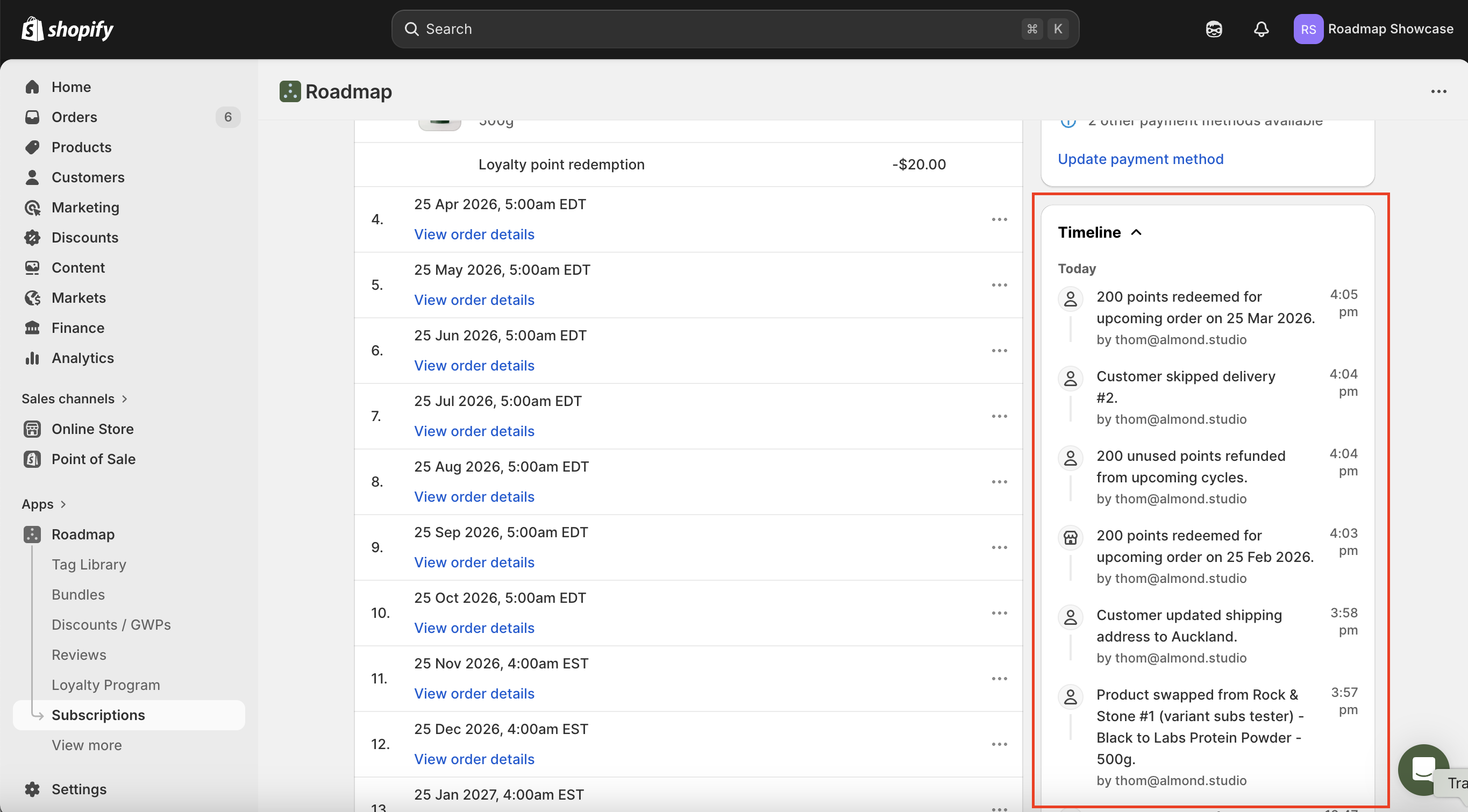
After redemption, the upcoming order shows the discount applied. In the new accounts storefront example, the order summary shows a line like Loyalty point redemption with the discounted amount.
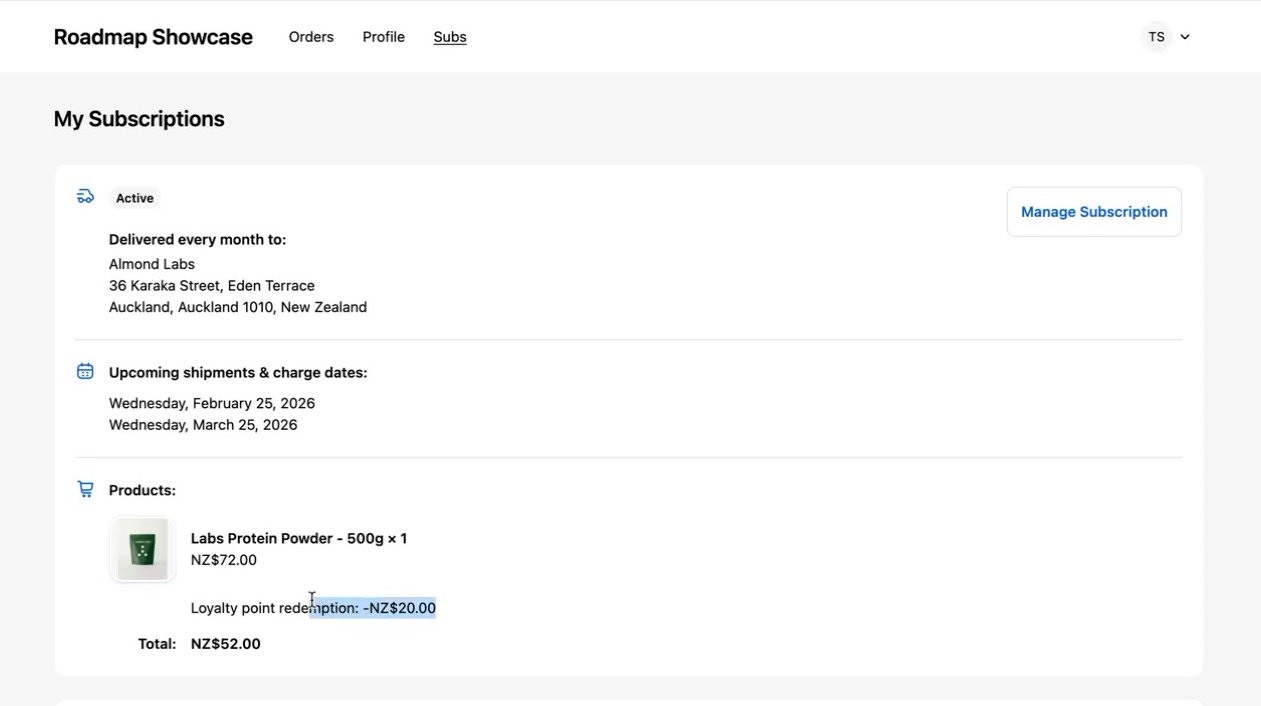
Legacy accounts follow the same workflow: you can redeem loyalty points on upcoming subscription orders, and the same refund behavior applies when subscription orders change.
7) Rules and refund behavior (read before editing subscriptions)
One redemption per order: each upcoming order cycle can have only one loyalty redemption applied.
Edits can trigger refunds: if you (store owner) or the customer makes a change to the subscription in the admin or storefront, the loyalty points used for that upcoming order can be refunded, and the redemption must be applied again. A confirmation message informs the user that loyalty points have been refunded due to their action.
8) Check the customer’s loyalty account and points history
On the subscription contract page in the admin, you can see a Loyalty Points card with the customer’s points balance and a link to View loyalty account. This gives you a quick way to confirm available points and open the customer’s loyalty timeline.
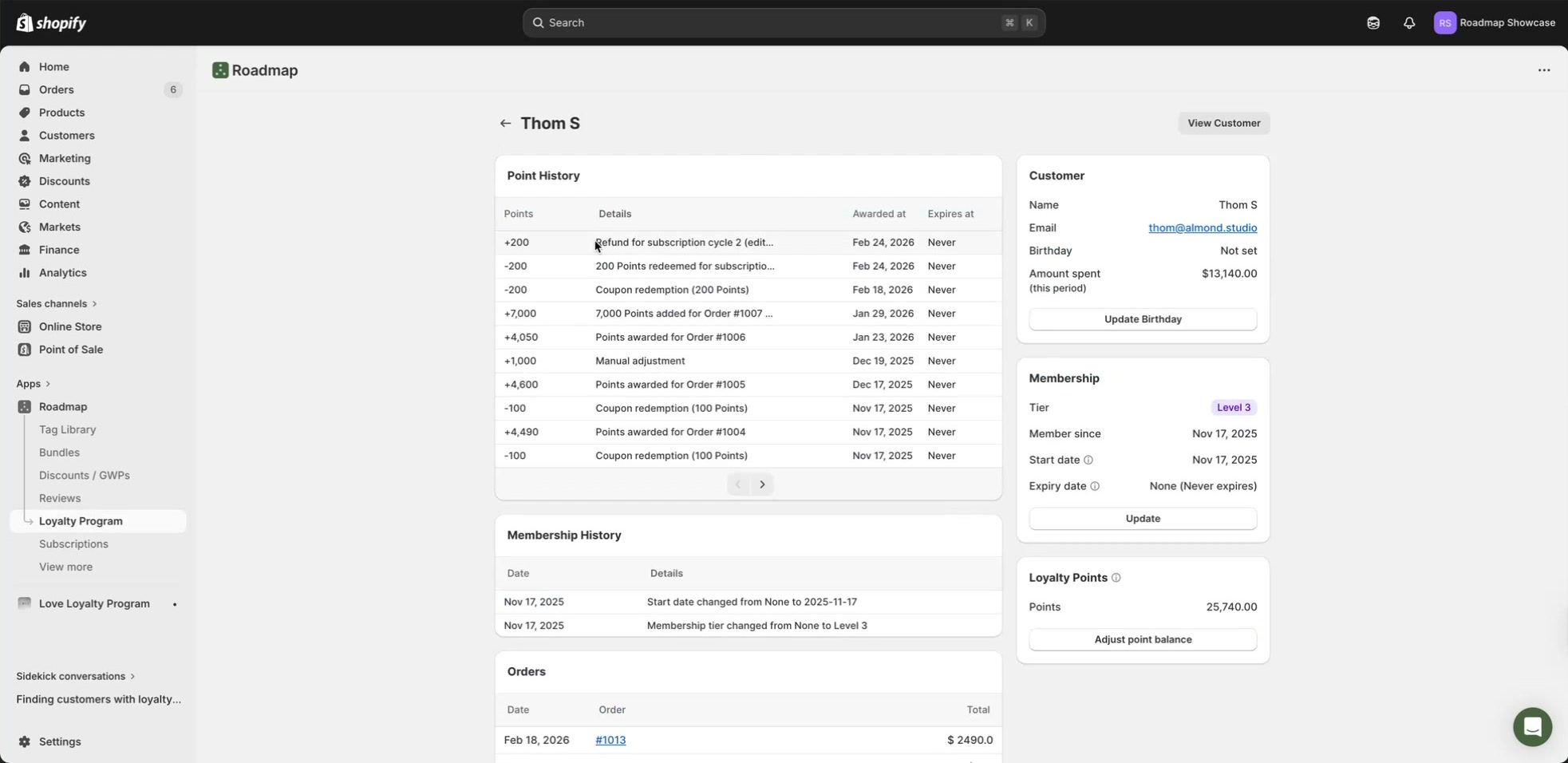
In the customer’s loyalty profile, the Point History timeline records both redemptions (points leaving the account) and refunds (points returned when the redemption isn’t used).
9) Subscription timeline keeps track of the actions performed in admin & storefront
On the subscription contract page in the admin, you can see track these actions being performed.