

Can I scheduled the start/end of tag settings?
What “Active Dates” does
In Tag Library, each tag you create can be scheduled to run for a specific window of time using the Active Dates section:
- Start date and Start time control when the tag becomes active.
- An optional End date and End time control when the tag stops being active.
- If you don’t set an end date, the tag will remain active indefinitely (until you change it or disable/delete the tag).
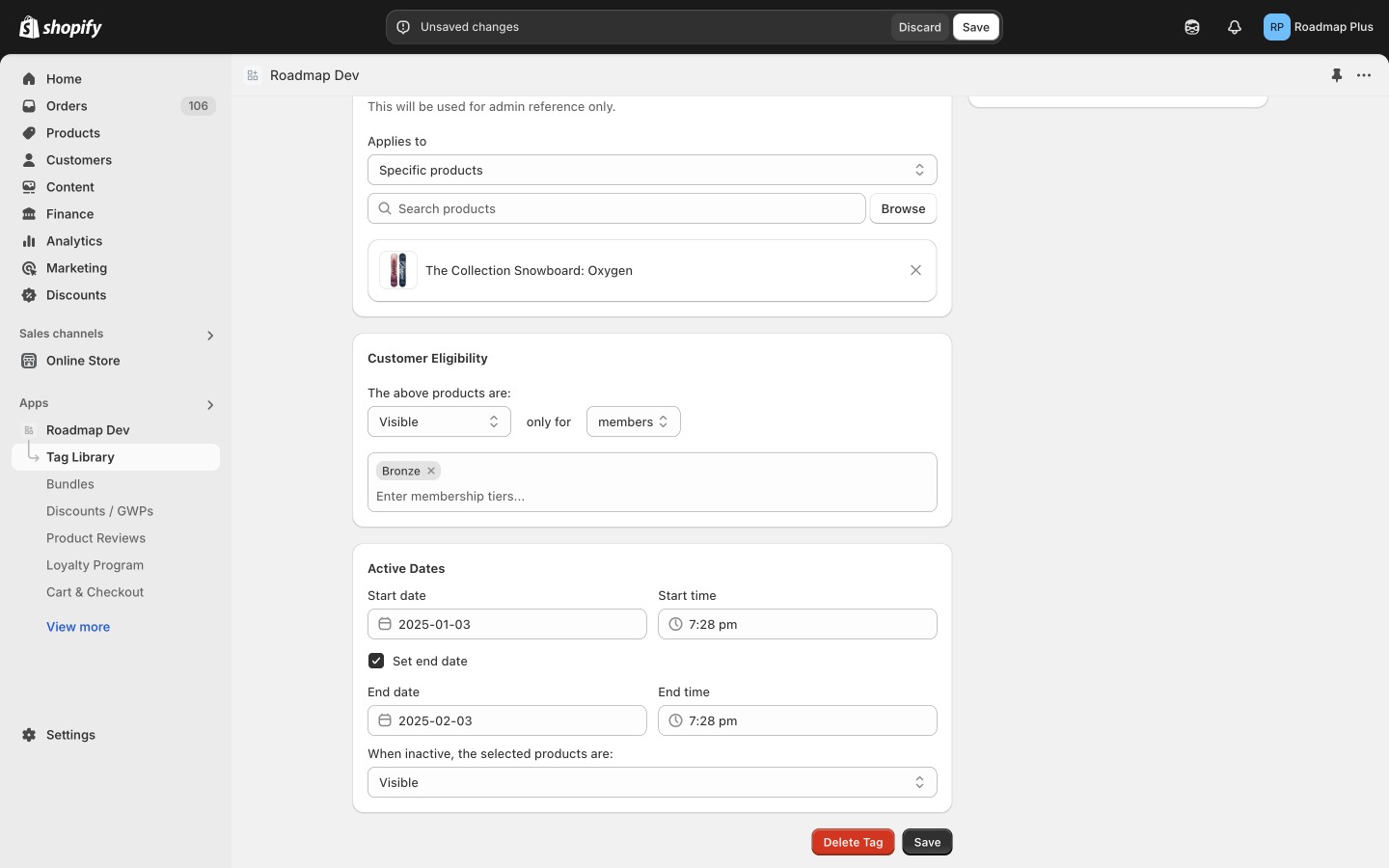
Set a start date/time
Set an end date/time (optional)
If you want the tag to stop applying automatically, add an end date/time.
Example: a 24-hour exclusive product drop
If you want to make a product exclusive to a customer segment for 24 hours:
- Set Start date / Start time to the launch moment.
- Enable Set end date and set the End time to 24 hours later.
- Under When inactive, the selected products are: choose whether the product should be available to everyone after the exclusive window ends or remain hidden.
- Click Save.
Common questions
The tag remains active indefinitely (it won’t automatically stop). You can still edit the tag later to add an end date or change the schedule.
Yes. Open the tag in Tag Library, adjust the Active Dates fields (and the When inactive dropdown if needed), then click Save.