Overview
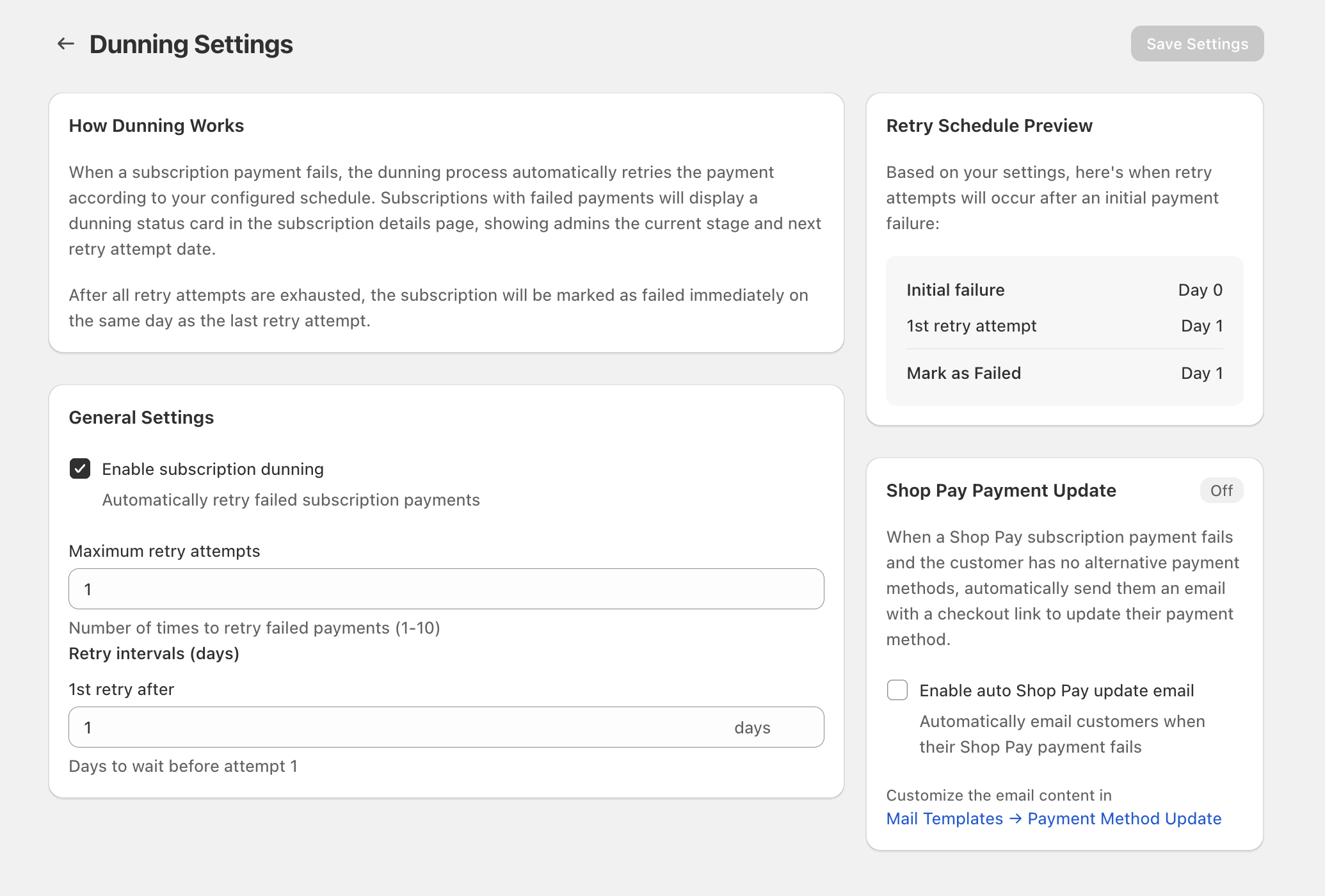
When a subscription payment fails, the app’s dunning process can automatically retry the payment on a schedule you configure. You manage this from the Dunning Settings screen, where you can:
- Turn dunning on/off with Enable subscription dunning
- Set how many times to retry with Maximum retry attempts
- Choose when retries happen using Retry intervals (days)
- Confirm timing in Retry Schedule Preview
- Optionally email Shop Pay customers using Enable auto Shop Pay update email
What happens when a payment fails
The How Dunning Works section on the Dunning Settings page explains the lifecycle:
- After an initial payment failure, the app retries according to your configured schedule.
- Subscriptions with failed payments show a dunning status card on the subscription details page so admins can see the current stage and the next retry date.
- After all retry attempts are exhausted, the subscription is marked as failed immediately on the same day as the last retry attempt.
If you change dunning settings, the Retry Schedule Preview updates to reflect the new timing (for example: Initial failure — Day 0, 1st retry attempt — Day 1, Mark as Failed — Day 1).
Configure dunning retries
Go to the Dunning Settings page.In General Settings, check Enable subscription dunning to automatically retry failed subscription payments. Uncheck it to stop automatic retry behavior.Enter a value in Maximum retry attempts (shown on-screen as “Number of times to retry failed payments (1–10)”).Under Retry intervals (days), set when retries occur (for example, 1st retry after X days). The helper text indicates this is “Days to wait before attempt 1.”Review the Retry Schedule Preview panel to confirm the sequence of events (initial failure, each retry attempt, and when it will be marked as failed).Click Save Settings in the top-right to apply the new dunning configuration.
Changing Maximum retry attempts and Retry intervals (days) affects when a subscription is ultimately marked as failed. Always confirm the impact in Retry Schedule Preview before clicking Save Settings.
Enable Shop Pay payment update emails (optional)
For Shop Pay subscriptions, you can automatically email customers a checkout link to update their payment method when their Shop Pay payment fails and they have no alternative payment methods.
On the Dunning Settings page, find the Shop Pay Payment Update panel.Check Enable auto Shop Pay update email.Use the link shown in the panel: Mail Templates → Payment Method Update.
If you enable Enable auto Shop Pay update email, make sure your Payment Method Update mail template clearly tells customers what to do next and includes your support contact details for edge cases.
Quick troubleshooting
Confirm Enable subscription dunning is checked, then click Save Settings. Next, verify the retry timeline in Retry Schedule Preview matches what you expect.Review Maximum retry attempts and Retry intervals (days). The subscription is marked as failed the same day as the last retry attempt—check Retry Schedule Preview to see that final date.In Shop Pay Payment Update, confirm Enable auto Shop Pay update email is checked and saved. Then review Mail Templates → Payment Method Update to ensure the template is active and contains the correct messaging.
