

Automatically tag customers based on their subscription activity.
What this feature does
Subscription customer auto-tagging automatically adds (and updates) customer tags based on their subscription activity. Each time a subscription order is created, the app checks the customer’s running total and applies the matching tag.
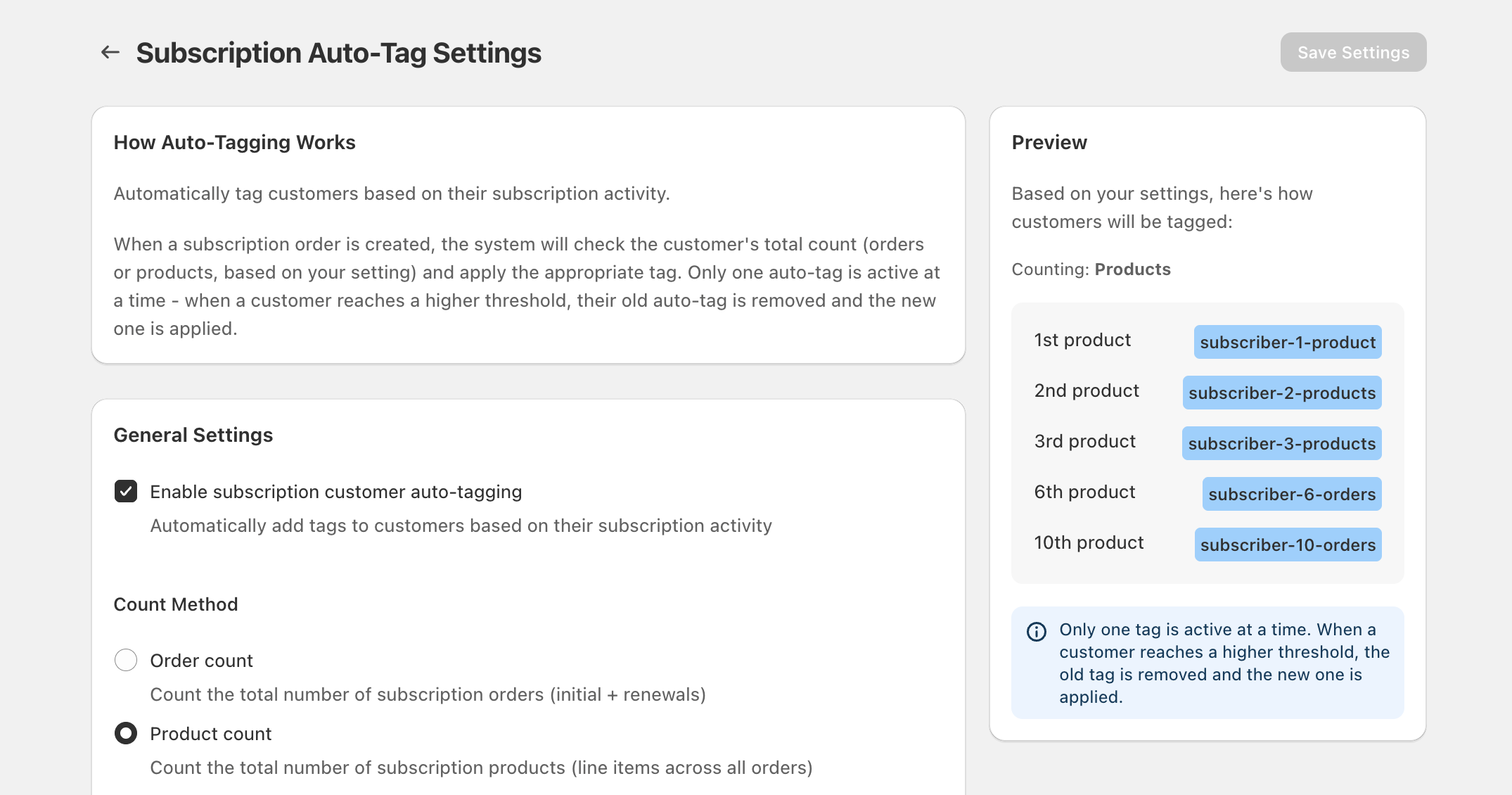
Configure subscription auto-tagging
Go to the Subscription Auto-Tag Settings page (you’ll see sections labeled How Auto-Tagging Works, General Settings, Count Method, and Tag Rules).
In General Settings, check Enable subscription customer auto-tagging.
Under Count Method, choose how the customer’s activity should be counted:
- Order count — counts the total number of subscription orders (initial + renewals).
- Product count — counts the total number of subscription products (line items across all orders).
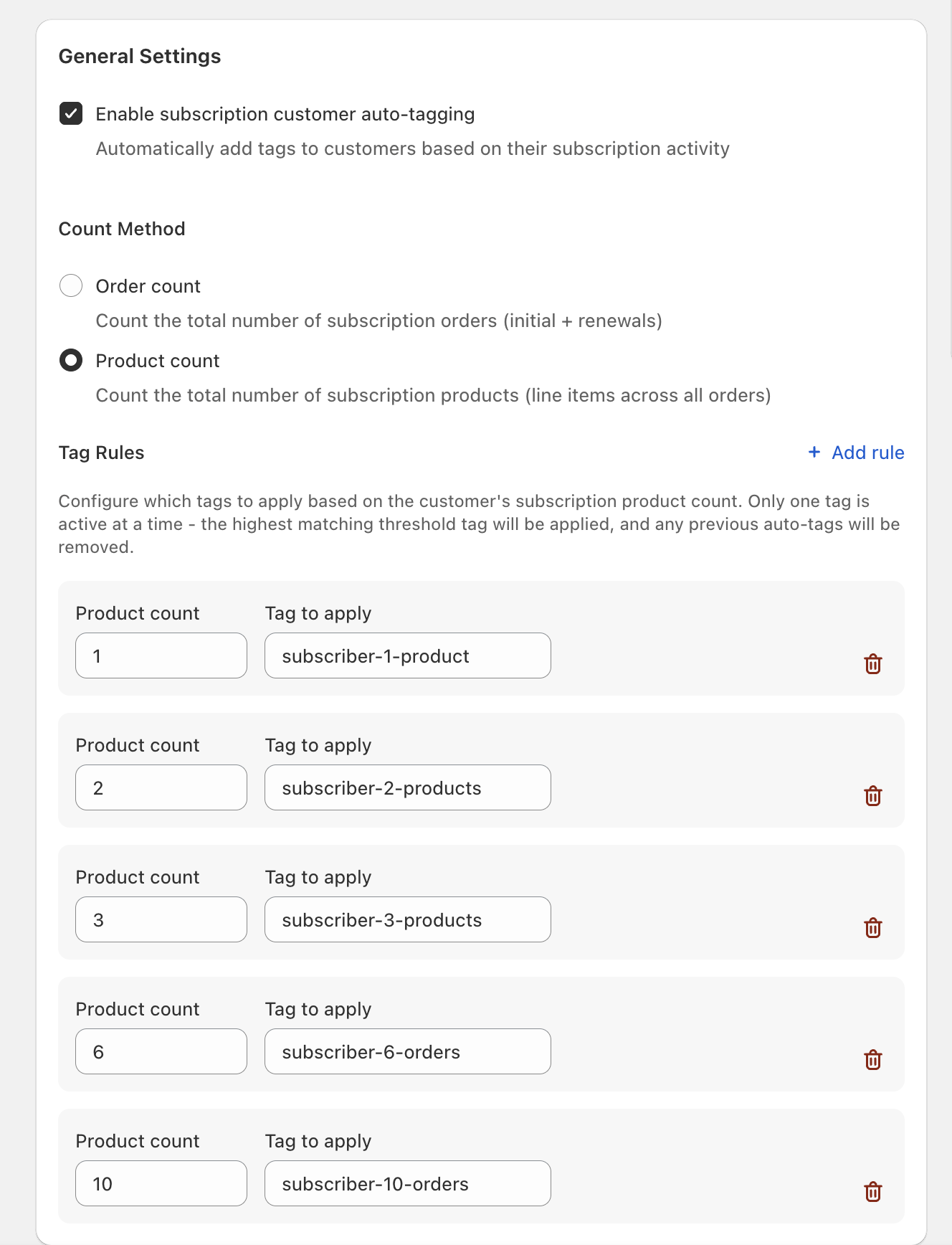
In Tag Rules, define which tag should be applied when a customer reaches specific totals:
- Click + Add rule.
- Enter the threshold in the left field (for example, Product count or Order count).
- Enter the exact Tag to apply (for example,
subscriber-1-product). - Repeat for each threshold you want to support.
To remove a rule, click the trash icon on the right side of that rule.
On the right, check the Preview card to confirm the mapping from threshold to tag (for example: “1st product” → subscriber-1-product, “2nd product” → subscriber-2-products).
Click Save Settings in the top-right corner of the page.
How tags are applied
- The app evaluates the customer’s total based on your selected Count Method.
- The highest matching threshold wins.
- When a customer reaches a new threshold, the app removes the previous auto-tag and applies the new one.
Best practices
Use consistent tag naming. For example, prefix all rules with subscriber- and include the threshold and method (like subscriber-3-products). This makes your customer tags easy to scan in your admin.
Choose Order count if you want to reward renewals (every subscription order increments the count). Choose Product count if you want to track total subscribed items across orders (line items across all orders).
That’s fine. The app applies the highest rule that the customer qualifies for. For example, if you have rules for 1 and 3, a customer who reaches 3 will receive the “3” tag.
Yes. Uncheck Enable subscription customer auto-tagging and click Save Settings. Your existing Tag Rules remain configured.