

How do I use tags to control who qualifies for discounts?
What “tags” control in Roadmap discounts
In Roadmap, you can control who qualifies for an offer using the Customer Eligibility section on your discount. Two options are specifically designed for tags:
Customers tagged with: only customers who have a specific customer tag will qualify.
Customers NOT tagged with: everyone qualifies except customers who have a specific tag.
These are customer tags (the tags on a customer profile), not product tags.
Where to set tag-based eligibility
You set tag-based eligibility while creating or editing an offer in Discounts / Gift with Purchase.
Set an offer to qualify by customer tag
Use this when you want an offer to be “VIP-only,” “staff-only,” “influencer-only,” etc.
Go to Discounts / Gift with Purchase.
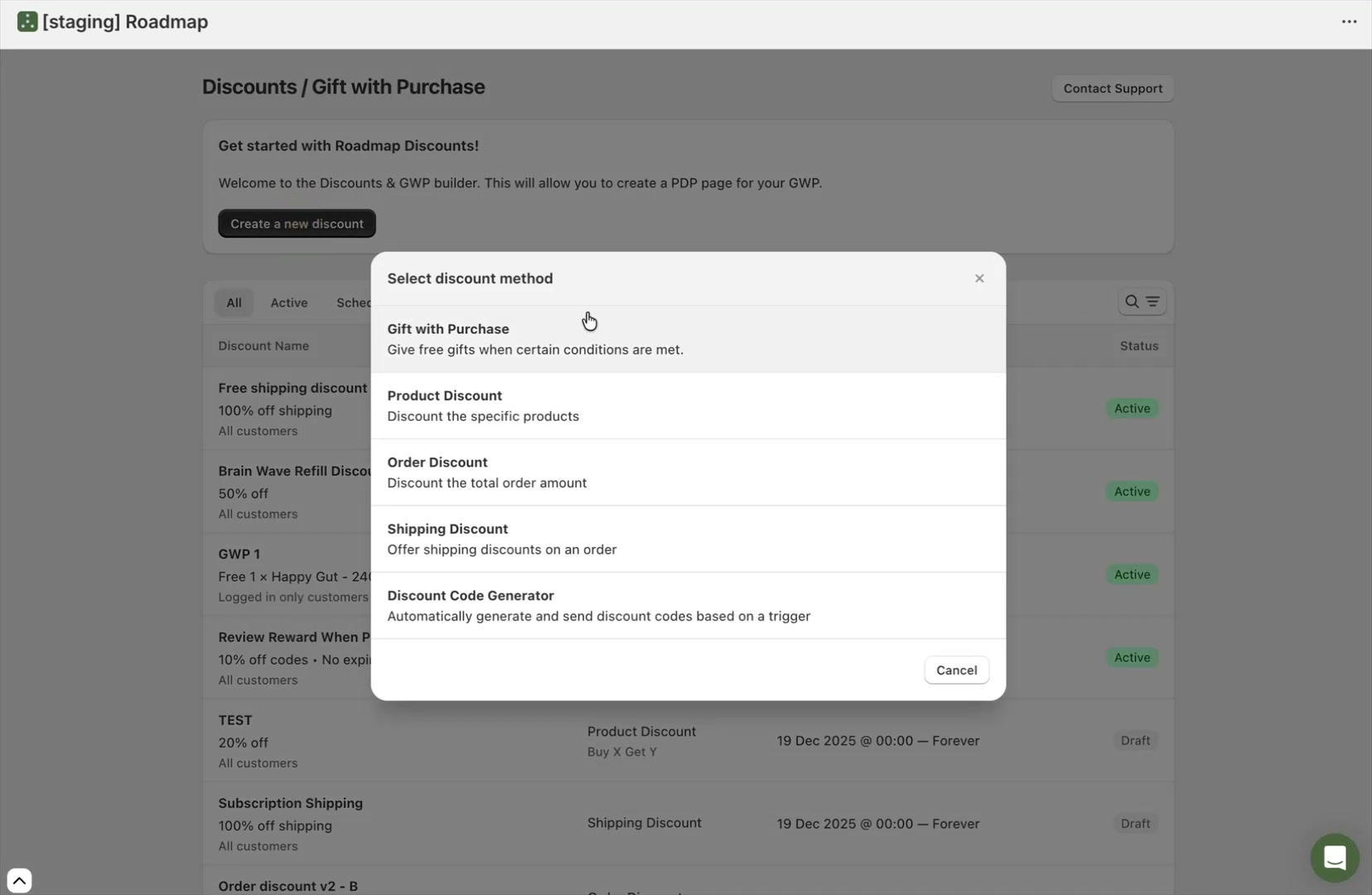
To create a new offer, select Create a new discount. In the Select discount method modal, choose the offer type you want (for example, Gift with Purchase).
On the offer screen (for example, New Gift with Purchase), find the Customer Eligibility section.
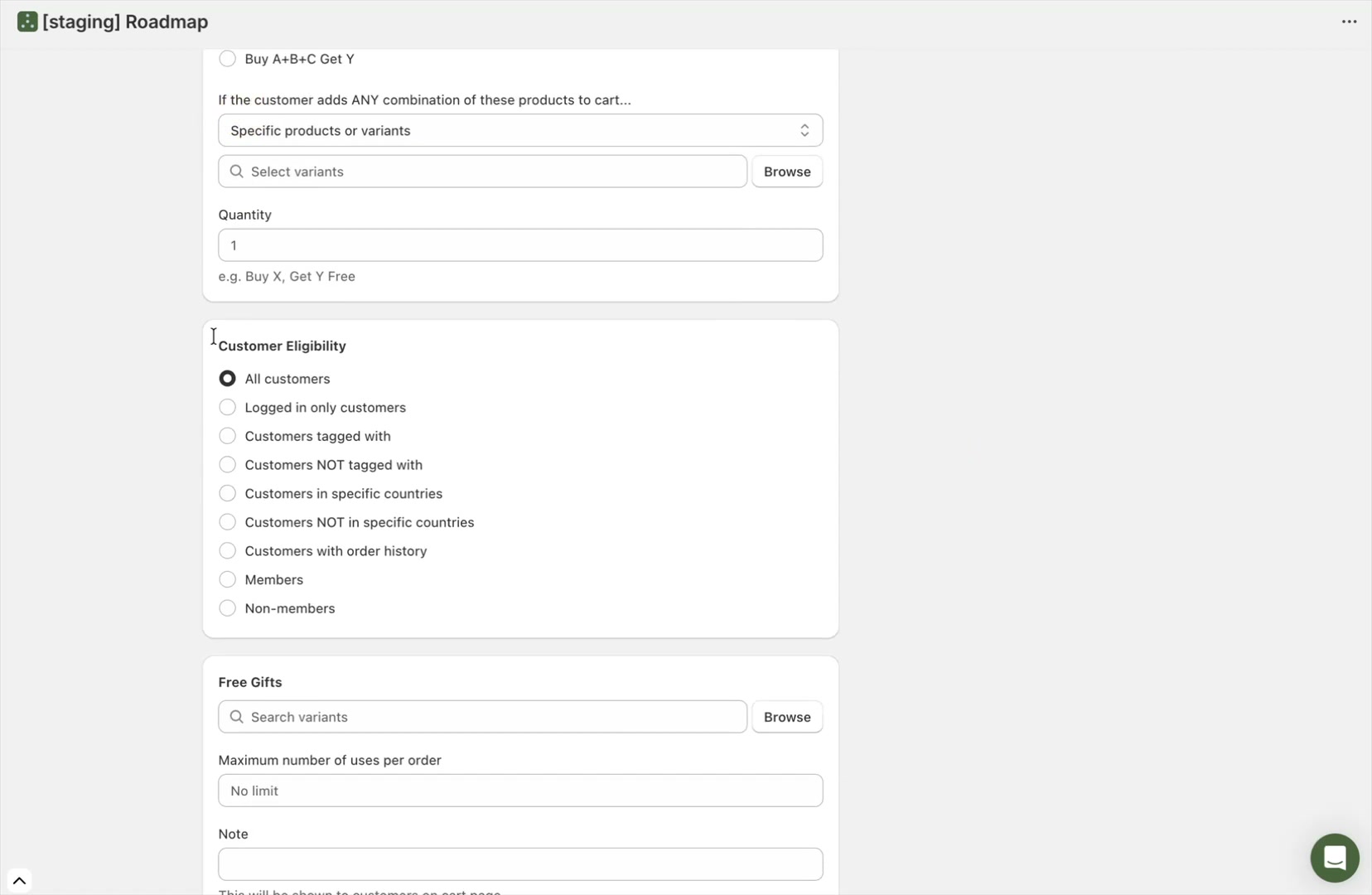
Select Customers tagged with, then enter the tag(s) you want to qualify.
Save your changes by selecting Save at the bottom of the page.
Use a consistent naming convention for tags (for example, vip, vip_level_2, employee) so it’s easy to reuse them across multiple promotions.
Exclude a tag (block certain customers from qualifying)
Use this when you want most shoppers to qualify, but you need a “do not discount” list (for example, wholesale accounts).
Go to Discounts / Gift with Purchase, open the offer, and locate Customer Eligibility.
Select Customers NOT tagged with, then enter the tag(s) you want to exclude.
Select Save.
When you use Customers NOT tagged with, make sure the excluded tag is applied consistently. A single missing tag can cause an account to qualify unexpectedly.
How to test tag-based eligibility
Tag rules are easiest to verify with two real customer accounts: one that has the tag and one that does not.
In your offer, verify Status is set to Active and your Active Dates are within the current window.
Log in as a customer who has the qualifying tag, then build a cart that meets the offer’s Conditions (for example Minimum Spend or Buy X Get Y).
For a GWP, the “pass” condition is that the free gift line item is added to the cart once conditions are met.
Repeat the same cart with a customer who does not have the tag. The offer should not apply (or should apply, if you used Customers NOT tagged with).
If your eligibility requires a customer account (like tags or membership tiers), avoid guest-checkout testing. Use Logged in only customers if you want to ensure the offer never applies to guests.
Related: targeting members using tags
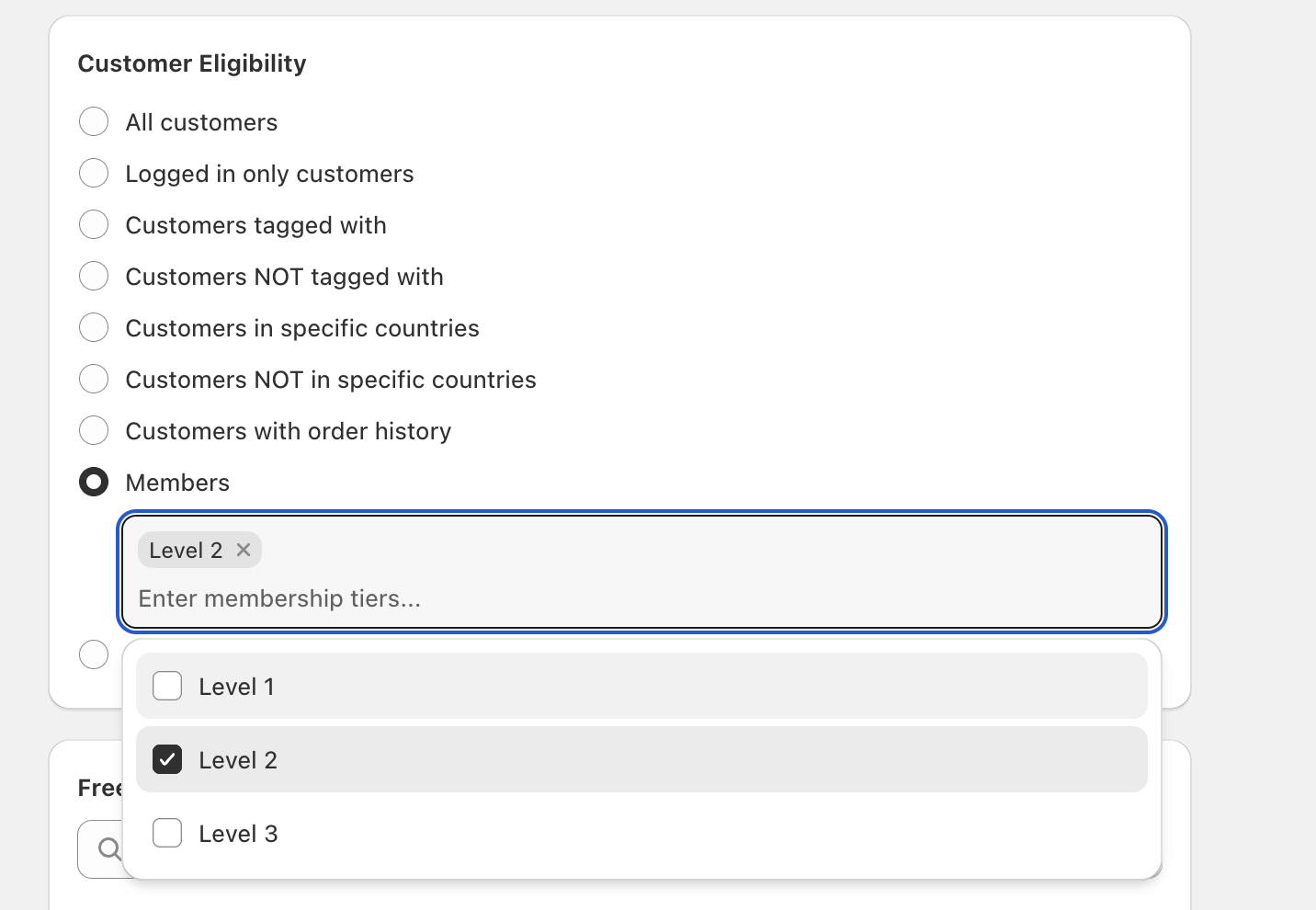
If you’re using loyalty tiers, you can target members directly with Members (and select tiers in Enter membership tiers…). You can also target tiers using tags if you’ve set a Customer Tag Name on each tier.
FAQ
Each offer has a single selection in Customer Eligibility (for example, Customers tagged with or Customers in specific countries). If you need multiple “AND” rules, consider splitting promotions or tightening your Conditions (like product lists and Minimum Spend) so only the intended audience qualifies.
Check these common causes:
The offer isn’t running (not Active, or outside Active Dates).
The cart doesn’t meet Conditions (wrong items, quantity, or minimum spend).
The customer isn’t logged in (tags won’t match a guest).
The customer has a different tag than expected (spelling/case differences).
Another promotion is overlapping and changing what applies.