

What types of GWPs and discounts can I create?
What a Gift with Purchase does
A Gift with Purchase (GWP) lets you automatically add a free item to a customer’s cart when they meet a condition—for example, spending over a certain amount or buying specific items.
In Roadmap, Gift with Purchase discounts automatically add the free gift to the cart when the discount conditions are met.
Start from the Discounts / Gift with Purchase dashboard
Open the Discounts / Gift with Purchase area to see your existing discounts and their current status (for example: Active or Draft).
Create a new Gift with Purchase
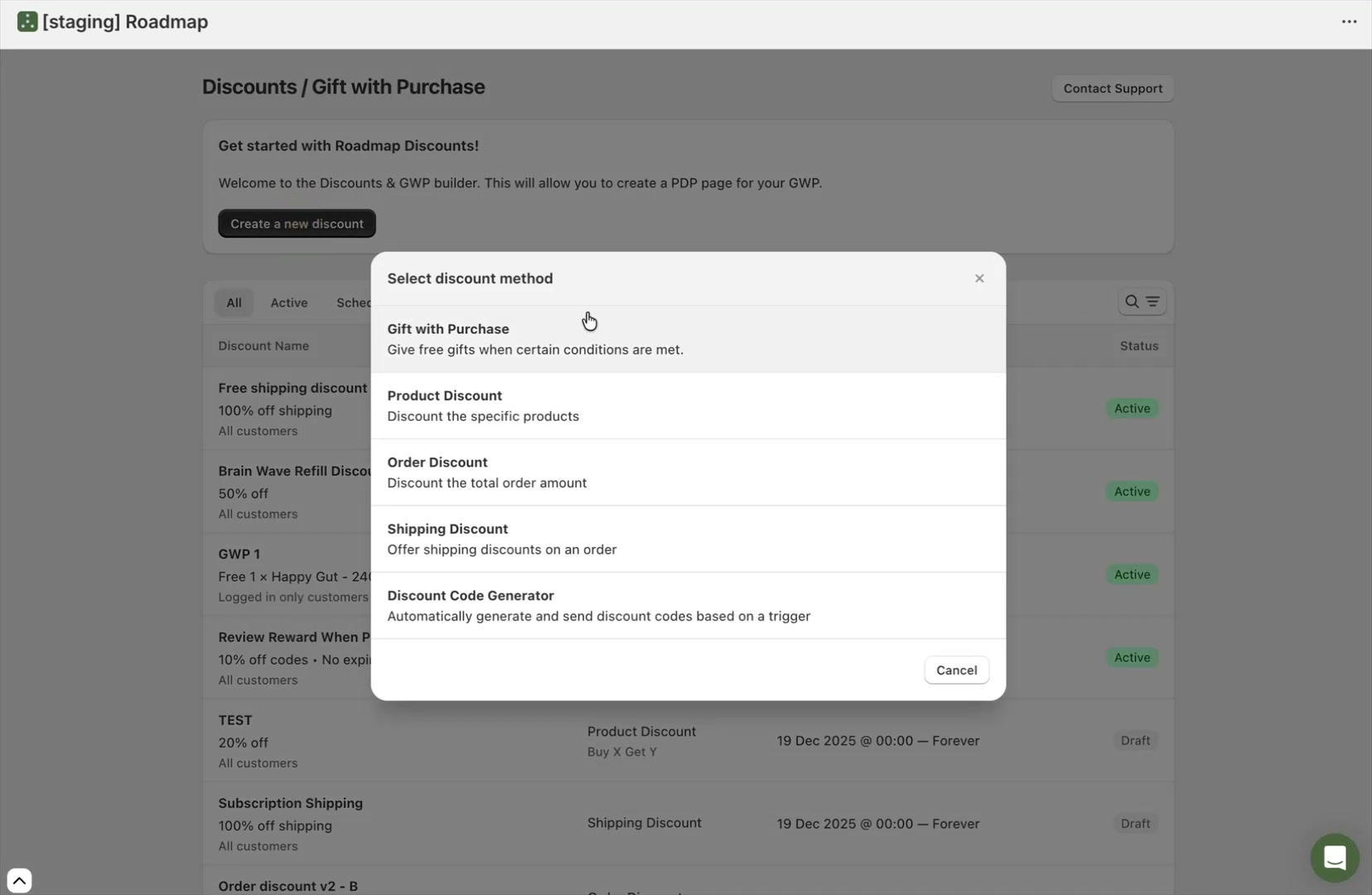
On the Discounts / Gift with Purchase page, select Create a new discount.
In the Select discount method modal, choose Gift with Purchase.
Fill out the Gift with Purchase details
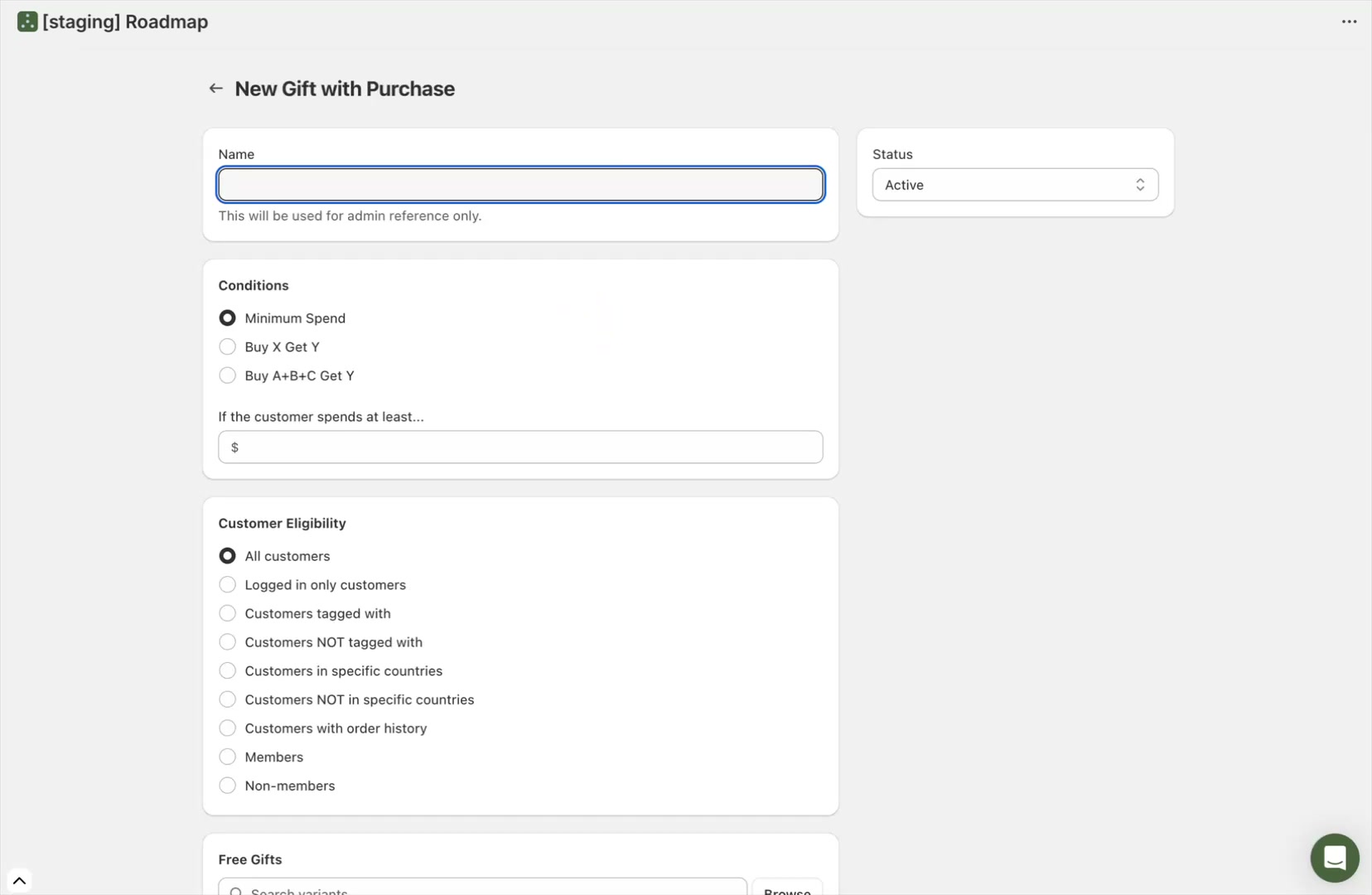
After selecting Gift with Purchase, you’ll land on New Gift with Purchase.
Name and status
Name: Internal reference name for your team.
Status: Choose whether the discount is Active or not (for example, keep it inactive while you finish setup).
Choose the condition
In Conditions, pick the trigger customers must meet. The walkthrough highlights these options:
Minimum Spend: Require a minimum order amount (for example, spend $500).
Buy X Get Y: Require a specific product/variant (or from a collection) and a minimum quantity.
Buy A+B+C Get Y: Require customers to add a combination of products to cart (multiple required items) before the gift is added.
If you’re limiting inventory, prefer a higher threshold in Minimum Spend or a tighter product list in Buy X Get Y to avoid giving away gifts too broadly.
Set Customer Eligibility
In Customer Eligibility, choose who can qualify for the GWP. Common choices include All customers or Logged in only customers, but you can also target by tags, countries, or order history.
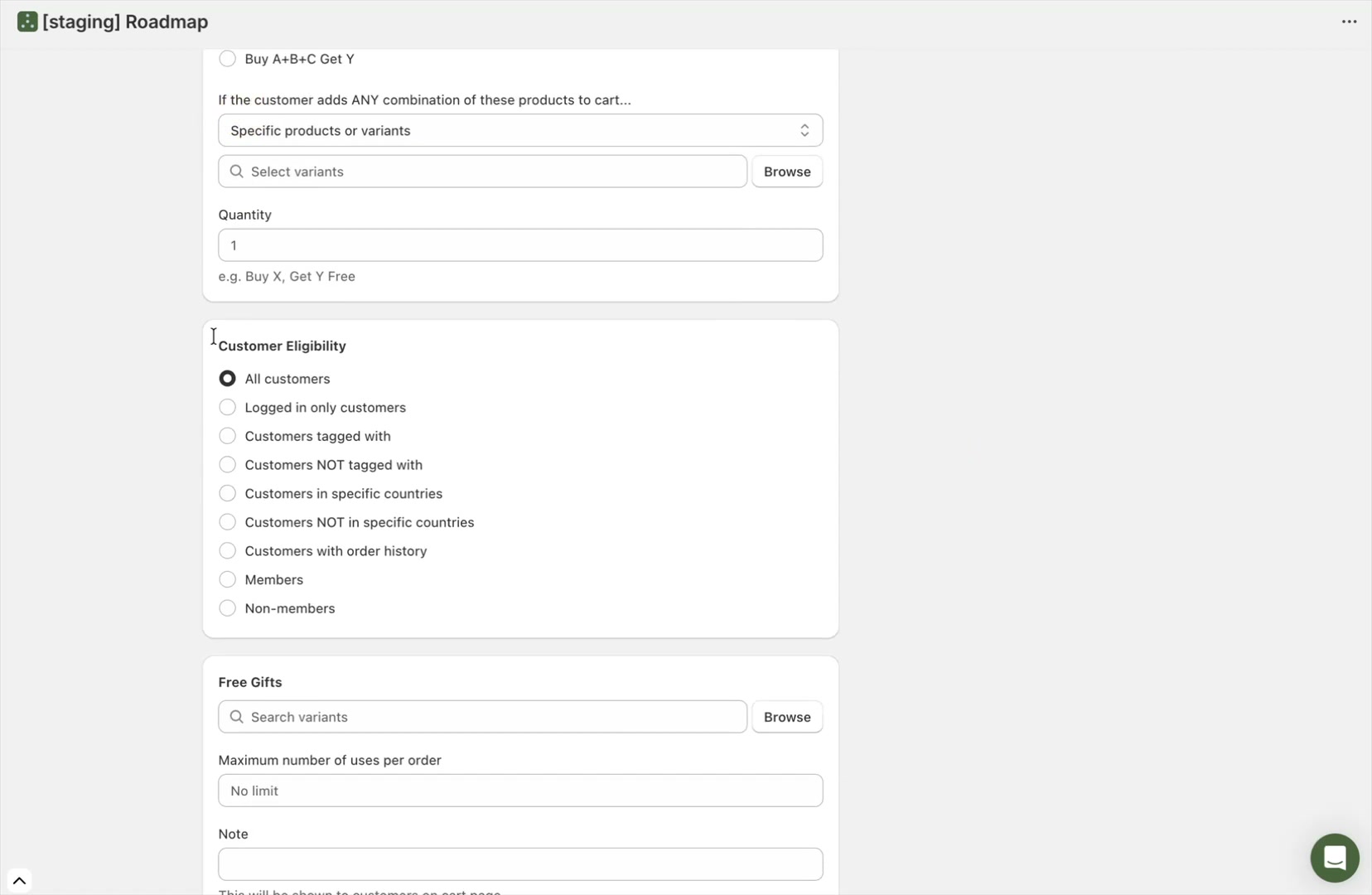
All customers
Logged in only customers
Customers tagged with
Customers NOT tagged with
Customers in specific countries
Customers NOT in specific countries
Customers with order history (by total spend or number of orders)
Members / Non-members (for stores using Roadmap Loyalty tiers)
Add the free gift
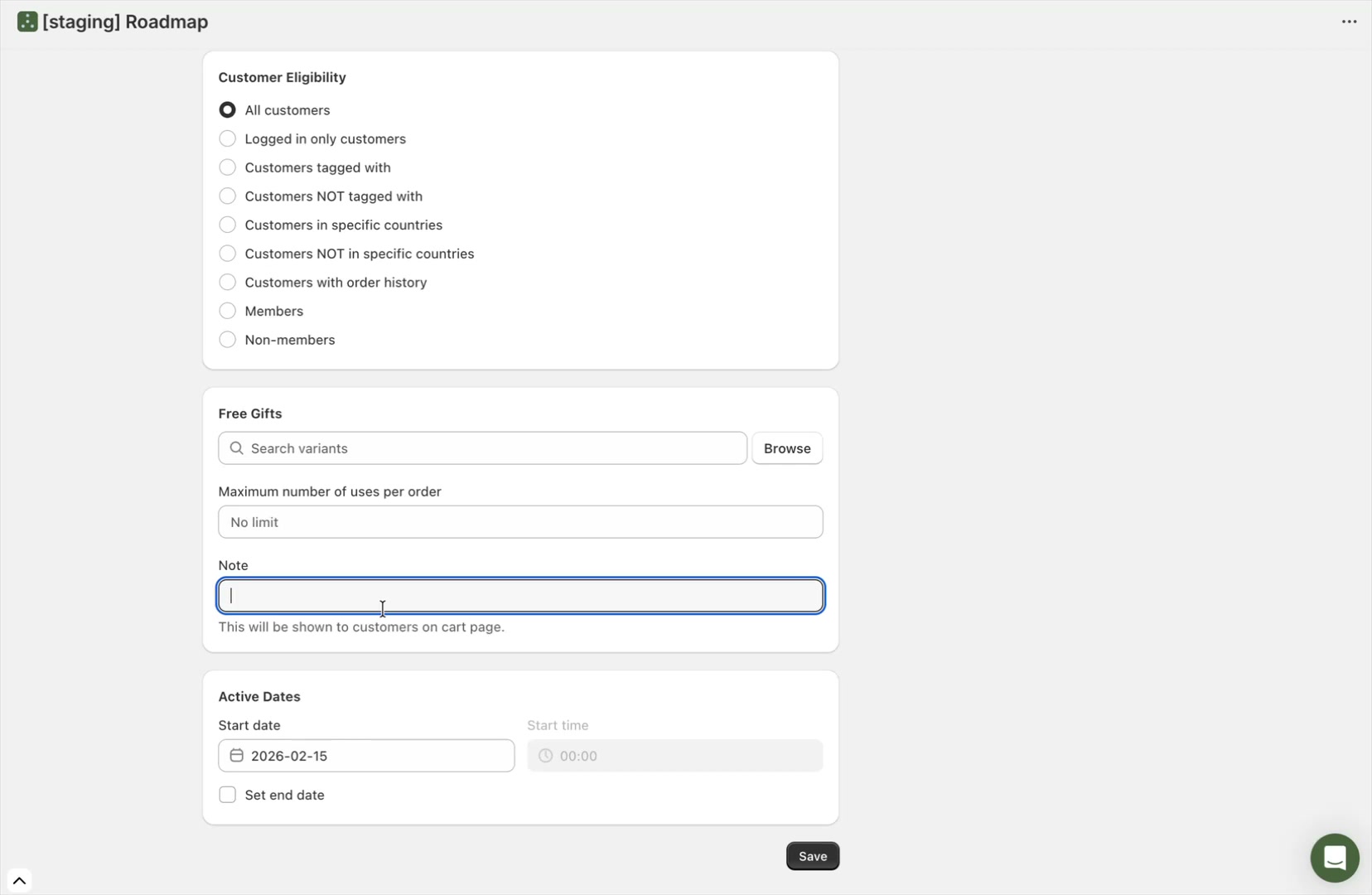
In Free Gifts, define what item gets added and what the customer sees when it’s added to their cart:
Search variants (or select Browse) to choose the gift item.
Maximum number of uses per order: Set how many times the gift can be applied on a single order (many brands set this to 1).
Note: This text appears on the cart item for the free gift.
If you leave Maximum number of uses per order too high (or as No limit), customers may receive multiple gifts in a single checkout if they qualify.
Schedule Active Dates and save
Use Active Dates to control when the GWP runs.
Start date and Start time: Schedule when it begins.
Set end date: Enable this if the promotion should stop automatically.
When you’re ready, select Save at the bottom of the page.
After saving, you can return to the Discounts / Gift with Purchase dashboard to confirm the discount appears with the correct schedule and status.