

Cart & checkout customizer
Overview
The Cart & Checkout screen is where you customize key parts of your cart and checkout experience. Each feature can be configured, then added directly to the customer-facing page using the action buttons on the right.
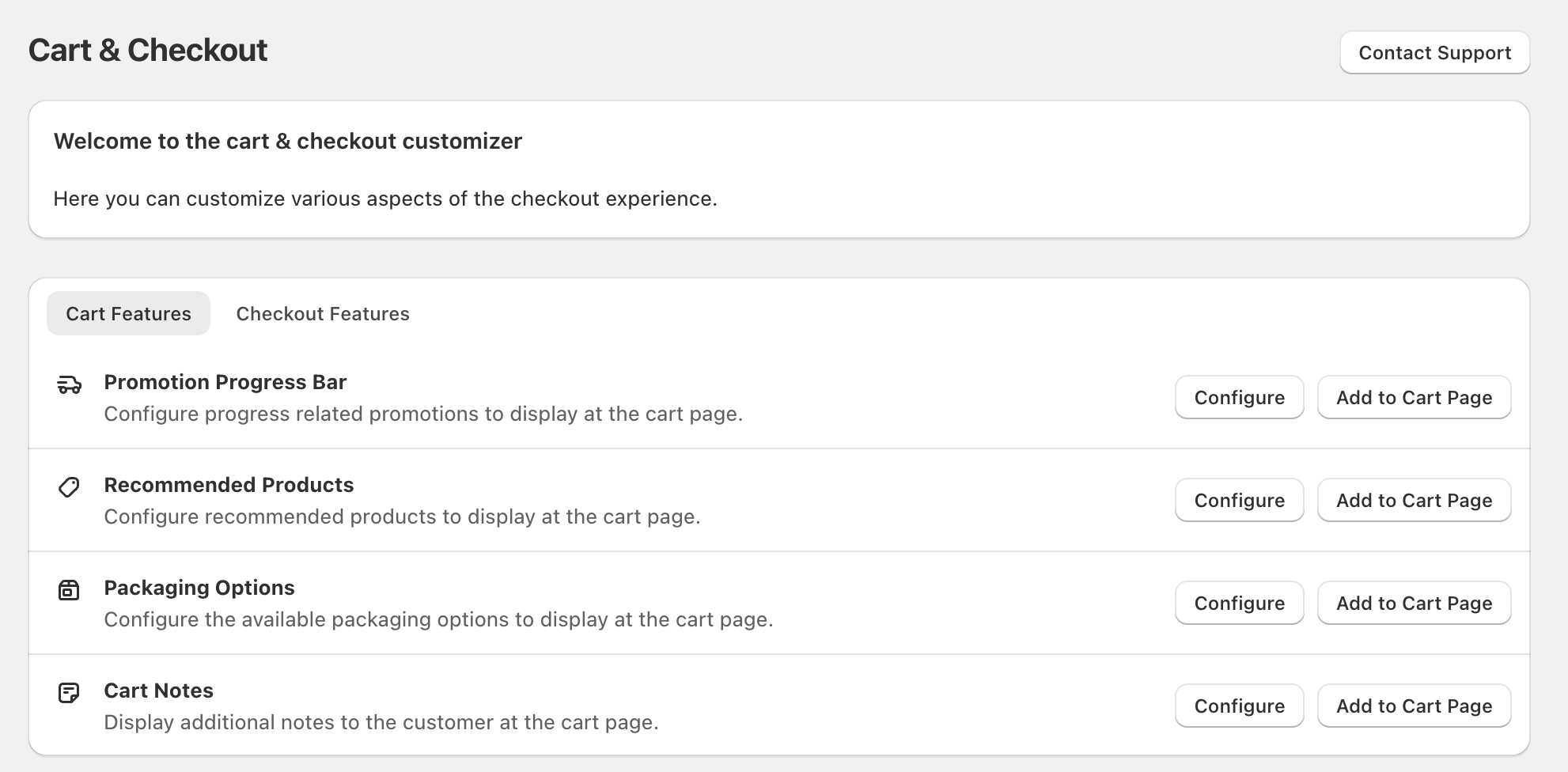
Navigate between Cart and Checkout features
At the top of the feature list, use the tabs to switch what you’re editing:
- Cart Features (features that display on the cart page)
- Checkout Features (features that display on the checkout page)
Configure and add Cart Features
On the Cart Features tab, each row includes two actions:
- Configure — set up the feature’s options
- Add to Cart Page — place the feature on your cart page
Available Cart Features
- Promotion Progress Bar — “Configure progress related promotions to display at the cart page.”
- Recommended Products — “Configure recommended products to display at the cart page.”
- Packaging Options — “Configure the available packaging options to display at the cart page.”
- Cart Notes — “Display additional notes to the customer at the cart page.”
Configure and add Checkout Features
On the Checkout Features tab, you’ll see checkout-specific features with the same two actions:
- Configure
- Add to Checkout Page
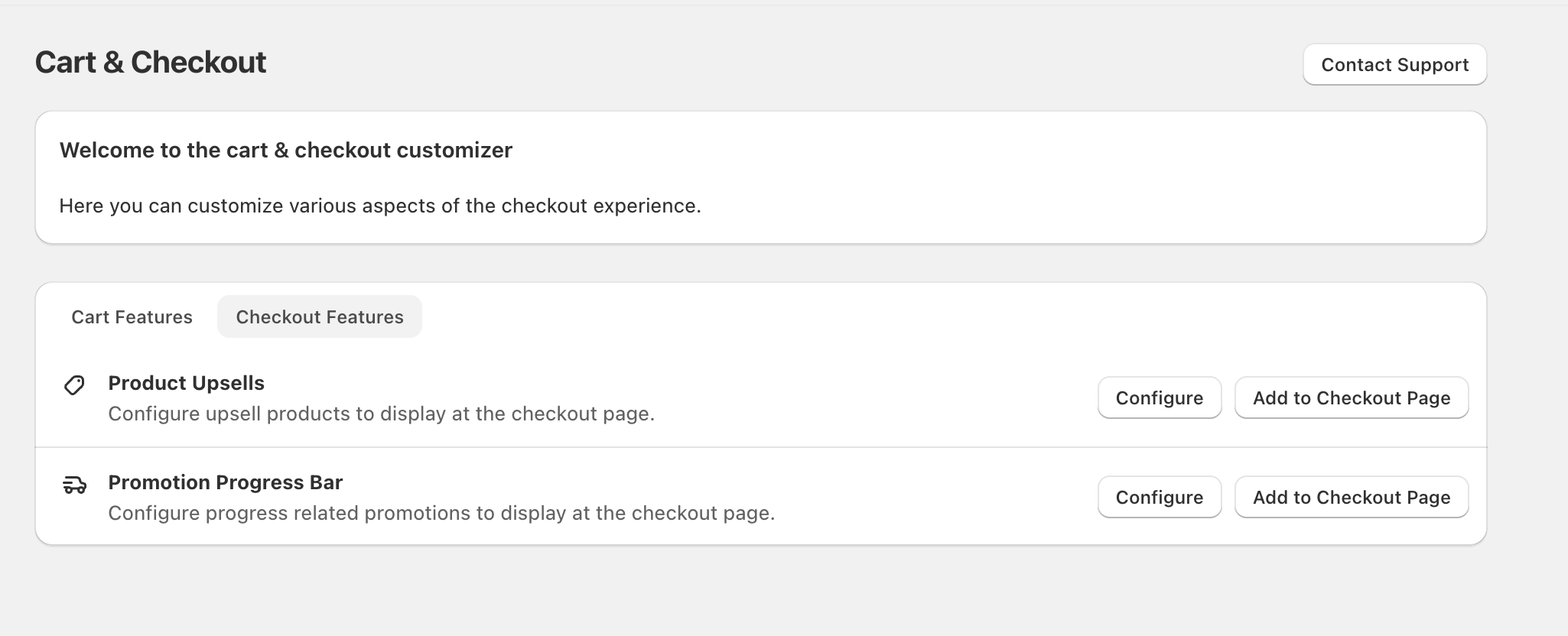
Available Checkout Features
- Product Upsells — “Configure upsell products to display at the checkout page.”
- Promotion Progress Bar — “Configure progress related promotions to display at the checkout page.”
Get help
If you get stuck, select Contact Support in the top-right of the Cart & Checkout screen.