> For the complete documentation index, see [llms.txt](https://docs.roadmap.so/llms.txt). Markdown versions of documentation pages are available by appending `.md` to page URLs; this page is available as [Markdown](https://docs.roadmap.so/loyalty-and-rewards/membership-tiers-and-referrals/tier-progression-rules.md).
# Tier progression rules
### Where tier progression rules are set
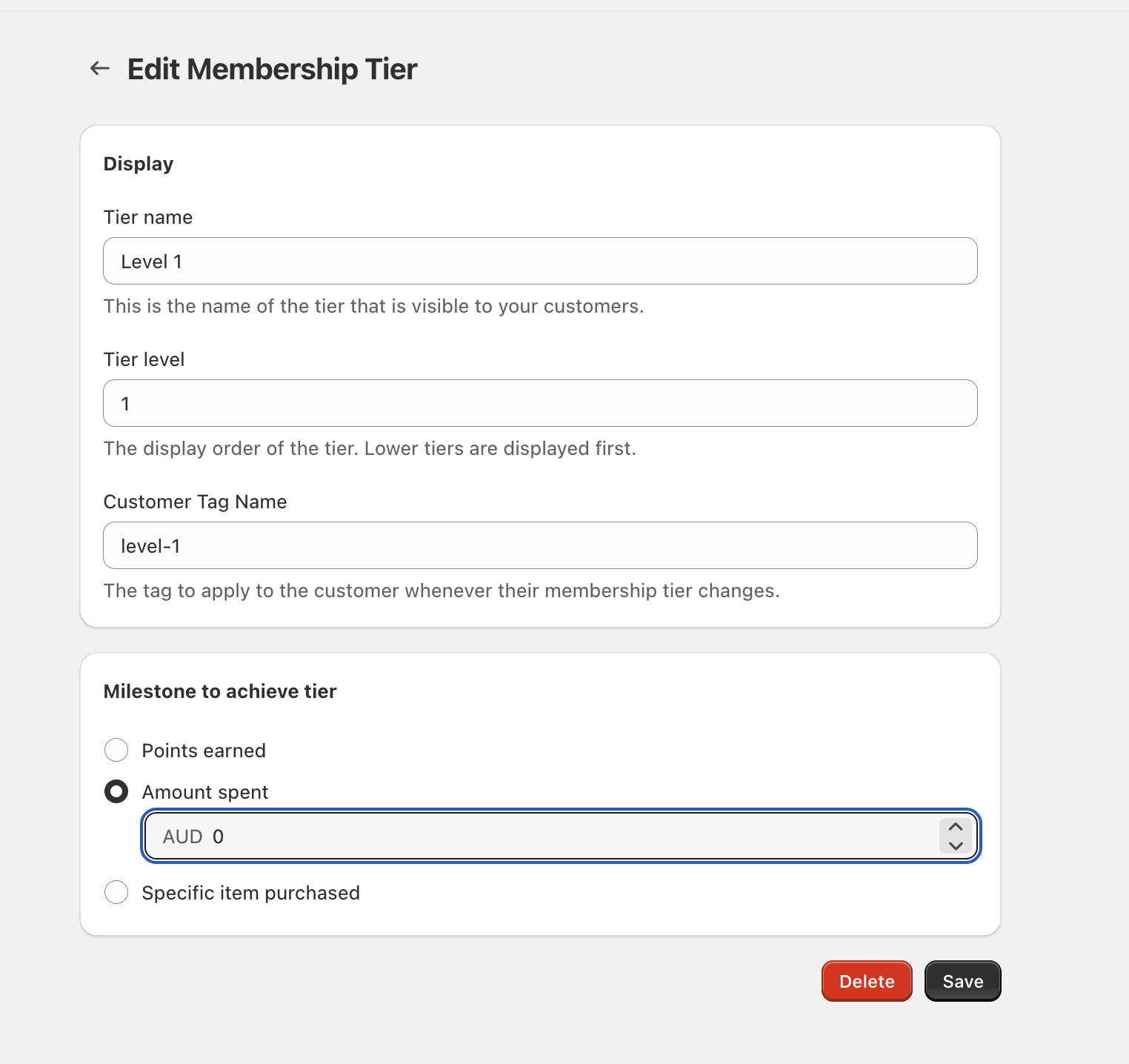
Tier progression is configured in your **Loyalty Program** under **Membership Tiers**. Each tier has its own earning rule in the **Milestone to achieve tier** section on the **Edit Membership Tier** screen.
### Set progression rules for a tier
{% stepper %}
{% step %}
#### Open Membership Tiers
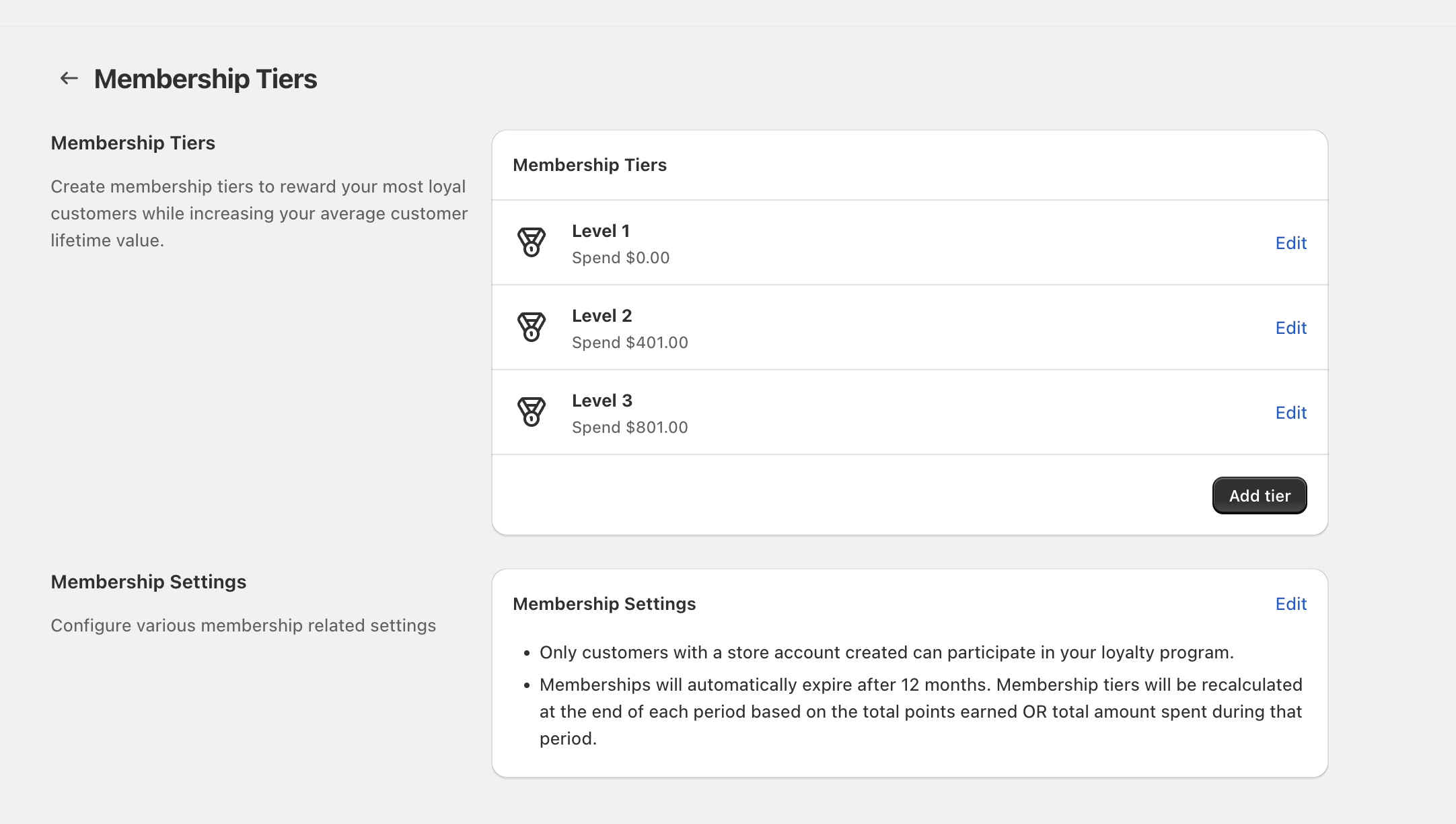
Go to **Loyalty Program** → **Membership Tiers**.
{% endstep %}
{% step %}
#### Edit the tier
In the tier list (for example, `Level 1`, `Level 2`, `Level 3`), click **Edit** on the tier you want to change.
{% endstep %}
{% step %}
#### Choose the milestone
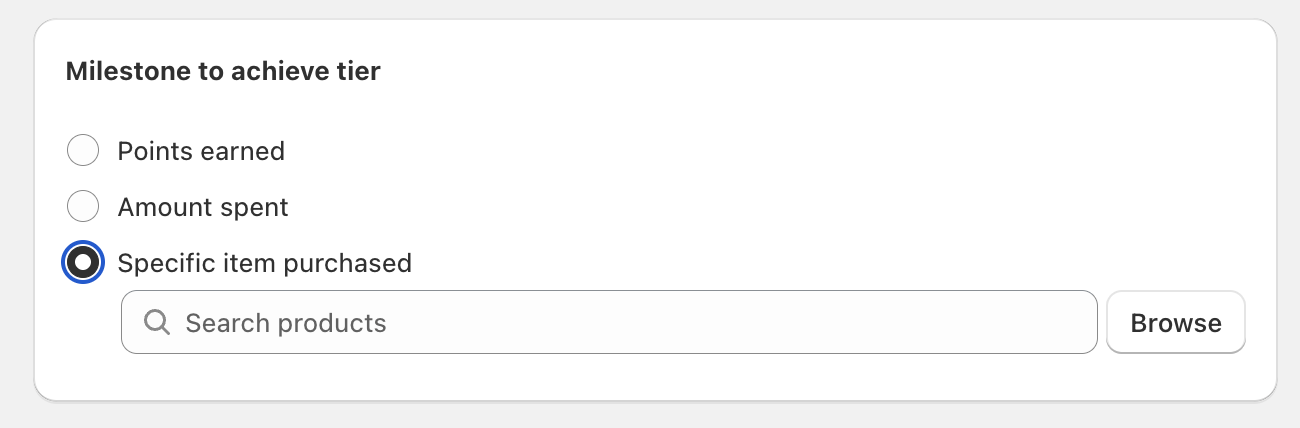
On **Edit Membership Tier**, find **Milestone to achieve tier** and choose one option:
* **Points earned** — progress when customers reach the points threshold you set.
* **Amount spent** — progress when customers reach the spend threshold (shown in your store currency, for example `AUD`).
* **Specific item purchased** — progress when customers purchase a product you select.
{% endstep %}
{% step %}
#### Enter the threshold or pick a product
* If you chose **Points earned** or **Amount spent**, enter the number in the input field.
* If you chose **Specific item purchased**, use **Search products** or click **Browse** to select the qualifying item.
{% endstep %}
{% step %}
#### Save
Click **Save** to apply the new progression rule.
{% endstep %}
{% endstepper %}
### Set tier order (what customers see first)
Tier order is controlled by the **Tier level** field in the **Display** section on **Edit Membership Tier**. Lower tiers are displayed first.
If you want a standard ladder (Level 1 → Level 2 → Level 3), set **Tier level** to `1`, `2`, and `3` respectively.
### Use tags when a tier changes
Each tier can apply a tag to customers when their tier changes. On **Edit Membership Tier**, set **Customer Tag Name** (for example, `level-1`). This is helpful if you segment or filter customers elsewhere using tags.
**Tier name** is the label customers see (for example, Bronze). **Customer Tag Name** is the internal tag applied when their tier changes.
### How tier progression is recalculated over time
On the **Membership Tiers** page, review the **Membership Settings** panel for the lifecycle rules:
* **Only customers with a store account created** can participate in your loyalty program.
* **Memberships automatically expire after 12 months.**
* **Membership tiers will be recalculated at the end of each period** based on the customer’s **total points earned OR total amount spent** during that period (depending on how your tiers are configured).
Because tiers are recalculated at the end of each period, a customer may move down a tier after the period closes if they didn’t maintain the required points/spend during that period.
### Add or remove tiers
* **Add a tier:** On **Membership Tiers**, click **Add tier**.
* **Delete a tier:** Open the tier with **Edit**, then click **Delete** on the **Edit Membership Tier** screen.
Deleting a tier removes that tier configuration. If you use the tier’s **Customer Tag Name** in other tools or campaigns, update those workflows before deleting.
### FAQ
Can different tiers use different progression rules?
Yes. Each tier has its own **Milestone to achieve tier** setting, so one tier can be based on **Amount spent** while another is based on **Points earned** or **Specific item purchased**.
Why does my tier list show Level 1, Level 2, Level 3?
Those are default names. You can rename them using the **Tier name** field on **Edit Membership Tier**.
Where do I set VIP perks for reaching a tier?
Tier progression rules decide *who qualifies*. Tier perks are configured separately under **Membership Tiers** in **Reward Customers** / **Customer Rewards** using triggers like **Tier Reached** or **Time Completed**.
---
# Agent Instructions
This documentation is published with GitBook. GitBook is the documentation platform designed so that both humans and AI agents can read, navigate, and reason over technical content effectively. Learn more at gitbook.com.
## Querying This Documentation
If you need additional information that is not directly available in this page, you can query the documentation dynamically by asking a question.
Perform an HTTP GET request on the current page URL with the `ask` query parameter, and the optional `goal` query parameter:
```
GET https://docs.roadmap.so/loyalty-and-rewards/membership-tiers-and-referrals/tier-progression-rules.md?ask=&goal=
```
`ask` is the immediate question: it should be specific, self-contained, and written in natural language.
`goal` is optional and describes the broader end goal you are ultimately trying to accomplish on behalf of the user. GitBook uses it to tailor the answer towards what is most useful for that goal.
The response will contain a direct answer to the question and relevant excerpts and sources from the documentation.
Use this mechanism when the answer is not explicitly present in the current page, you need clarification or additional context, or you want to retrieve related documentation sections.