> For the complete documentation index, see [llms.txt](https://docs.roadmap.so/llms.txt). Markdown versions of documentation pages are available by appending `.md` to page URLs; this page is available as [Markdown](https://docs.roadmap.so/cart-and-checkout/configure-features.md).
# Configure features
### Overview
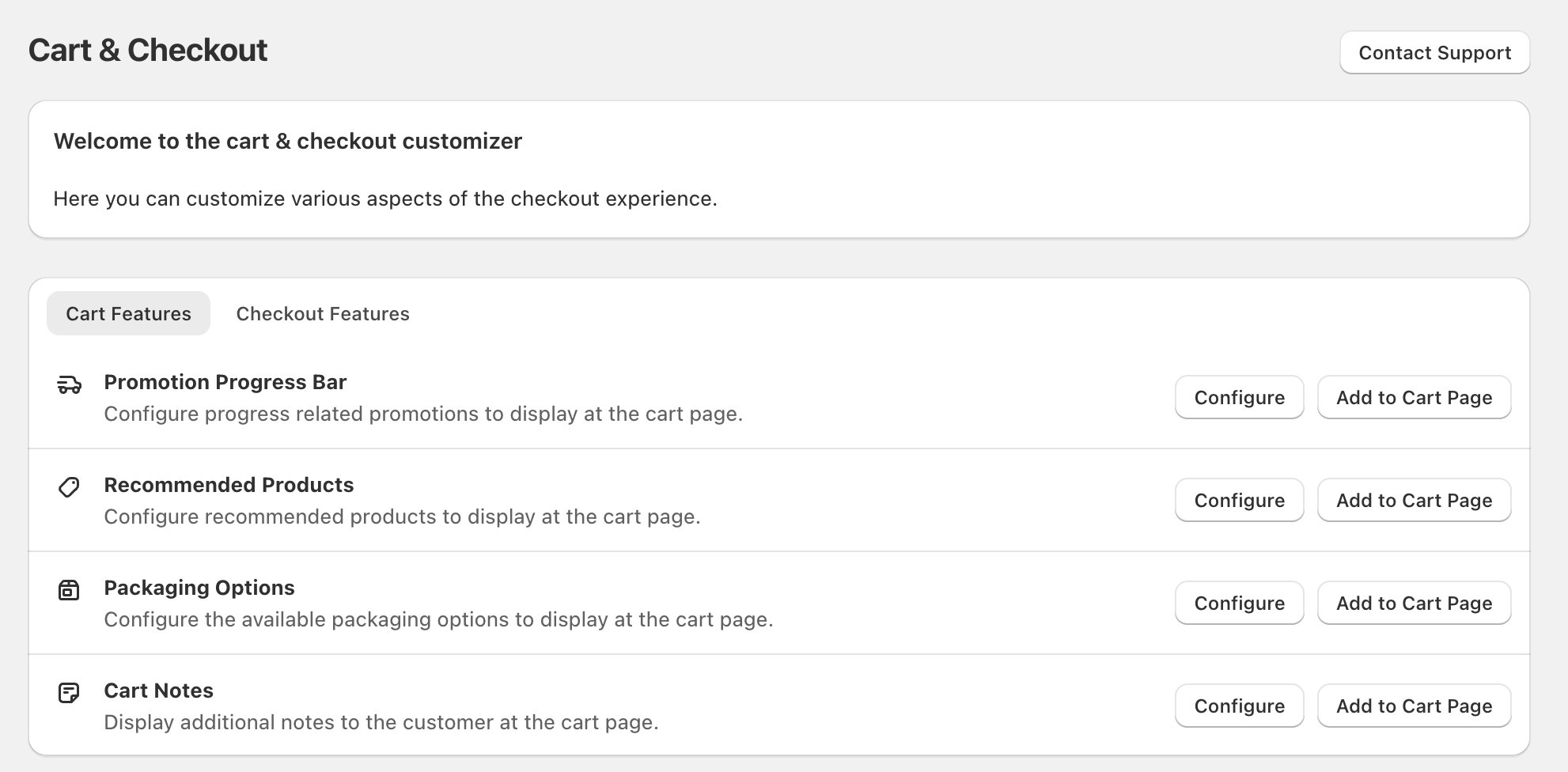
The **Cart & Checkout** screen is where you customize key parts of your cart and checkout experience. Each feature can be configured, then added directly to the customer-facing page using the action buttons on the right.
### Navigate between Cart and Checkout features
At the top of the feature list, use the tabs to switch what you’re editing:
* **Cart Features** (features that display on the cart page)
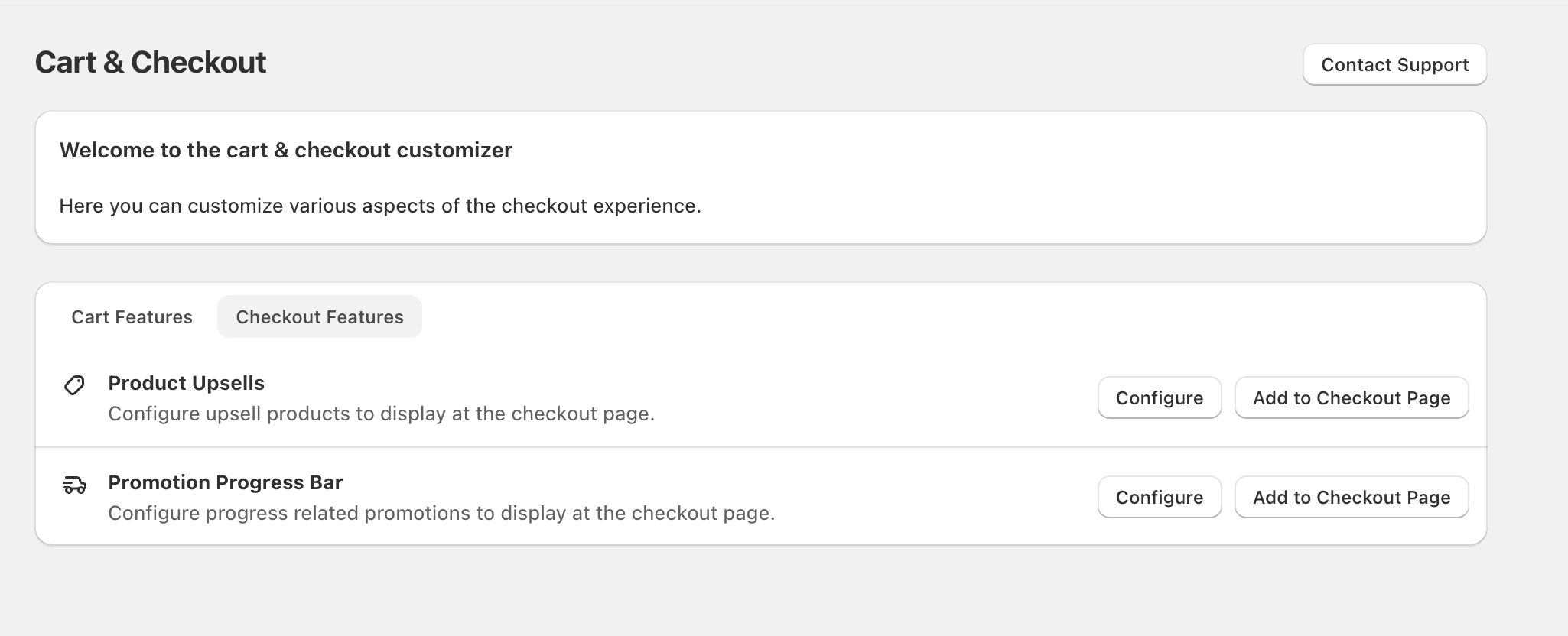
* **Checkout Features** (features that display on the checkout page)
The tabs change the destination of the “Add to … Page” button (for example, **Add to Cart Page** vs **Add to Checkout Page**).
### Configure and add Cart Features
On the **Cart Features** tab, each row includes two actions:
* **Configure** — set up the feature’s options
* **Add to Cart Page** — place the feature on your cart page
### Available Cart Features
* **Promotion Progress Bar** — “Configure progress related promotions to display at the cart page.”
* **Cart Announcement Bar** — “Configure announcement messages to display at the cart page.”
* **Recommended Products** — “Configure recommended products to display at the cart page.”
* **Packaging Options** — “Configure the available packaging options to display at the cart page.”
* **Cart Notes** — “Display additional notes to the customer at the cart page.”
{% stepper %}
{% step %}
#### Open Cart Features
Go to **Cart & Checkout** and select the **Cart Features** tab.
{% endstep %}
{% step %}
#### Configure a feature
Find the feature you want (for example, **Recommended Products**) and select **Configure**.
{% endstep %}
{% step %}
#### Add it to your cart page
When you’re ready to display it, select **Add to Cart Page** on that same row.
If you’re unsure whether a feature is correctly set up, use **Configure** first—then add it to the page once it looks right.
{% endstep %}
{% endstepper %}
\\
### Configure and add Checkout Features
On the **Checkout Features** tab, you’ll see checkout-specific features with the same two actions:
* **Configure**
* **Add to Checkout Page**
### Available Checkout Features
* **Product Upsells** — “Configure upsell products to display at the checkout page.”
* **Promotion Progress Bar** — “Configure progress related promotions to display at the checkout page.”
{% stepper %}
{% step %}
#### Open Checkout Features
On **Cart & Checkout**, select the **Checkout Features** tab.
{% endstep %}
{% step %}
#### Configure the feature
Select **Configure** next to **Product Upsells** (or another checkout feature).
{% endstep %}
{% step %}
#### Add it to checkout
Select **Add to Checkout Page** to display it during checkout.
{% endstep %}
{% endstepper %}
### Get help
If you get stuck, select **Contact Support** in the top-right of the **Cart & Checkout** screen.
Support can help confirm which features are supported on your store’s cart and checkout experience.
---
# Agent Instructions
This documentation is published with GitBook. GitBook is the documentation platform designed so that both humans and AI agents can read, navigate, and reason over technical content effectively. Learn more at gitbook.com.
## Querying This Documentation
If you need additional information that is not directly available in this page, you can query the documentation dynamically by asking a question.
Perform an HTTP GET request on the current page URL with the `ask` query parameter, and the optional `goal` query parameter:
```
GET https://docs.roadmap.so/cart-and-checkout/configure-features.md?ask=&goal=
```
`ask` is the immediate question: it should be specific, self-contained, and written in natural language.
`goal` is optional and describes the broader end goal you are ultimately trying to accomplish on behalf of the user. GitBook uses it to tailor the answer towards what is most useful for that goal.
The response will contain a direct answer to the question and relevant excerpts and sources from the documentation.
Use this mechanism when the answer is not explicitly present in the current page, you need clarification or additional context, or you want to retrieve related documentation sections.