> For the complete documentation index, see [llms.txt](https://docs.roadmap.so/llms.txt). Markdown versions of documentation pages are available by appending `.md` to page URLs; this page is available as [Markdown](https://docs.roadmap.so/cart-and-checkout/cart-announcement-bar.md).
# Cart Announcement Bar
Show a threshold-based or static message in the cart drawer and style it to match your theme.
Use this when you want to show one clear message in the cart drawer.
It works for both threshold-based campaigns and simple announcements.
### Common use cases
Use **Cart Announcement Bar** when you want to show one clear message at the point of cart review.
Typical use cases include:
* **Threshold campaigns** — promote offers that unlock at a spend target, such as a Gift with Purchase, free shipping, or a percentage discount
* **Gift with Purchase reminders** — tell shoppers they are close to qualifying, or confirm the gift has been added after they cross the threshold
* **General announcements** — show simple messages like `Sale ends at midnight` or `Last day for Easter delivery`
* **Campaign reminders** — reinforce a current promotion while the shopper reviews their cart
* **Gift selection prompts** — tell shoppers to add or choose their free gift when the promotion does not auto-add it
* **Operational notices** — highlight shipping delays, dispatch cutoffs, or other storewide cart notices
{% hint style="warning" %}
This feature needs initial theme integration by the Roadmap team.
If it was not implemented during onboarding, contact Roadmap support.
{% endhint %}
### Choose the right setup
Use a **threshold message** when the cart message should change after the shopper reaches a spend target.
This is the right setup for Gift with Purchase, free shipping, and percent-off threshold campaigns.
Use a **simple announcement bar** when the message should stay the same for every shopper.
This is the right setup for sale deadlines, shipping cutoffs, and general store notices.
### Where to find the Cart Announcement Bar settings
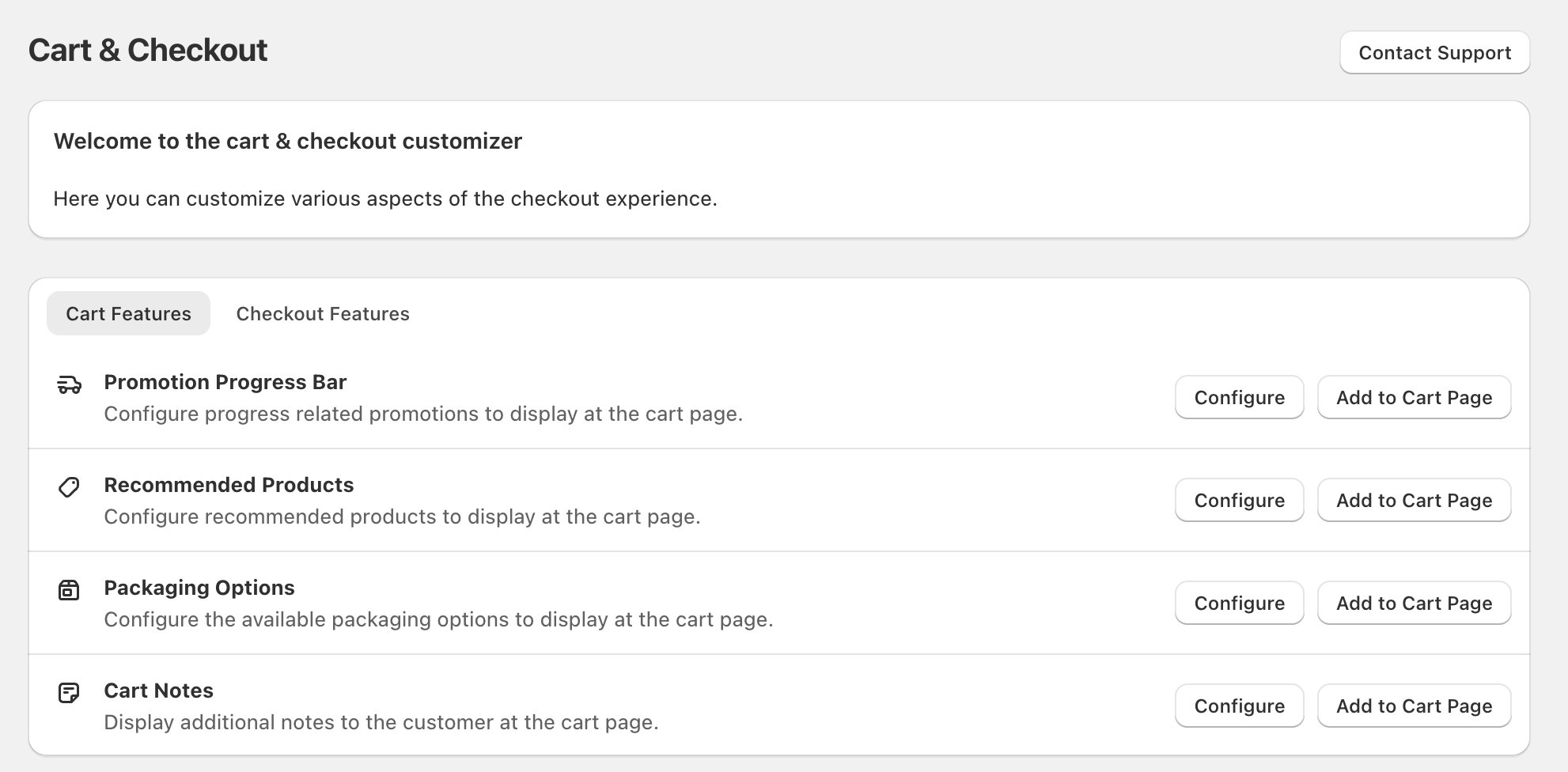
Go to **Cart & Checkout**.
On the **Cart Features** tab, find **Cart Announcement Bar** and select **Configure**.
### Before you configure it
Decide these four things first:
* whether this should be a simple announcement or a threshold message
* the threshold amount
* the main message before the threshold is reached
* the message shoppers should see after the threshold is reached
### Configure the message
{% stepper %}
{% step %}
#### Turn on threshold messaging if needed
Enable **Threshold Message** if the bar should react to cart value.
Use this for spend-based campaigns like GWP, free shipping, or percent-off offers.
Leave the threshold empty if you want a simple announcement bar.
{% endstep %}
{% step %}
#### Set the threshold amount
Enter the spend target if you are running a threshold campaign.
For example, use **$500** if shoppers should qualify at $500.
{% endstep %}
{% step %}
#### Add the primary message
This is the message shown before the threshold is reached.
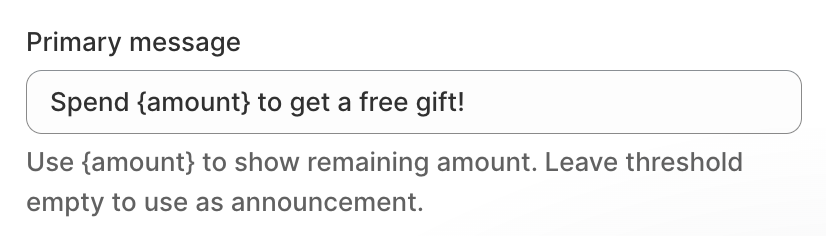
Use `{amount}` if you want to show the remaining amount automatically.
Enter `{amount}` exactly as written.
Do not type a fixed value like `{$800}`.
Roadmap replaces `{amount}` with the remaining spend automatically based on your threshold.
Threshold example:
`Spend {amount} to get a free gift!`
Fixed-text example:
`Spend over $500 and receive a free Labs Pre-workout`
Simple announcement example:
`Sale ends at midnight`
{% endstep %}
{% step %}
#### Add the threshold crossed message
Use this when the shopper has already qualified.
This matters most for threshold campaigns.
If Roadmap GWP adds the gift automatically, a good message is:
`Your free gift has been added!`
If the shopper must choose the gift themselves, use a call to action instead:
`Add your free gift to your cart`
{% endstep %}
{% step %}
#### Hide the crossed message if you do not need it
Turn on **Hide crossed threshold message** if the bar should disappear after qualification.
{% endstep %}
{% endstepper %}
### Use the preview simulator
The preview updates in real time as you change the settings.
Use **Simulate Cart** to test the bar below and above the threshold.
This preview uses sample data.
Actual storefront appearance may vary by theme and cart drawer width.
### Style the widget
You can configure:
* background colour
* border colour
* border radius
* container height
* padding
* text colour
* text size
Keep the message short.
This matters most on narrow cart drawers and mobile screens.
{% hint style="info" %}
The announcement bar is also covered by the [Universal Styler](/getting-started/how-the-universal-styler-works.md), which applies your brand colors, border radius, and typography across every Roadmap block at once. Set your base there, then fine-tune the fields above.
{% endhint %}
### Save and test
Select **Save** when you are done.
If the feature is not already placed on the cart page, add it from **Cart & Checkout** after saving.
Then test it on the storefront cart drawer.
Check both desktop and mobile before you go live.
### What shoppers will see
On the storefront, the announcement bar appears in the cart drawer.
It can sit above the cart items and update as the cart changes.
Desktop cart drawer showing the announcement bar above the cart items.
Mobile cart drawer showing the announcement bar above the cart items.
### Best practices
* keep the message short and clear
* use a threshold setup only when the message should change at a spend target
* use a simple announcement for fixed messages like deadlines or store notices
* test well below and well above the threshold
* use a crossed-threshold message when a gift is added automatically
* use a call to action when the shopper still needs to pick a gift or variant
### Related guides
* Configure features
* Create a Gift with Purchase discount
* [Universal Styler](/getting-started/how-the-universal-styler-works.md)
---
# Agent Instructions
This documentation is published with GitBook. GitBook is the documentation platform designed so that both humans and AI agents can read, navigate, and reason over technical content effectively. Learn more at gitbook.com.
## Querying This Documentation
If you need additional information that is not directly available in this page, you can query the documentation dynamically by asking a question.
Perform an HTTP GET request on the current page URL with the `ask` query parameter, and the optional `goal` query parameter:
```
GET https://docs.roadmap.so/cart-and-checkout/cart-announcement-bar.md?ask=&goal=
```
`ask` is the immediate question: it should be specific, self-contained, and written in natural language.
`goal` is optional and describes the broader end goal you are ultimately trying to accomplish on behalf of the user. GitBook uses it to tailor the answer towards what is most useful for that goal.
The response will contain a direct answer to the question and relevant excerpts and sources from the documentation.
Use this mechanism when the answer is not explicitly present in the current page, you need clarification or additional context, or you want to retrieve related documentation sections.